

What is Meowgic Task?
Meowgic Task gives you an AI e-commerce team that can take on everyday operations and focused projects. You can use Task to:- Build a product launch plan
- Prepare a seasonal marketing campaign
- Review today’s orders and summarize sales performance
- Update inventory for a list of SKUs
- Audit a product page and prioritize improvements
- Review your current theme and recommend specific changes
- Find growth opportunities in your store data

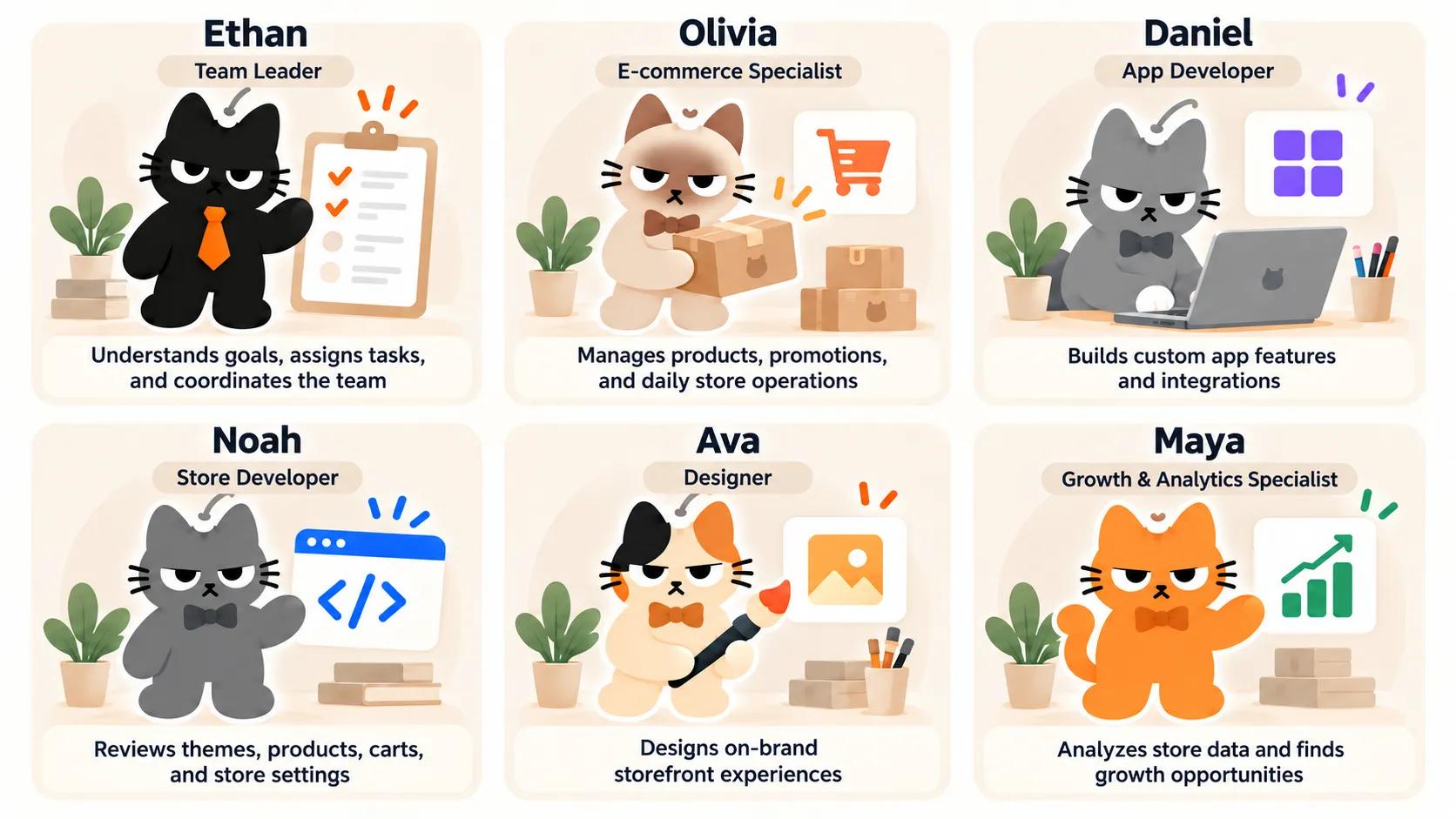
Meet your AI Team
How Task works
1
Describe the work
Select New task in the Meowgic sidebar, then explain what you want to accomplish and what a useful result should include.
2
Answer follow-up questions
If important information is missing, the Team leader will ask for it. For example, if you have connected more than one store, you will need to choose the store for this Task.
3
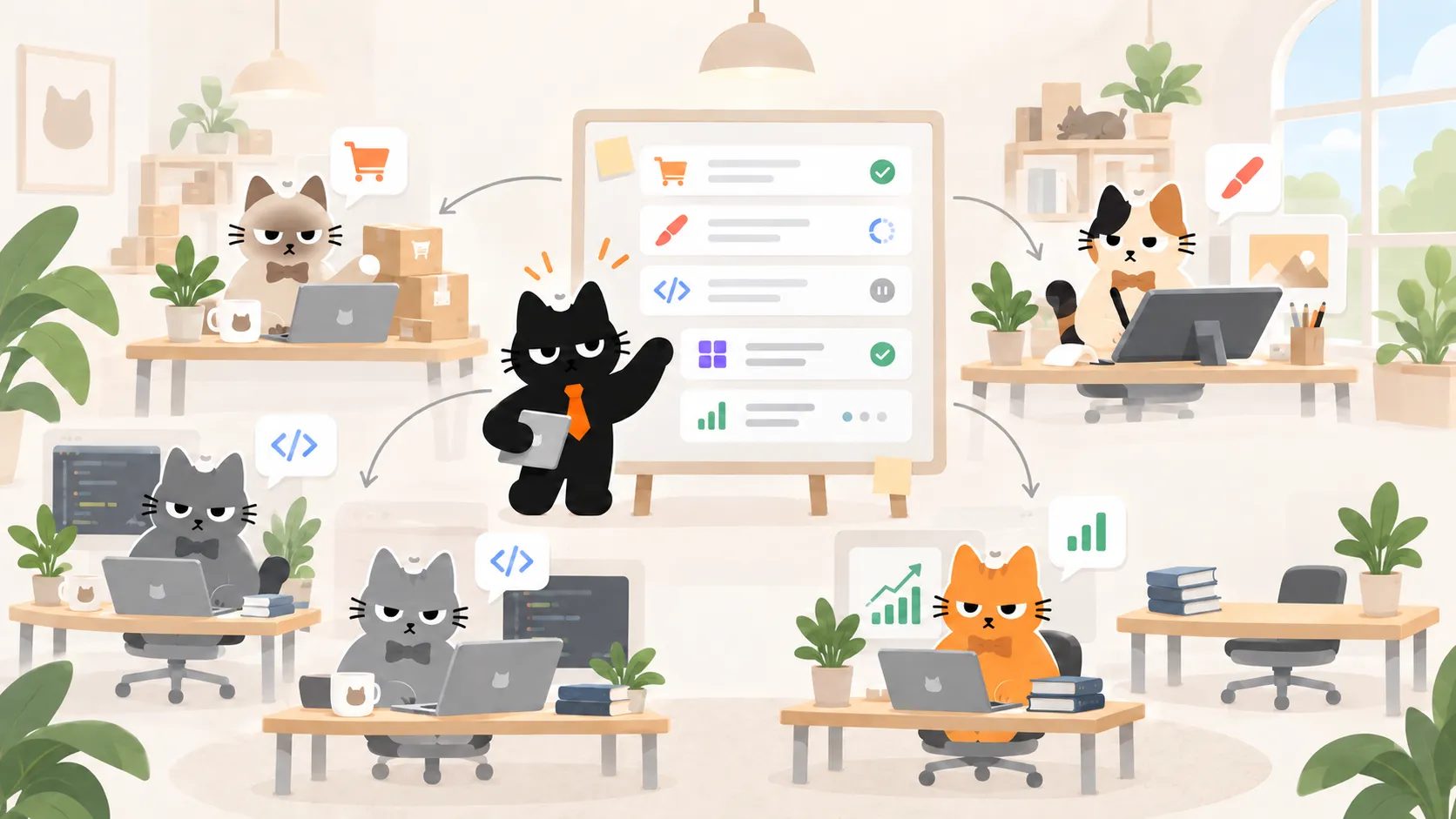
Let the Team leader assign specialists
The Team leader decides which specialists are needed and assigns the work. You can see who is involved and what each team member is working on inside the Task.
4
Review the result
Once the specialists finish their work, the Team leader brings the results together. If the next action would change store data, Task will show you the proposed changes first.
5
Approve store changes
You can approve the changes, request revisions, or stop the action. Task will not change store data without your confirmation.
How to write a clear Task request
To help Task produce a useful result, include these four types of information:
A vague request:
When does Task need store data?
Use one simple rule: if the work requires Task to read or change information in a real store, select a connected store.No store data needed
Start immediately when Task can work from the information you provide, such as planning a campaign, organizing ideas, or reviewing pasted materials.
Store data needed
Select a connected store when Task needs to review orders, products, inventory, traffic, or the current theme.
You only need to connect a store once. After that, you can select it in future Tasks without authorizing it again each time.
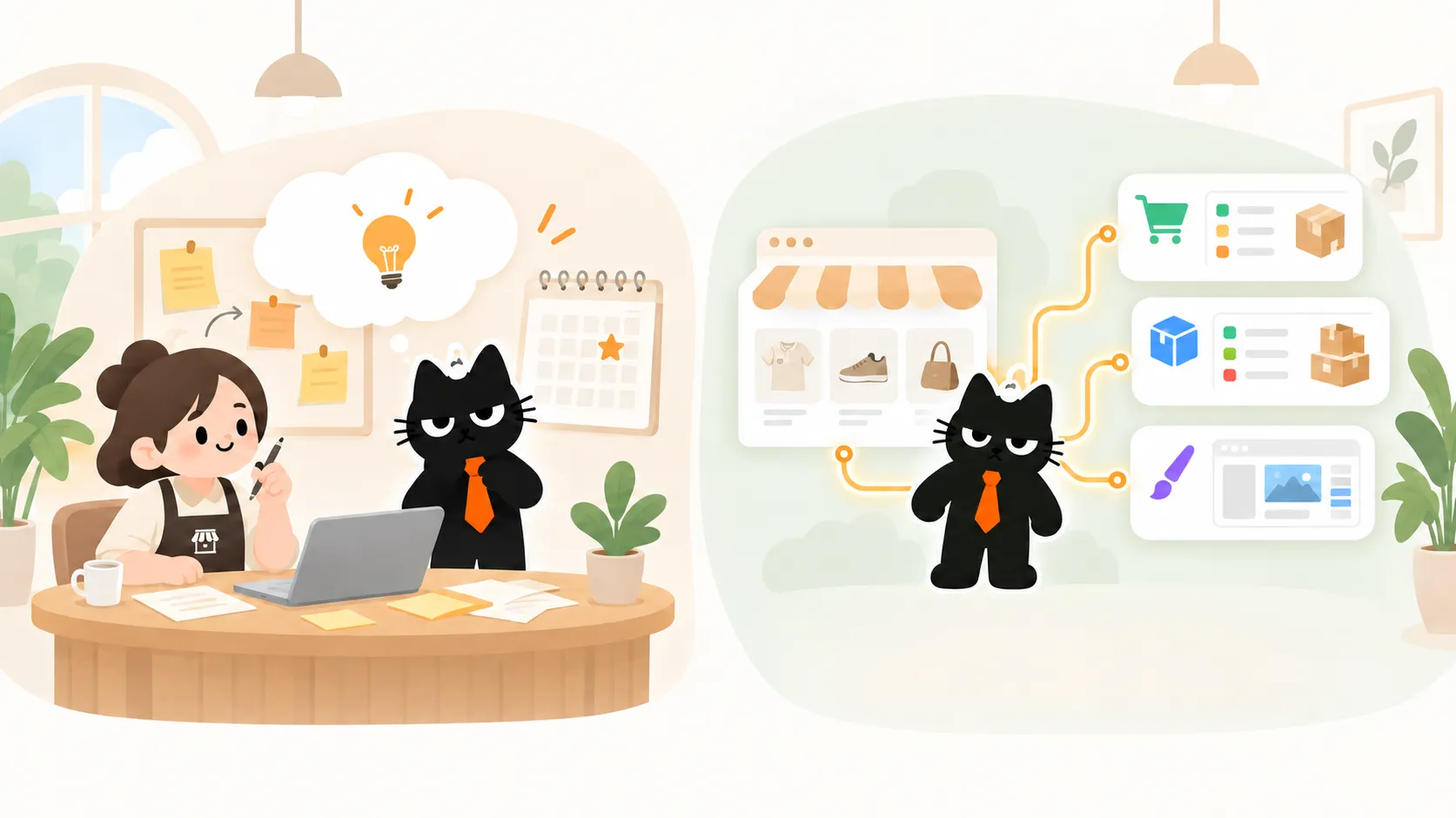
Ready-to-use Task examples
Plan a product launch
This example works from the information you provide, so it does not require a connected store.Review today’s orders
This Task needs access to real order data, so select the connected store you want to review.Update inventory for multiple SKUs
This Task needs to read and update real inventory. Select a connected store and approve the proposed changes before Task applies them.Review a product page
This Task needs to read the current theme, so select a connected store. Task can inspect the page and recommend specific improvements, but it cannot edit or publish the live theme.Frequently asked questions
Do I need to connect a store before using Task?
Do I need to connect a store before using Task?
No. You can start immediately when Task only needs the information you provide, such as when you are planning a campaign or organizing an operational plan.Select a connected store when Task needs to read orders, products, inventory, traffic, or theme data, or when you want it to update inventory.If the store is already connected, select it without authorizing it again.
Do I need to choose the specialists?
Do I need to choose the specialists?
No. The Team leader selects the specialists needed for the work. Not every Task uses every team member.
Which store platforms can I connect to Meowgic?
Which store platforms can I connect to Meowgic?
Meowgic supports Shopify, SHOPLINE, and Shoplazza stores.
Will Task change my store automatically after I connect it?
Will Task change my store automatically after I connect it?
No. Reading and analyzing data does not change your store.If you ask Task to update inventory, it will show the proposed changes and wait for your confirmation before applying them.
Can Task edit my live theme?
Can Task edit my live theme?
No.Task can review and inspect your current theme. If you want to make changes, it will guide you to create a draft copy first, and all edits will be made in that draft.
What if I have more than one connected store?
What if I have more than one connected store?
Task will ask which store to use for the current work.Check the store name and platform before continuing.
Related reading
Best practices
Learn how to provide images, reference links, and useful context so Meowgic can understand your goal more accurately.
App integrations
Explore app integration guides for Shopify, SHOPLINE, and Shoplazza.
Create and install an app
Learn how to create, publish, and install a Meowgic app in your store.
Welcome to Meowgic
Learn about Meowgic’s core capabilities and the complete workflow.