> ## Documentation Index
> Fetch the complete documentation index at: https://docs.meowgic.ai/llms.txt
> Use this file to discover all available pages before exploring further.

# 如何创建、发布并安装 Meowgic 应用到你的店铺

> 本教程将带你在 Meowgic 中创建应用、确认需求、预览应用、配置发布设置、上传并集成主题文件，最终将生成的应用安装到 Shopify、SHOPLINE 或 Shoplazza 店铺中。

<Note>
  本文以可定制的 FAQ Section 为例，不涉及应用生成技巧或调整方法。
</Note>

## 完成路径

<CardGroup cols={3}>
  <Card title="创建应用" icon="square-pen">
    输入你的想法，让 Meowgic 构建初版。
  </Card>

  <Card title="发布应用" icon="rocket">
    发布你的专属应用。
  </Card>

  <Card title="集成到店铺" icon="upload">
    上传主题并完成安装。
  </Card>
</CardGroup>

# 1. 创建应用

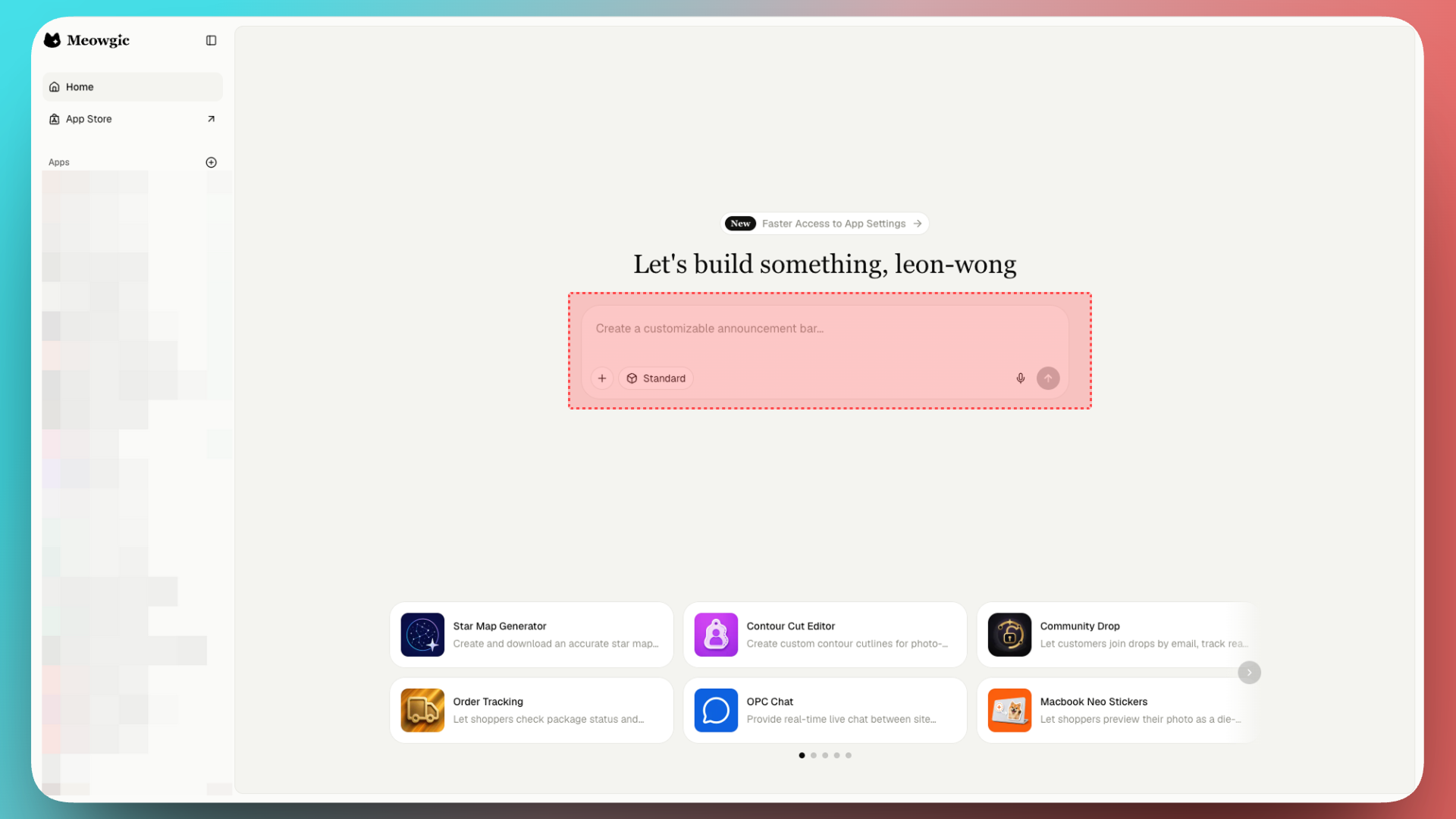
首先，打开 [Meowgic 首页](https://app.meowgic.ai/en)。
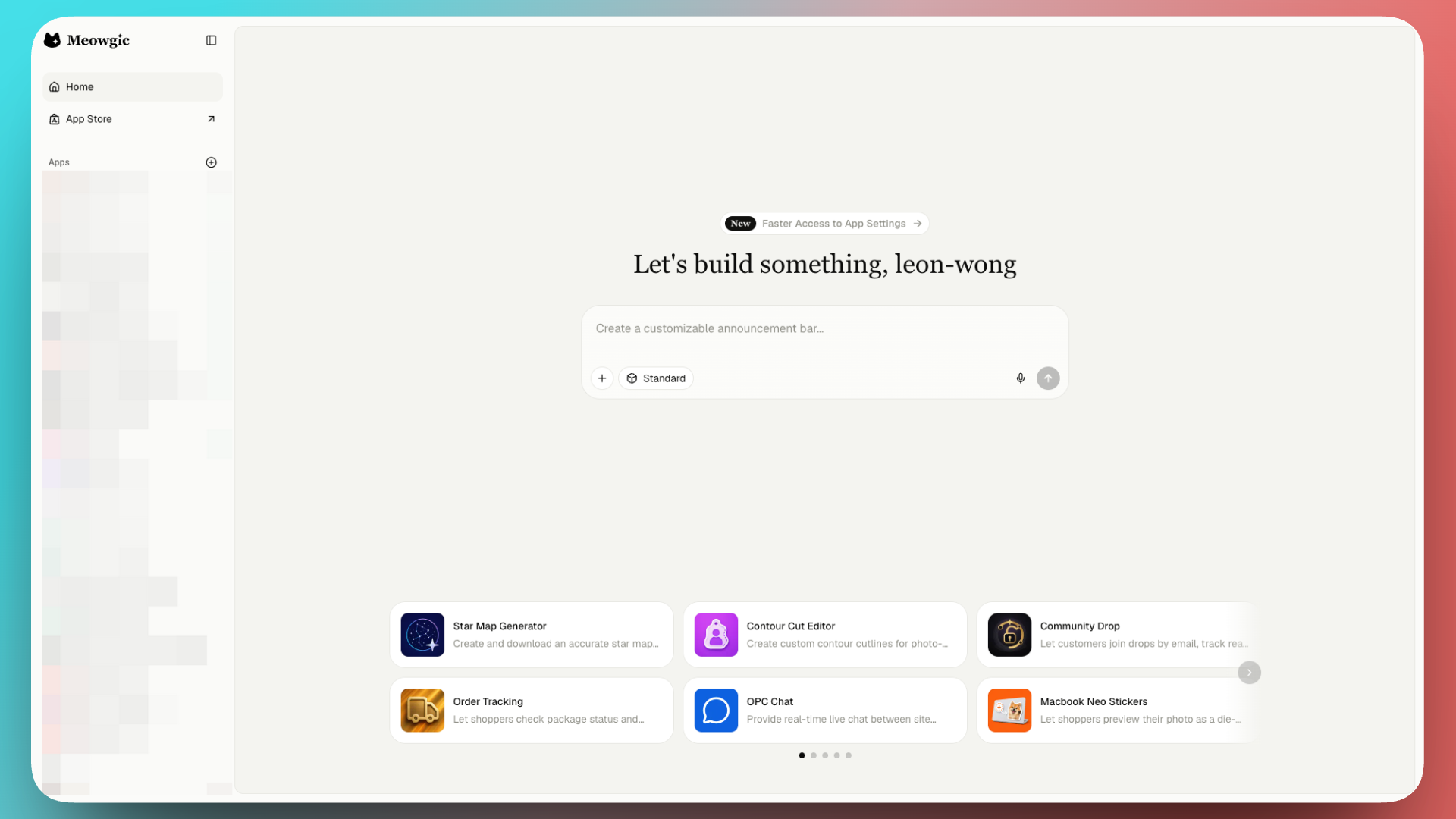
<Frame>
  <img src="https://assets.staticmeow.com/meowgic/static/images/20260703/96daffc3-4fa4-4211-98e7-d7041a9d6008.png" alt="Meowgic homepage with the app prompt box and suggested app templates." />
</Frame>

<br />

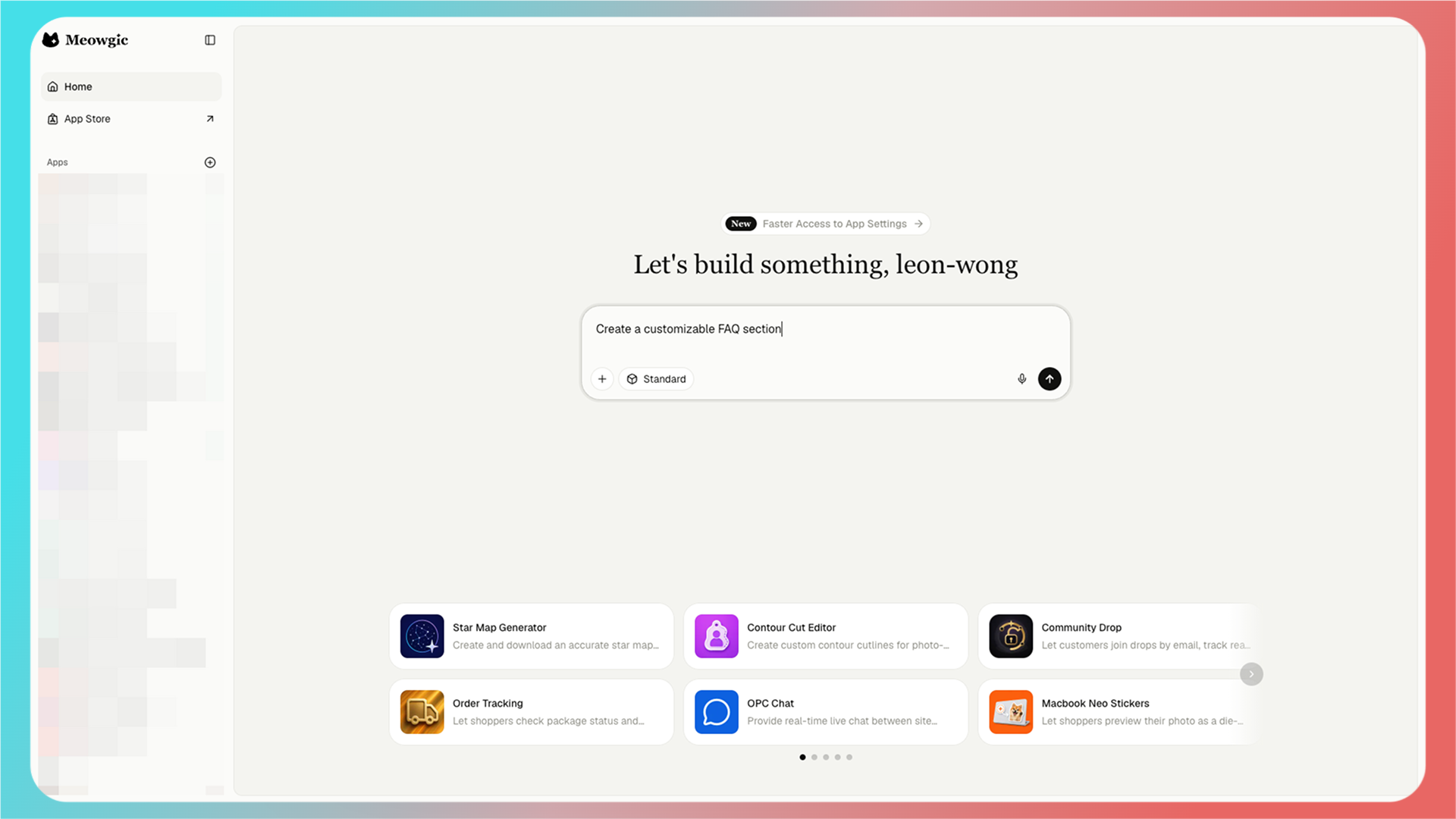
在 **Meowgic 输入框** 中输入你想创建的应用，就像给 AI 图片生成器写提示词一样。

<Frame>
  <img src="https://assets.staticmeow.com/meowgic/static/images/20260706/29fd2b7f-fa58-409a-95ea-46328744d12b.png" alt="User enters an app idea in the Meowgic homepage prompt box." />
</Frame>

<br />

例如：创建一个可定制的 FAQ Section。

<Frame>
  <img src="https://assets.staticmeow.com/meowgic/static/images/20260706/8290d9a0-35f1-4d20-955b-8ff58675afbb.png" alt="Screenshot of the Custom FAQ Section editor with the Publish panel open, highlighting the publish URL and Publish button." />
</Frame>

<br />

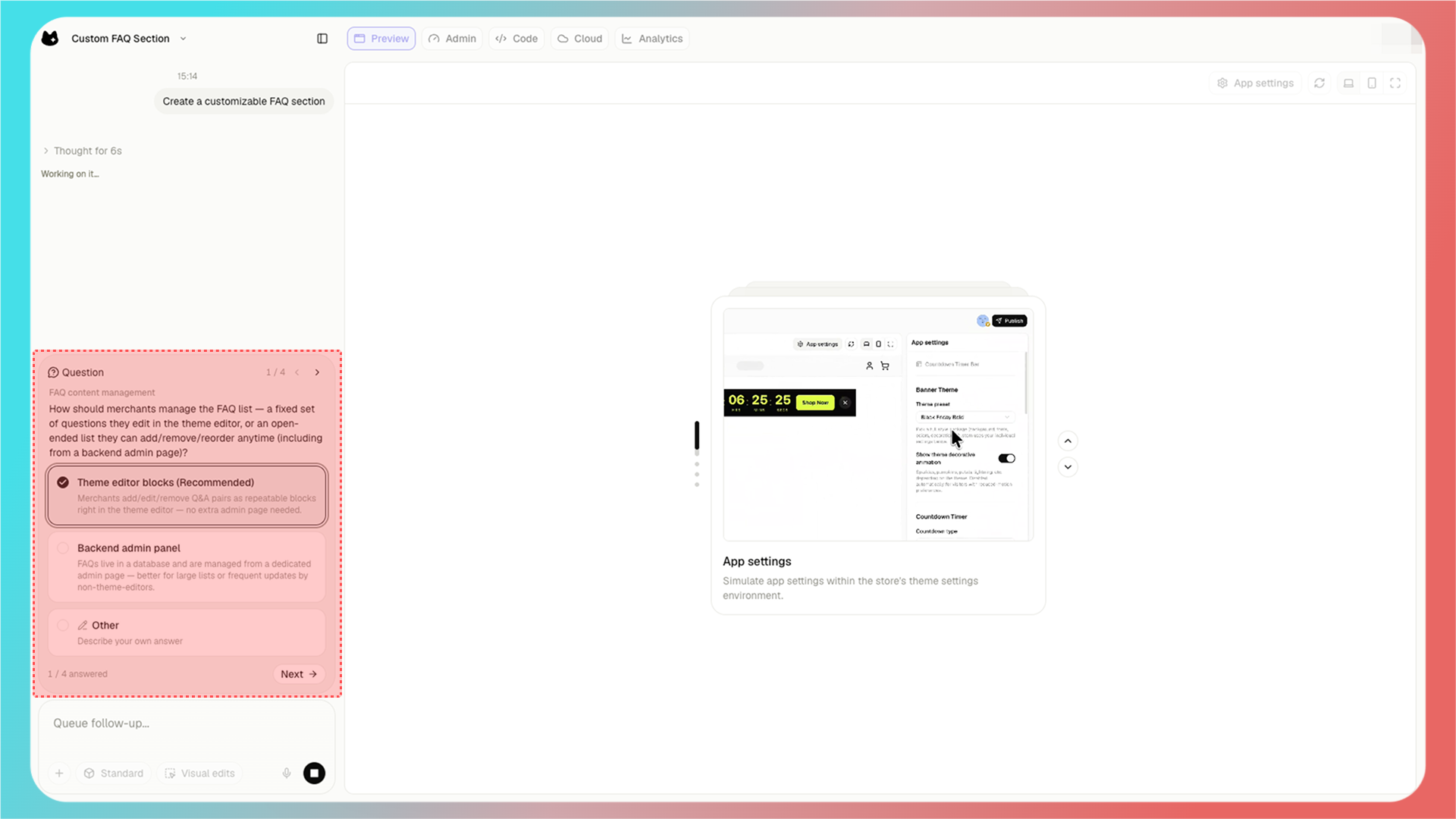
输入完成并按下回车后，Meowgic 会分析你的需求并提出问题。按照你的想法选择或回答即可。

<Frame>
  <img src="https://assets.staticmeow.com/meowgic/static/images/20260706/2a1cba2c-839b-41dc-bf15-f4b78ae1b910.png" alt="Meowgic asks how FAQ content should be managed, with theme editor blocks selected." />
</Frame>

<br />

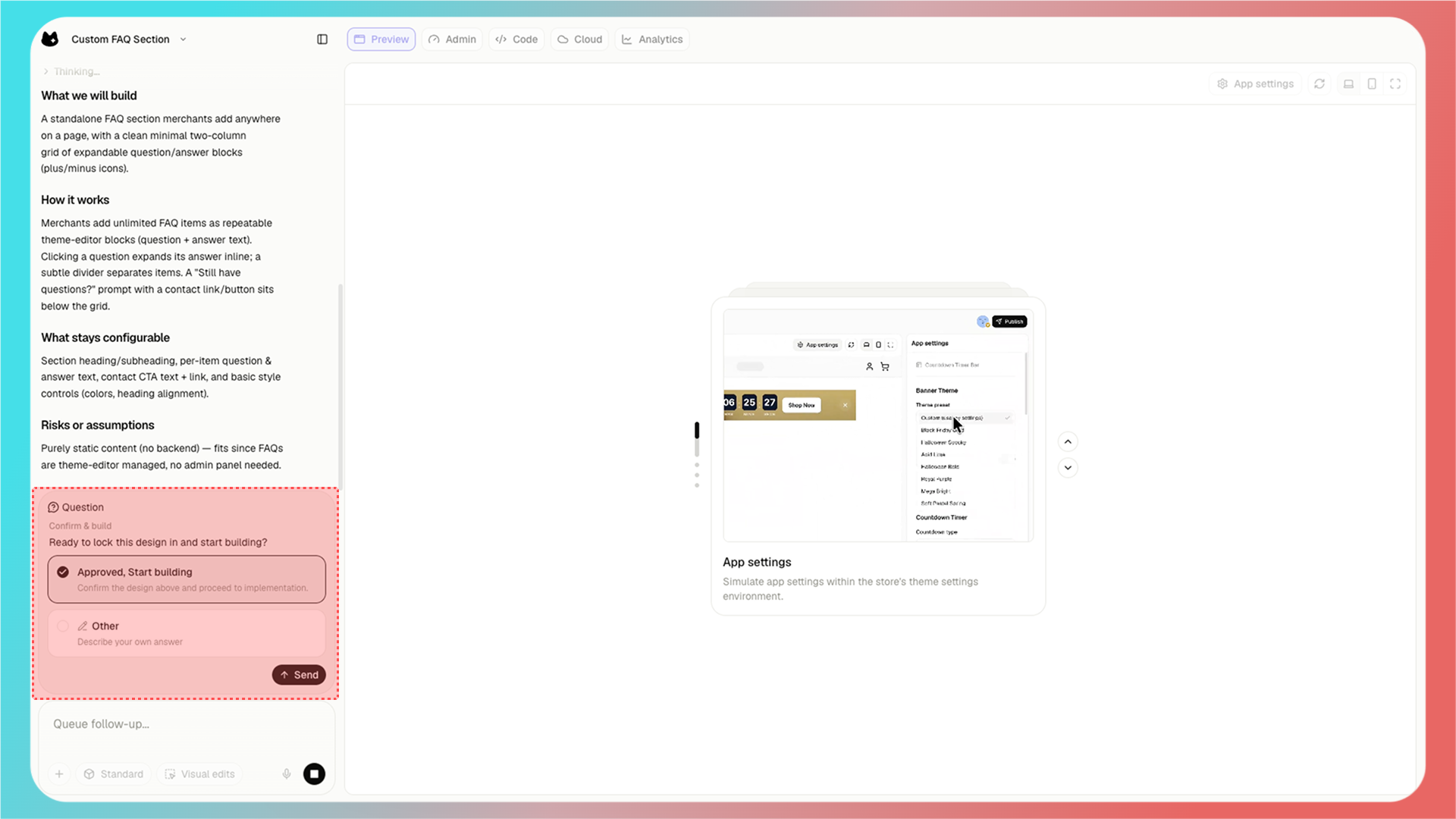
完成需求规划后，Meowgic 会生成设计清单供你确认。

<Frame>
  <img src="https://assets.staticmeow.com/meowgic/static/images/20260706/b24b0971-b376-4c82-8766-d35391a4f79e.png" alt="Meowgic shows the planned FAQ section design and the Approved, Start building option." />
</Frame>

<br />

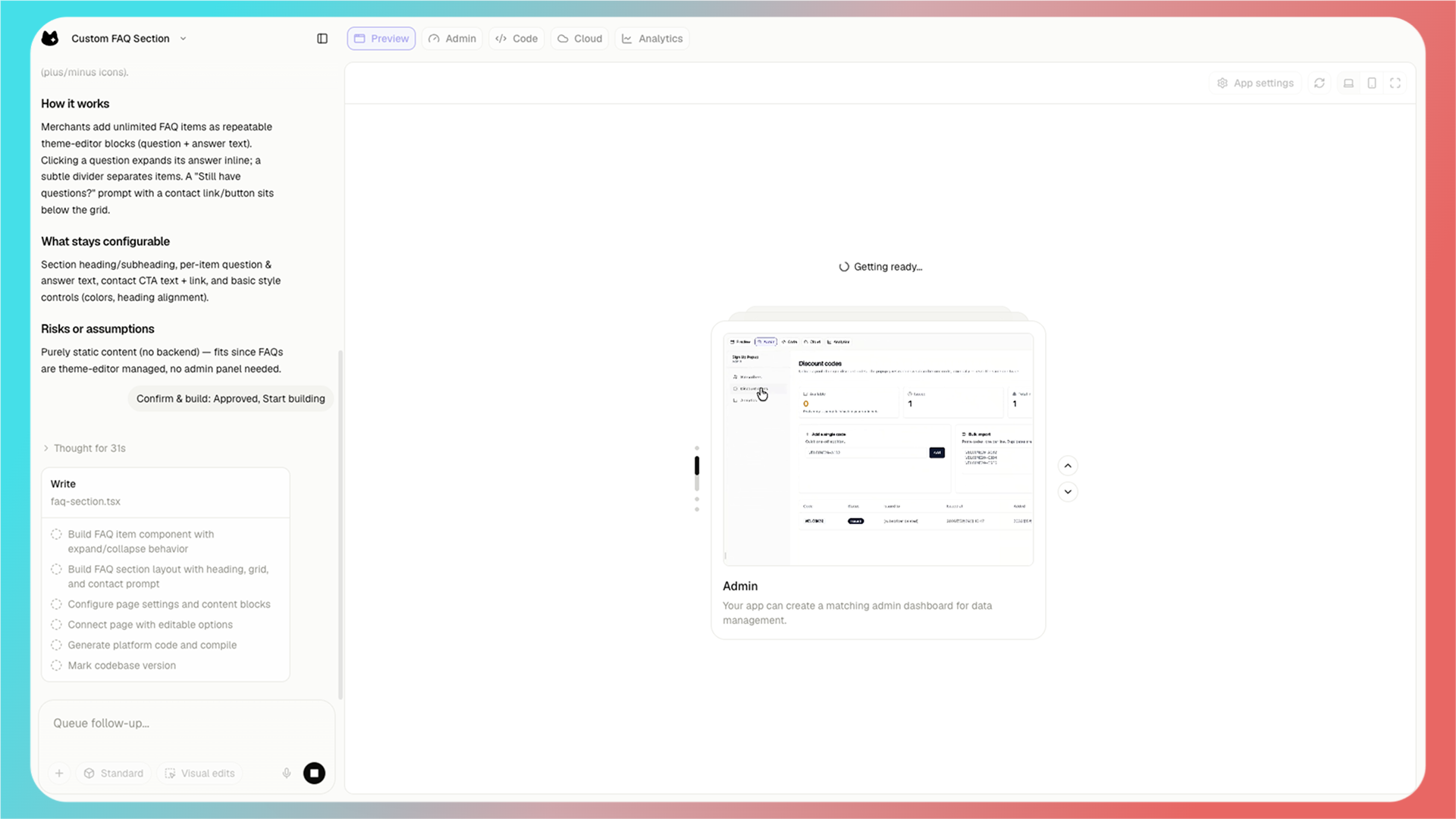
确认后，Meowgic 会列出待办清单并开始构建你的应用。

<Frame>
  <img src="https://assets.staticmeow.com/meowgic/static/images/20260706/80216e04-fadd-46c5-8cab-16fb258a5b31.png" alt="Meowgic displays a build to-do list while generating the FAQ section app." />
</Frame>

<br />

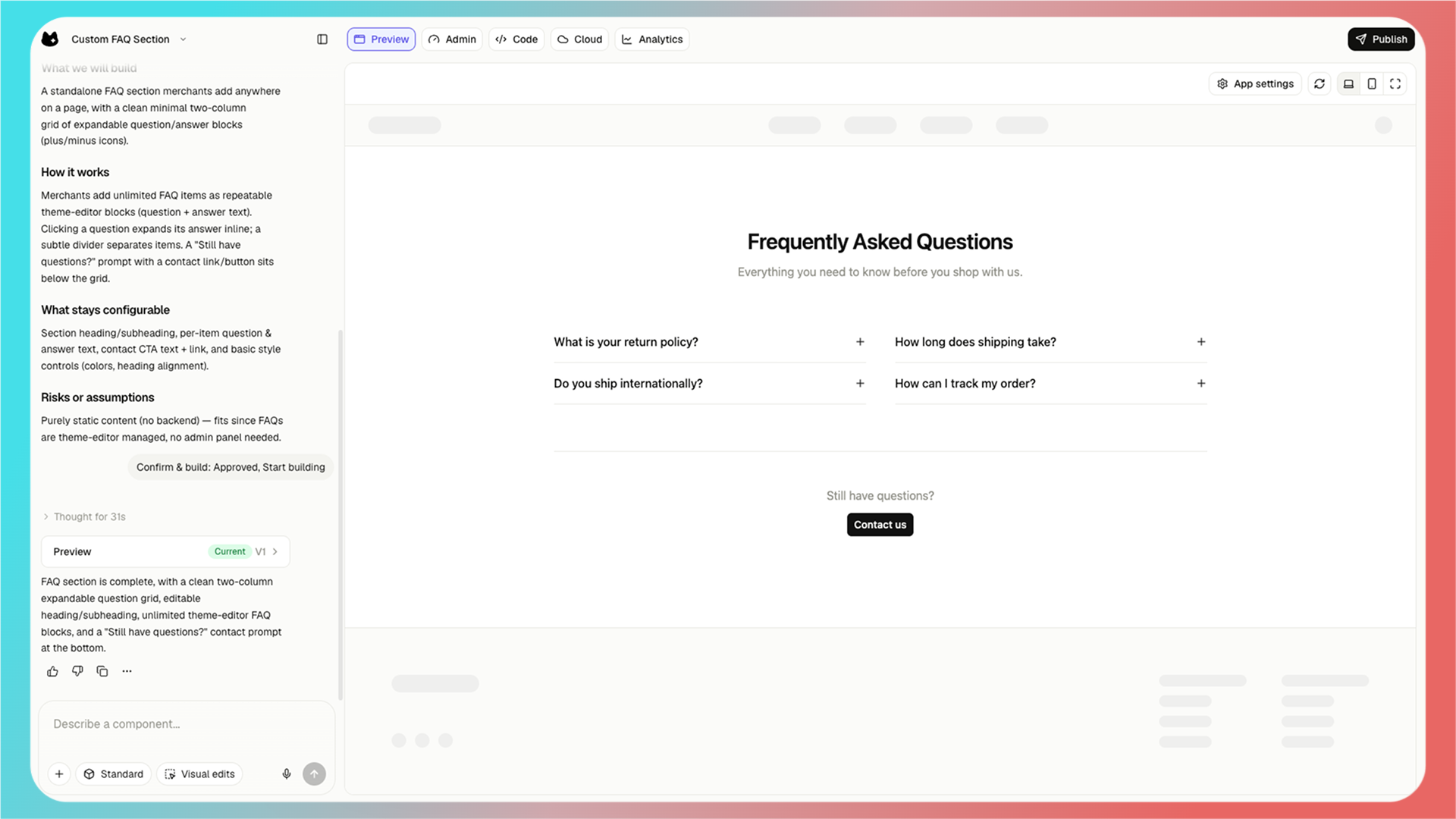
构建完成后，Meowgic 会在对话框中发送消息，此时预览界面会显示应用。

<Frame>
  <img src="https://assets.staticmeow.com/meowgic/static/images/20260706/b3bd3472-dd23-473c-81b0-7bfbea032f60.png" alt="Completed FAQ section preview with a two-column question grid and a contact button." />
</Frame>

<br />

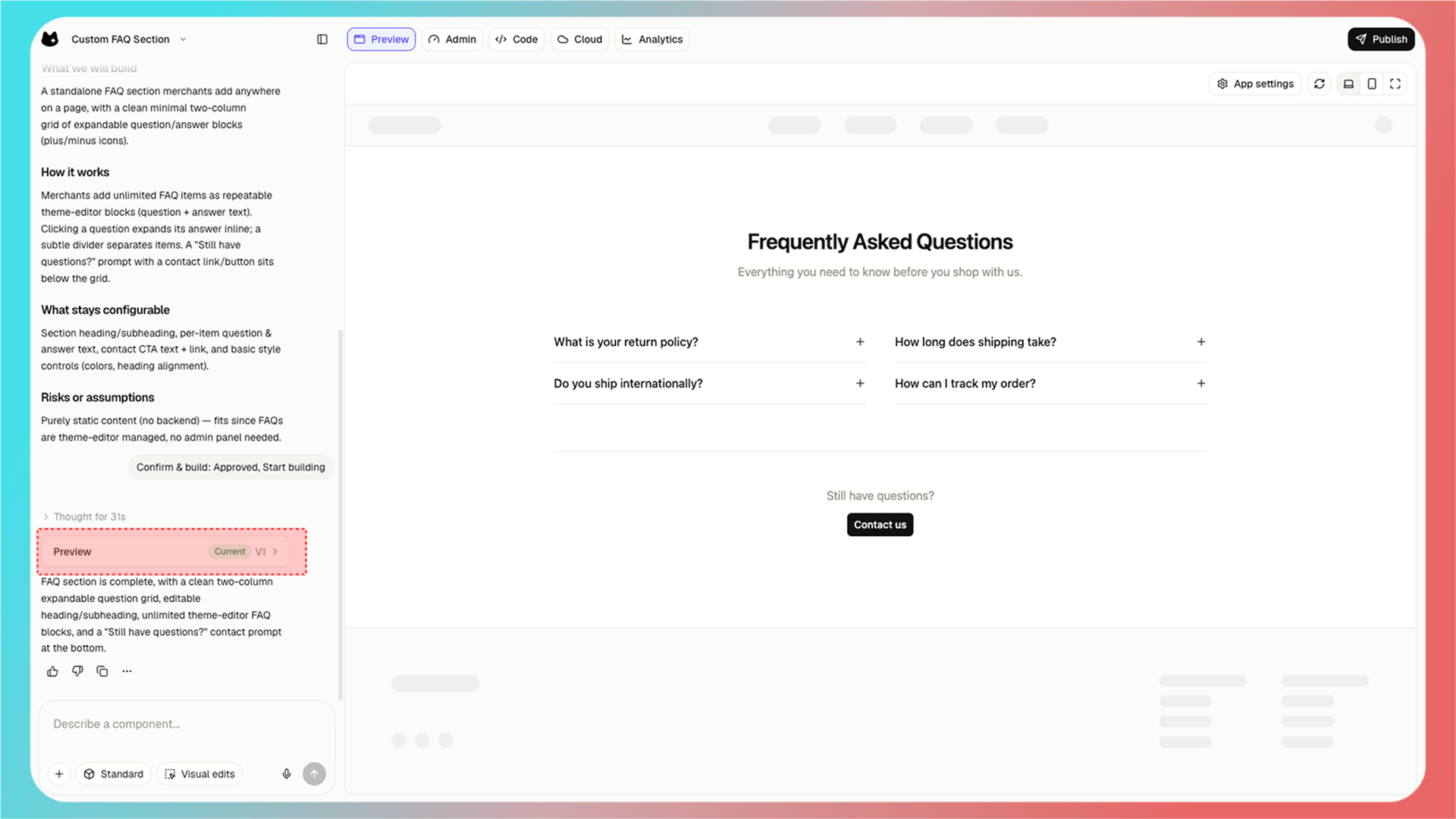
首次构建应用后，**Preview V1** 会显示在左侧生成结果面板中。

每一次构建都会生成新的版本，例如 V2、V3、V4 等。

<Frame>
  <img src="https://assets.staticmeow.com/meowgic/static/images/20260706/b070ebd4-5f84-44cc-934b-fc5d7a37bbd6.png" alt="Meowgic preview panel showing the completed FAQ section as the current V1 version." />
</Frame>

<br />

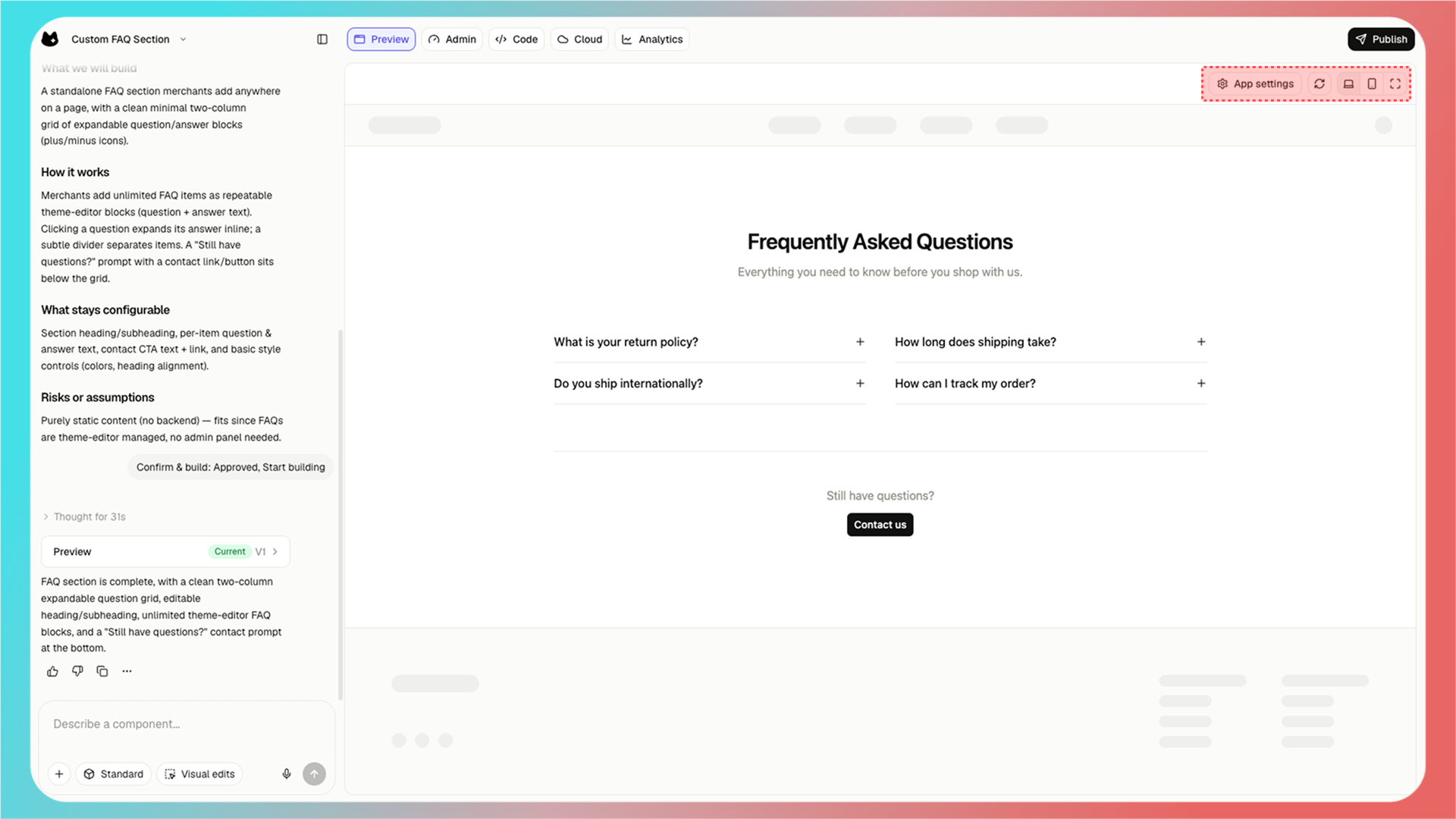
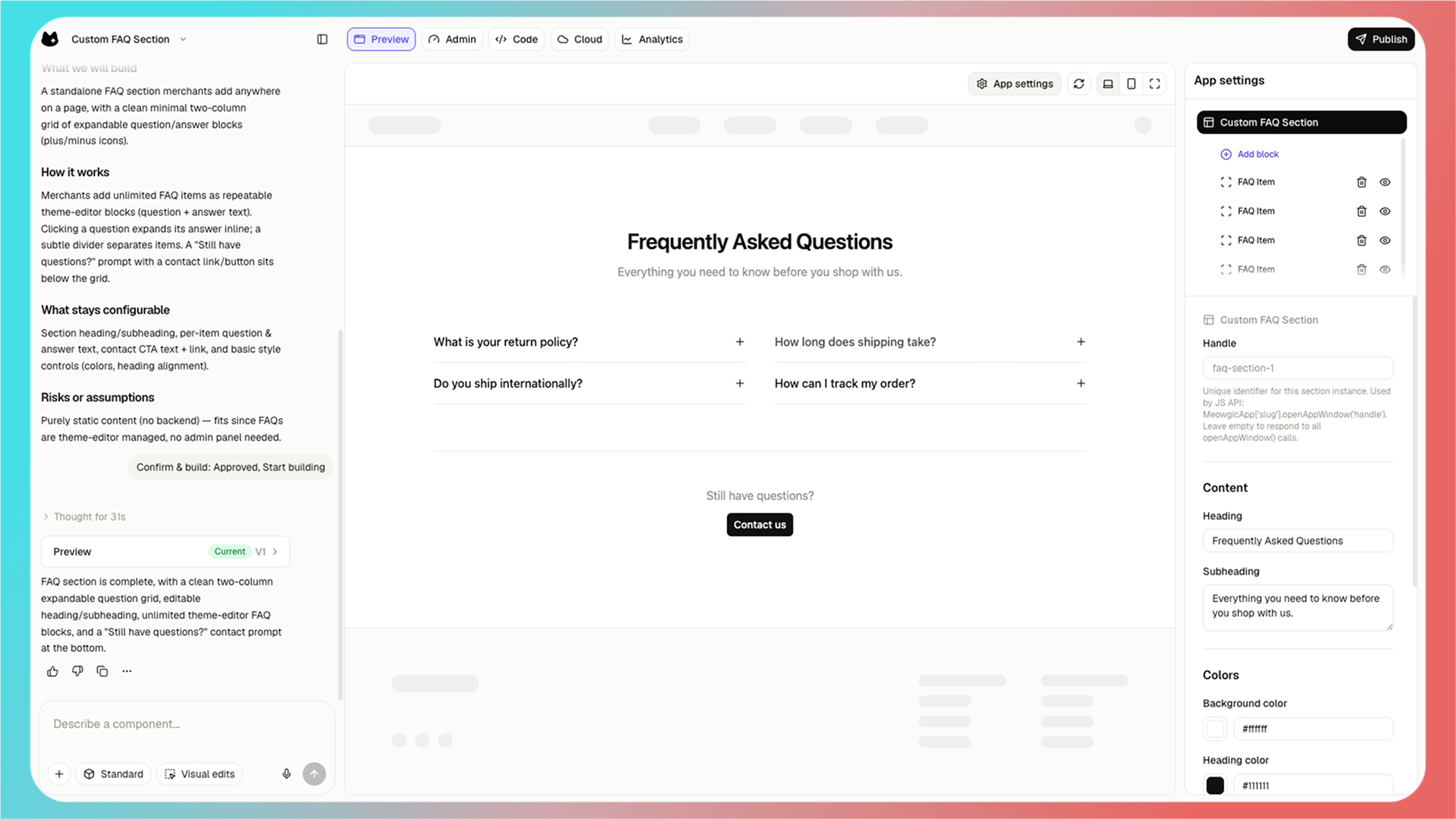
使用预览区域右上角工具栏中的 **App Settings** 编辑应用，就像编辑主题模板一样。你也可以在同一工具栏切换桌面端、移动端和全屏预览。

<Frame>
  <img src="https://assets.staticmeow.com/meowgic/static/images/20260706/05f60b37-9a94-4d46-b5e9-c6483038214a.png" alt="Top-right preview controls for app settings, desktop view, mobile view, and full screen." />
</Frame>

<Frame>
  <img src="https://assets.staticmeow.com/meowgic/static/images/20260706/bfbed718-1141-4338-8f59-210a2f080549.png" alt="App settings sidebar for editing FAQ items, heading text, colors, and contact prompt settings." />
</Frame>

<br />

# 2. 发布应用

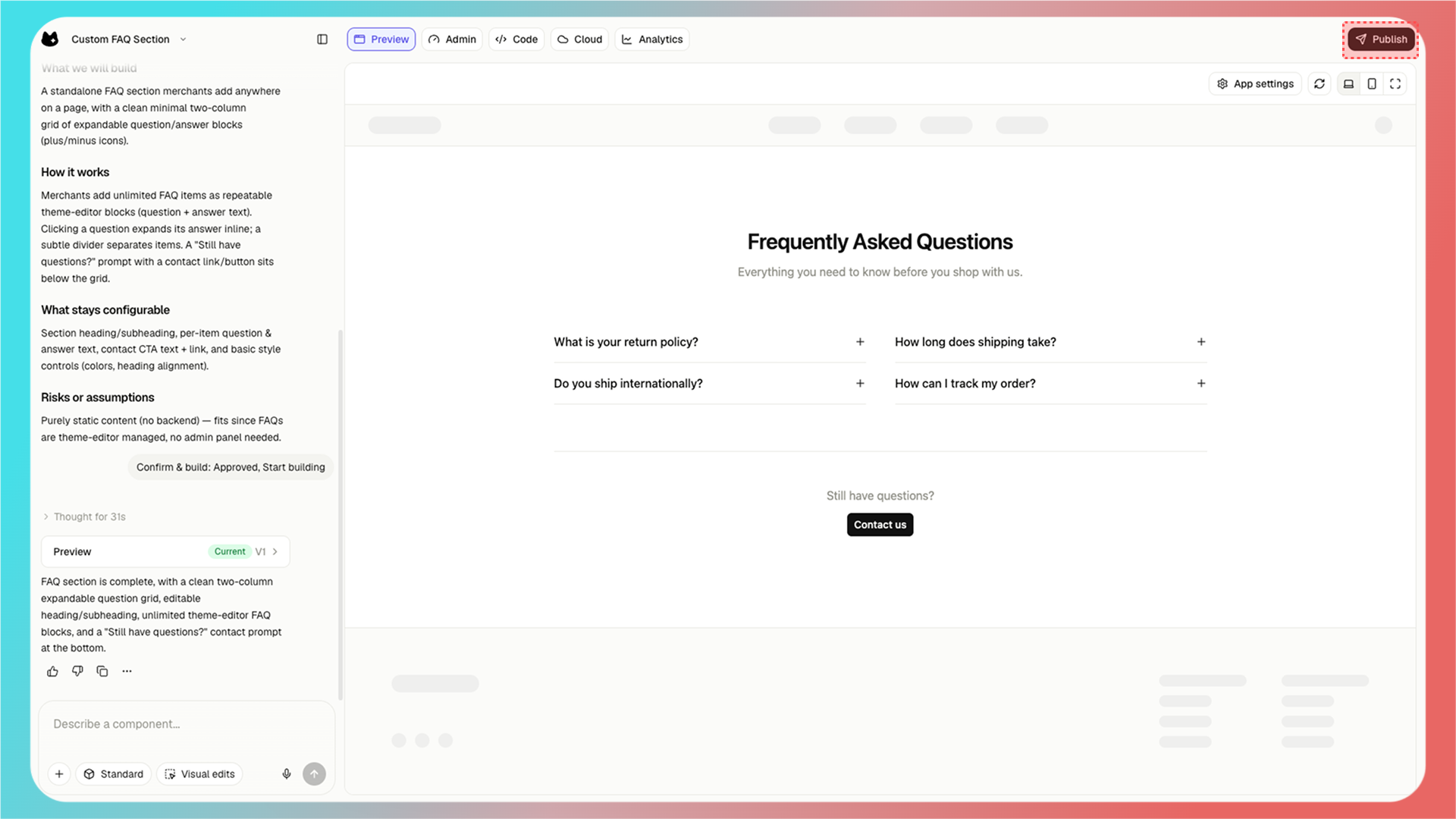
应用测试完成后，点击右上角的 **Publish** 发布应用。

<Frame>
  <img src="https://assets.staticmeow.com/meowgic/static/images/20260706/b5e58b0b-7c2d-4a98-8897-a4d141b824ee.png" alt="Publish button in the top-right corner of the Meowgic preview workspace." />
</Frame>

<Frame>
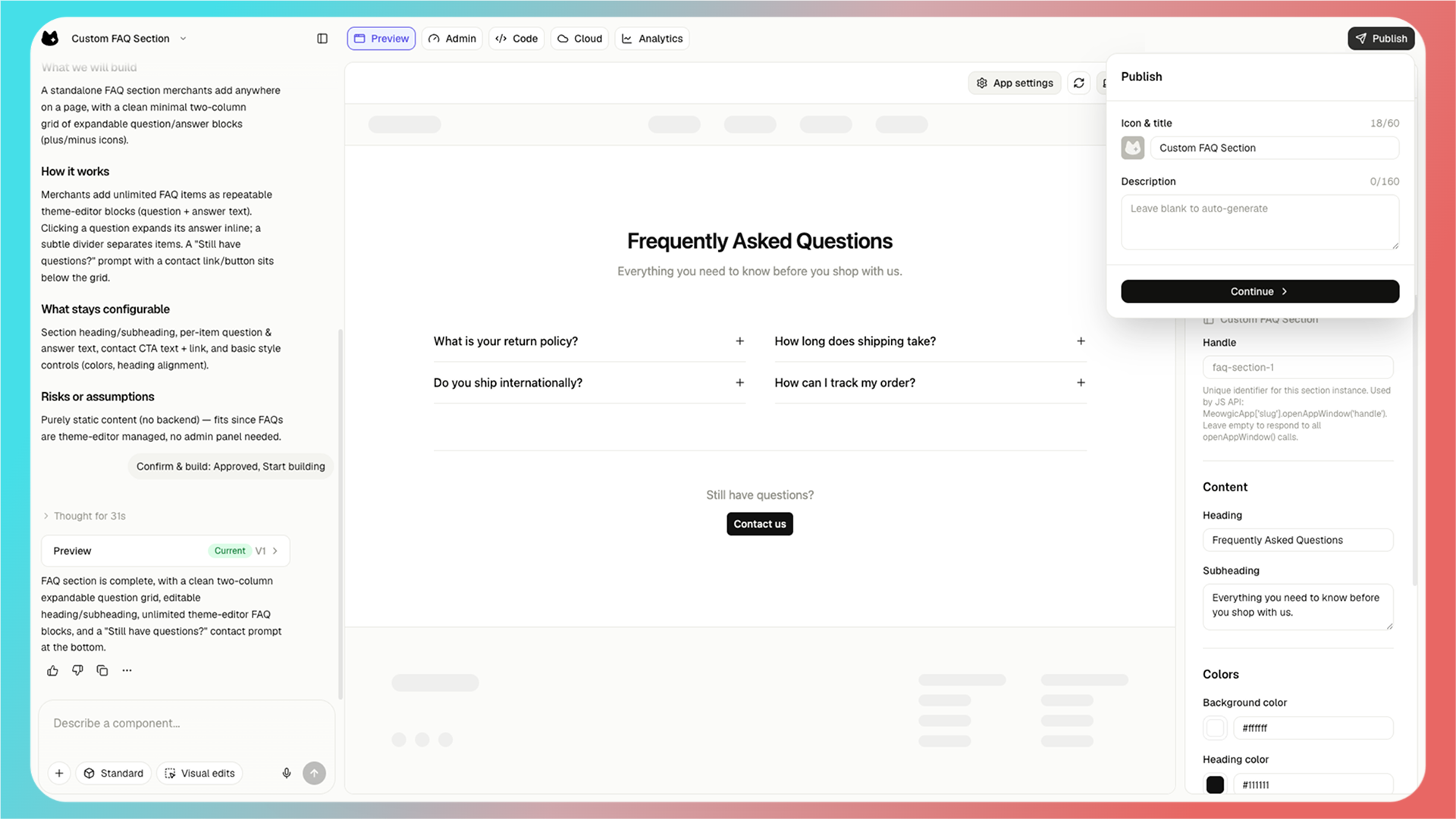
  <img src="https://assets.staticmeow.com/meowgic/static/images/20260706/c0f27250-ffbb-4004-8dcc-9185ab15f77b.png" alt="Publish dialog with fields for the app icon, title, and optional description." />
</Frame>

<br />

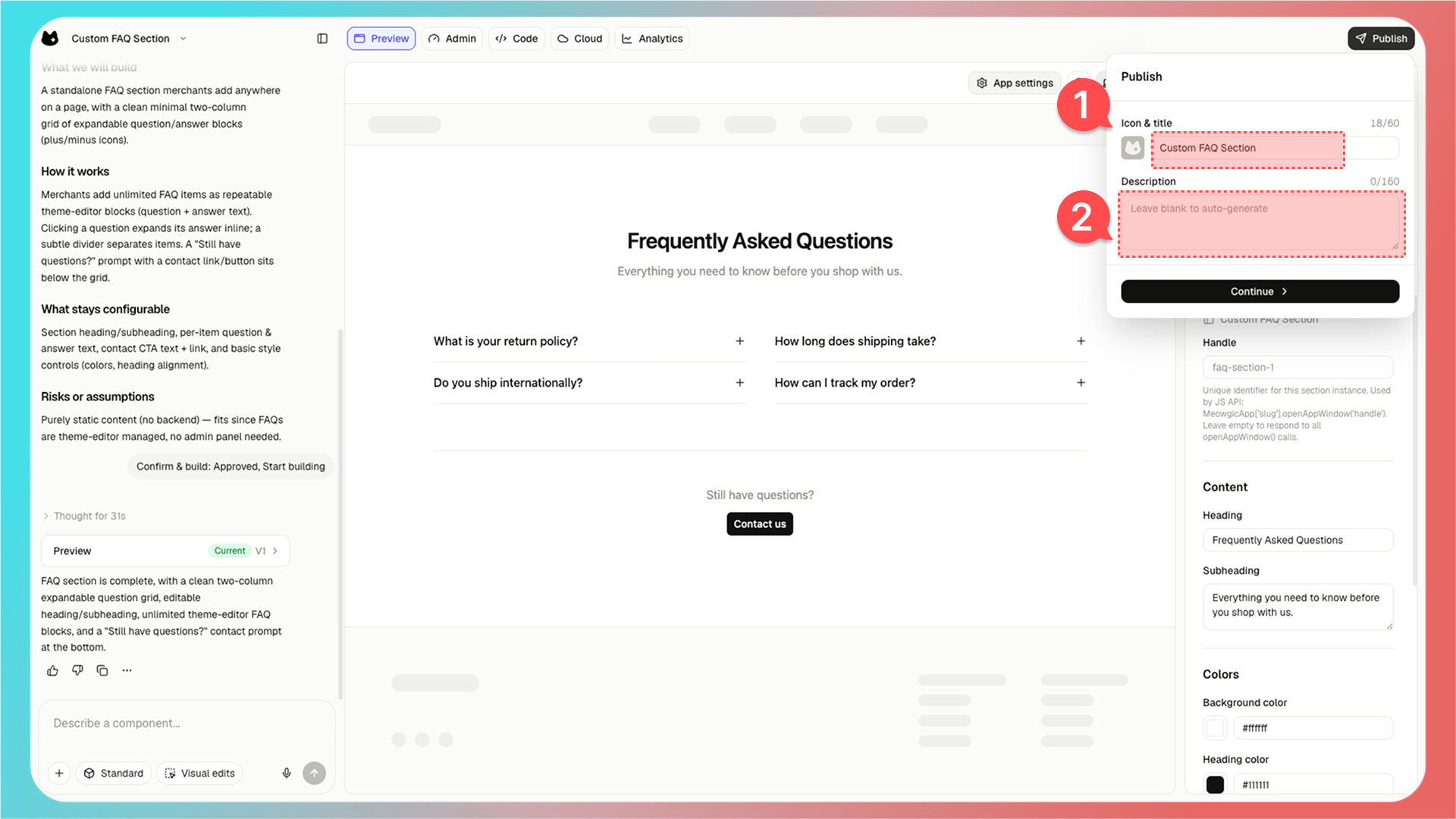
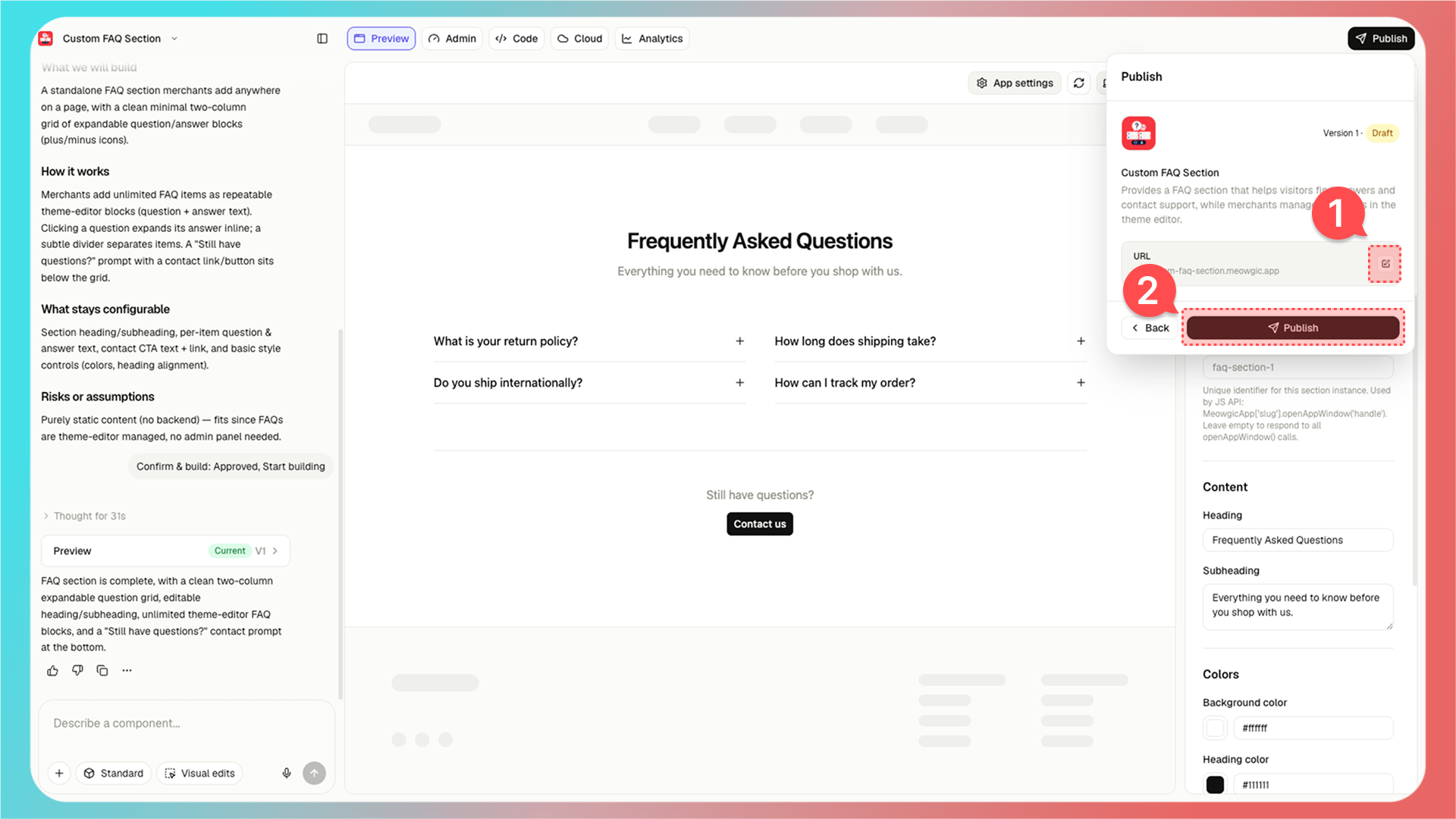
1. 填写应用名称

2. 填写应用描述（如不填写，则会使用 AI 自动生成）

填写完成后，点击发布弹窗底部的 **Continue**。

<Frame>
  <img src="https://assets.staticmeow.com/meowgic/static/images/20260706/cbbd5db2-4aed-4cc2-bc4e-33d9a078aca2.png" alt="Publish form for entering the app name and optional description before continuing." />
</Frame>

<br />

1. Meowgic 会自动生成一个应用链接。你可以在浏览器中打开该链接进行预览，也可以修改自己喜欢的链接前缀。

2. 点击发布按钮后，该应用版本会被正式发布。

<Frame>
  <img src="https://assets.staticmeow.com/meowgic/static/images/20260706/d230a5c0-f2d4-4d87-8242-b0890739abed.png" alt="Publish dialog showing the generated app URL and the final Publish button." />
</Frame>

<br />

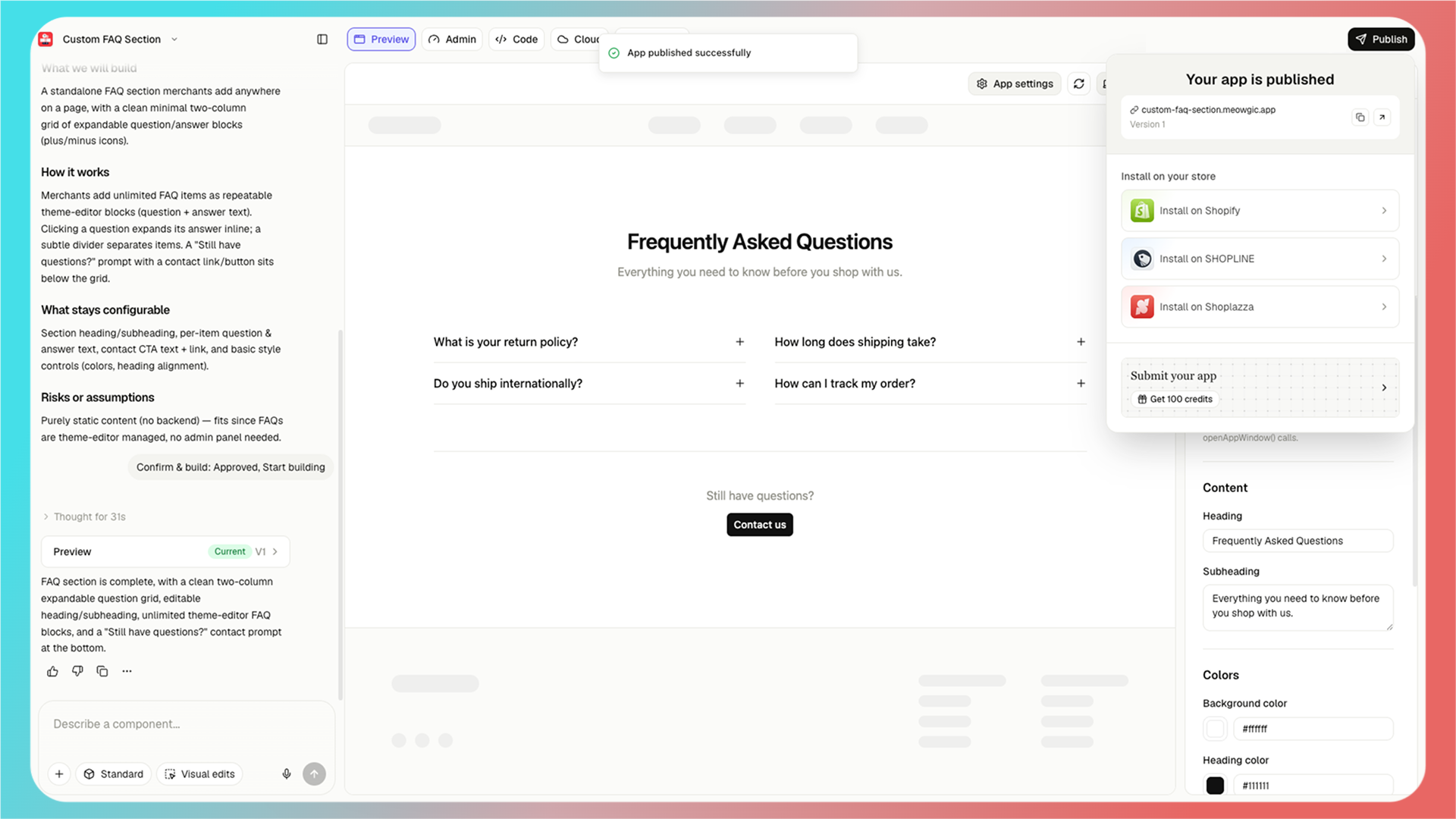
发布应用后，你可以选择如何安装应用。

如果你的店铺基于 Shopify、SHOPLINE 或 Shoplazza 搭建，请在发布成功页面中选择对应平台，开始集成流程。

自建站用户可以复制应用链接，并自行嵌入到站点中。

<Frame>
  <img src="https://assets.staticmeow.com/meowgic/static/images/20260706/d998a715-8938-4f10-8ae9-b4bcda8ffd7b.png" alt="Published app panel with the app link and store installation options." />
</Frame>

<Tip>
  如果你只是想快速检查效果，可以先打开应用链接预览。准备安装到店铺时，再继续完成主题集成。
</Tip>

<Note>
  如果你在发布后更新或修改了应用，请再次发布。否则，集成或预览链接不会使用最新版本。
</Note>

<br />

# 3. 将应用集成到你的店铺

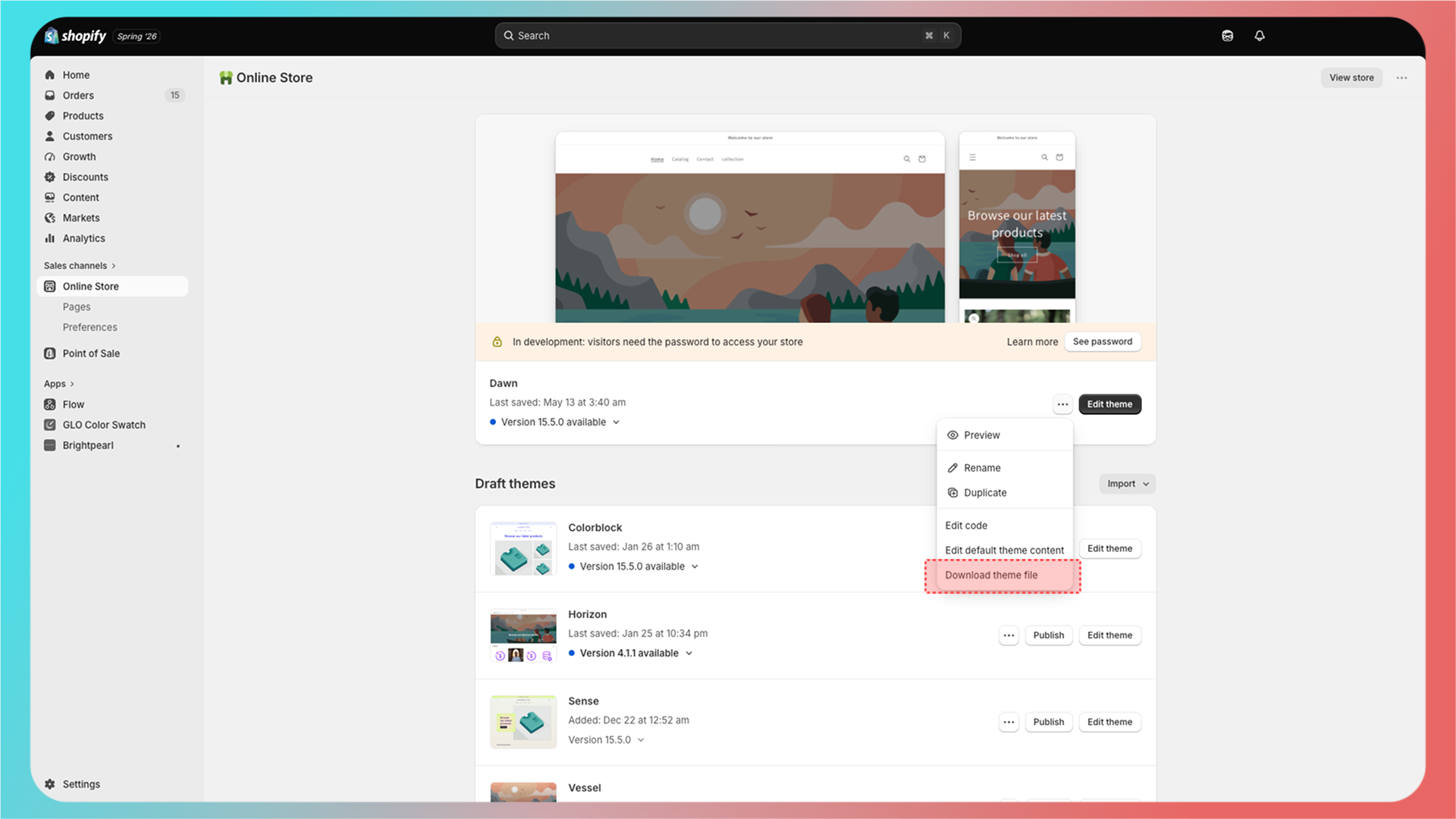
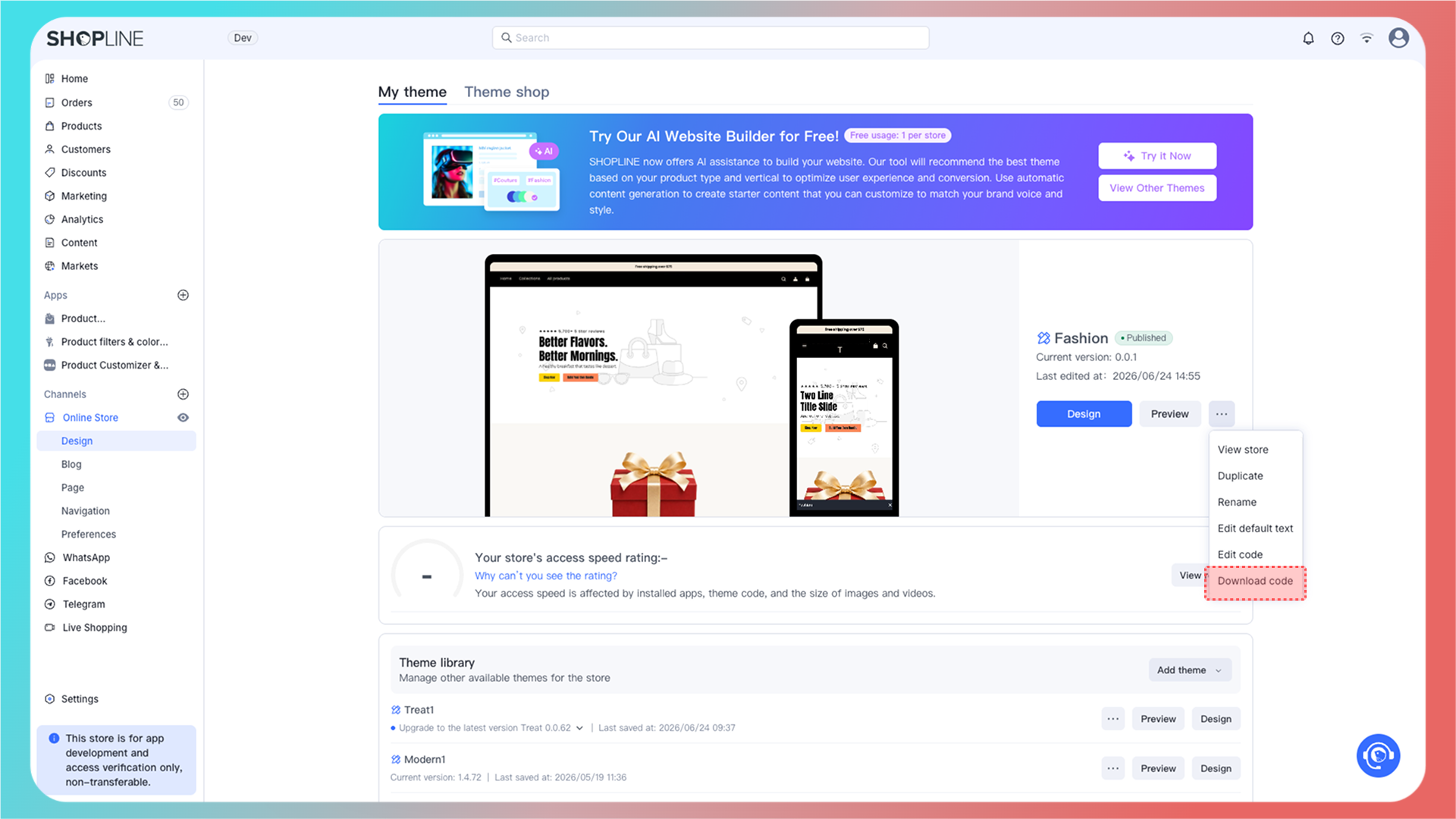
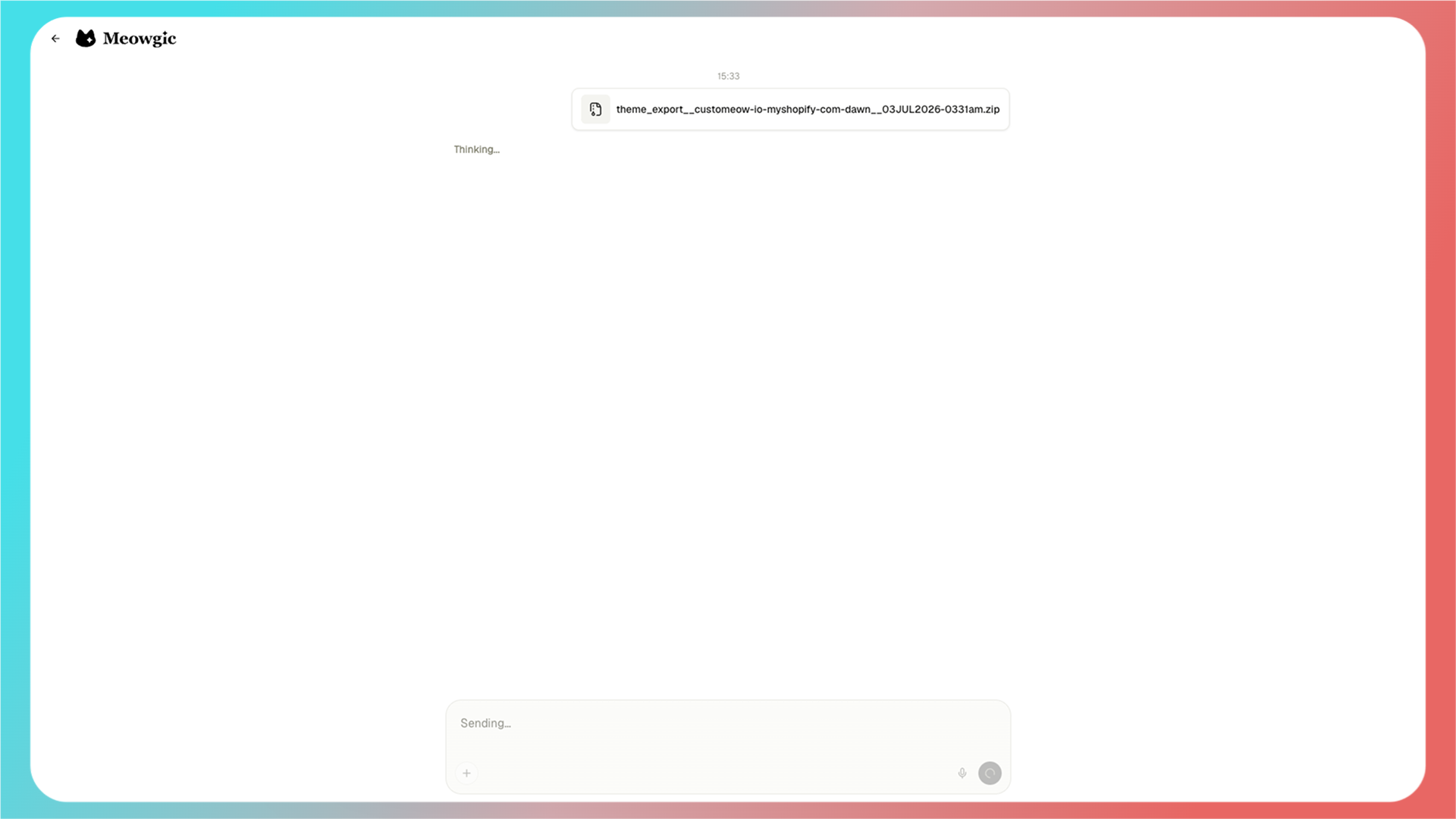
进入集成页面后，需要先下载当前正在使用的主题模板，然后上传到 Meowgic。

<Warning>
  下载主题模板时，请选择店铺当前正在使用的主题。上传错误的主题文件可能会导致集成结果和线上店铺不一致。
</Warning>

按你的店铺平台选择下载位置：

<Tabs>
  <Tab title="Shopify">
    Shopify 主题模板下载位置：

    <Frame>
      <img src="https://assets.staticmeow.com/meowgic/static/images/20260706/d4fe834c-8d63-4760-81c6-7ca1ed44d4c5.png" alt="Shopify Online Store themes page with the theme actions menu open to Download theme file." />
    </Frame>
  </Tab>

  <Tab title="SHOPLINE">
    SHOPLINE 主题模板下载位置：

    <Frame>
      <img src="https://assets.staticmeow.com/meowgic/static/images/20260706/110e9ca4-36b3-48d7-86d6-fd79e291a2cc.png" alt="SHOPLINE theme page with the theme menu open to Download code." />
    </Frame>
  </Tab>

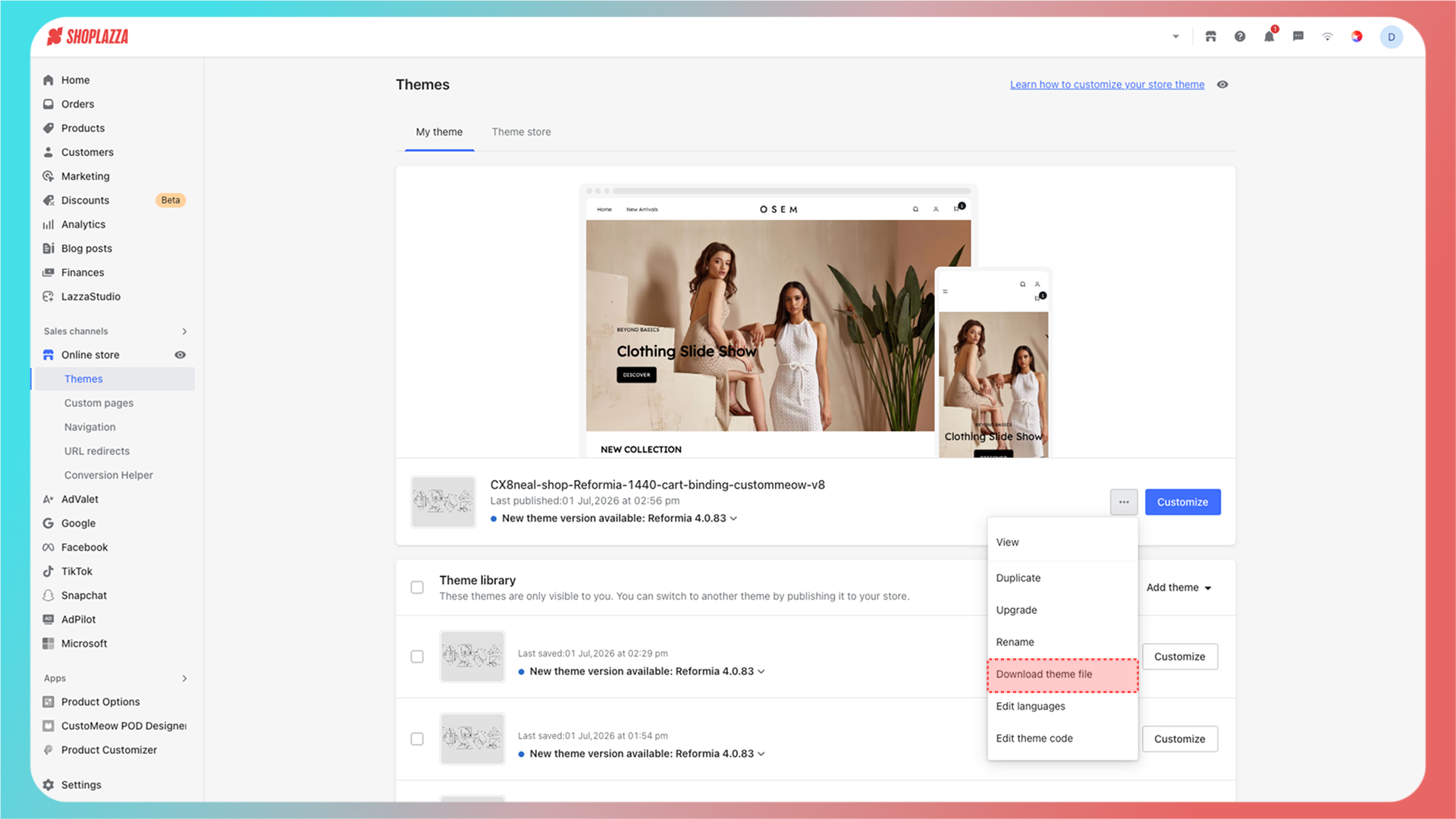
  <Tab title="Shoplazza">
    Shoplazza 主题模板下载位置：

    <Frame>
      <img src="https://assets.staticmeow.com/meowgic/static/images/20260706/2fdb6917-5077-442c-ae4d-08fce50af599.png" alt="Shoplazza Themes page with the theme menu open to Download theme file." />
    </Frame>
  </Tab>
</Tabs>

<br />

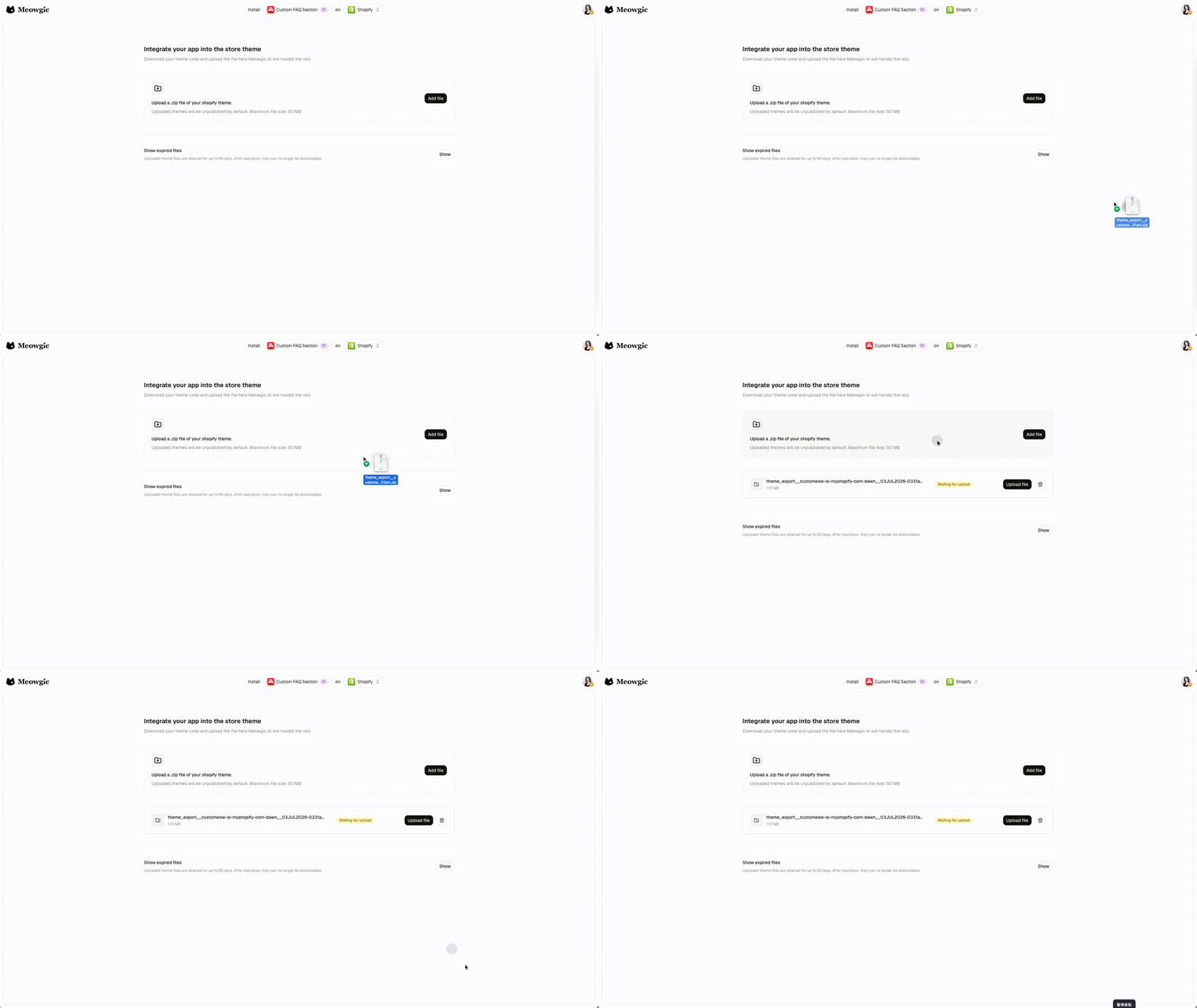
下载完成后，你可以点击 **Add file**，也可以直接将主题文件压缩包拖拽到上传区域。

<Frame>
  <img src="https://assets.staticmeow.com/meowgic/static/images/20260706/73aad0ce-15ad-485a-8aa9-be60450f39ac.gif" alt="Meowgic integration page showing a theme ZIP file being added by Add file or drag and drop." />
</Frame>

<br />

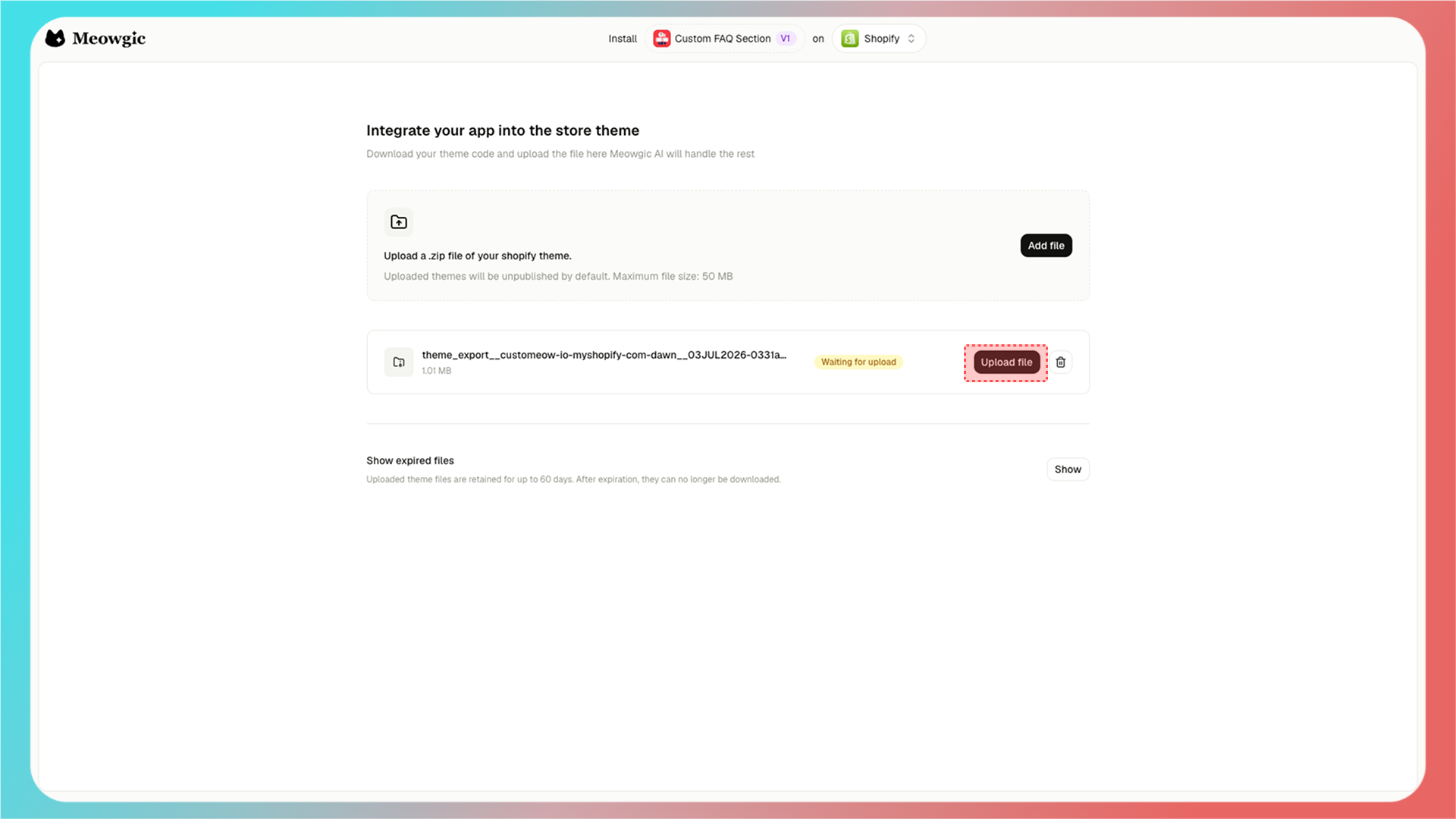
主题 ZIP 文件添加完成后，点击所选文件旁边的 **Upload file**。

<Frame>
  <img src="https://assets.staticmeow.com/meowgic/static/images/20260706/ad62f6bf-3e1b-4fc3-b7e5-eef83add7a51.png" alt="Selected Shopify theme ZIP on the Meowgic integration page, ready for Upload file." />
</Frame>

<br />

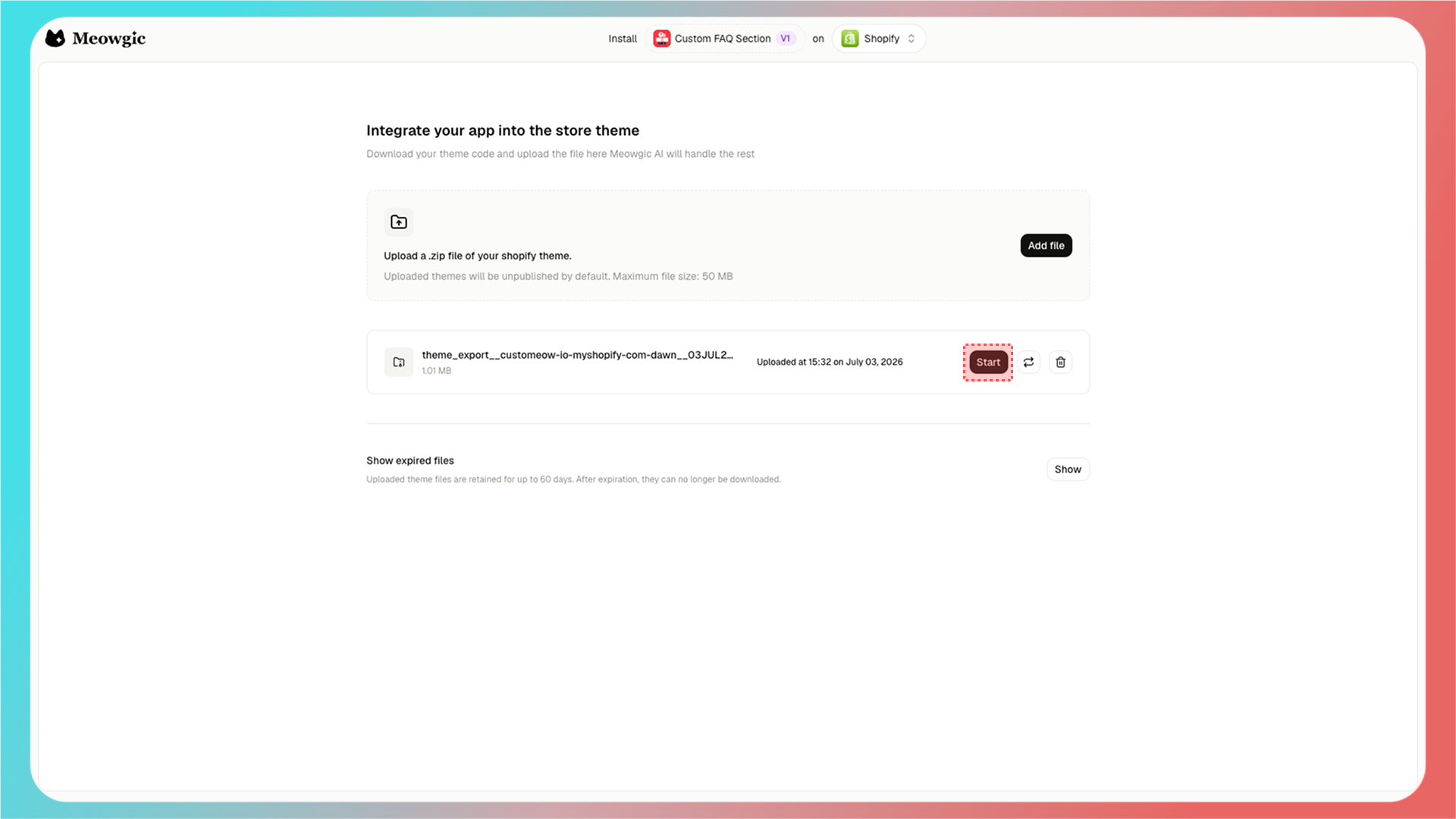
上传完成后，点击已上传主题文件旁边的 **Start** 开始集成。

<Frame>
  <img src="https://assets.staticmeow.com/meowgic/static/images/20260706/97f73af2-dfbb-4310-8821-a054adfae9c6.png" alt="Uploaded Shopify theme ZIP listed in Meowgic with the Start button ready to begin integration." />
</Frame>

<br />

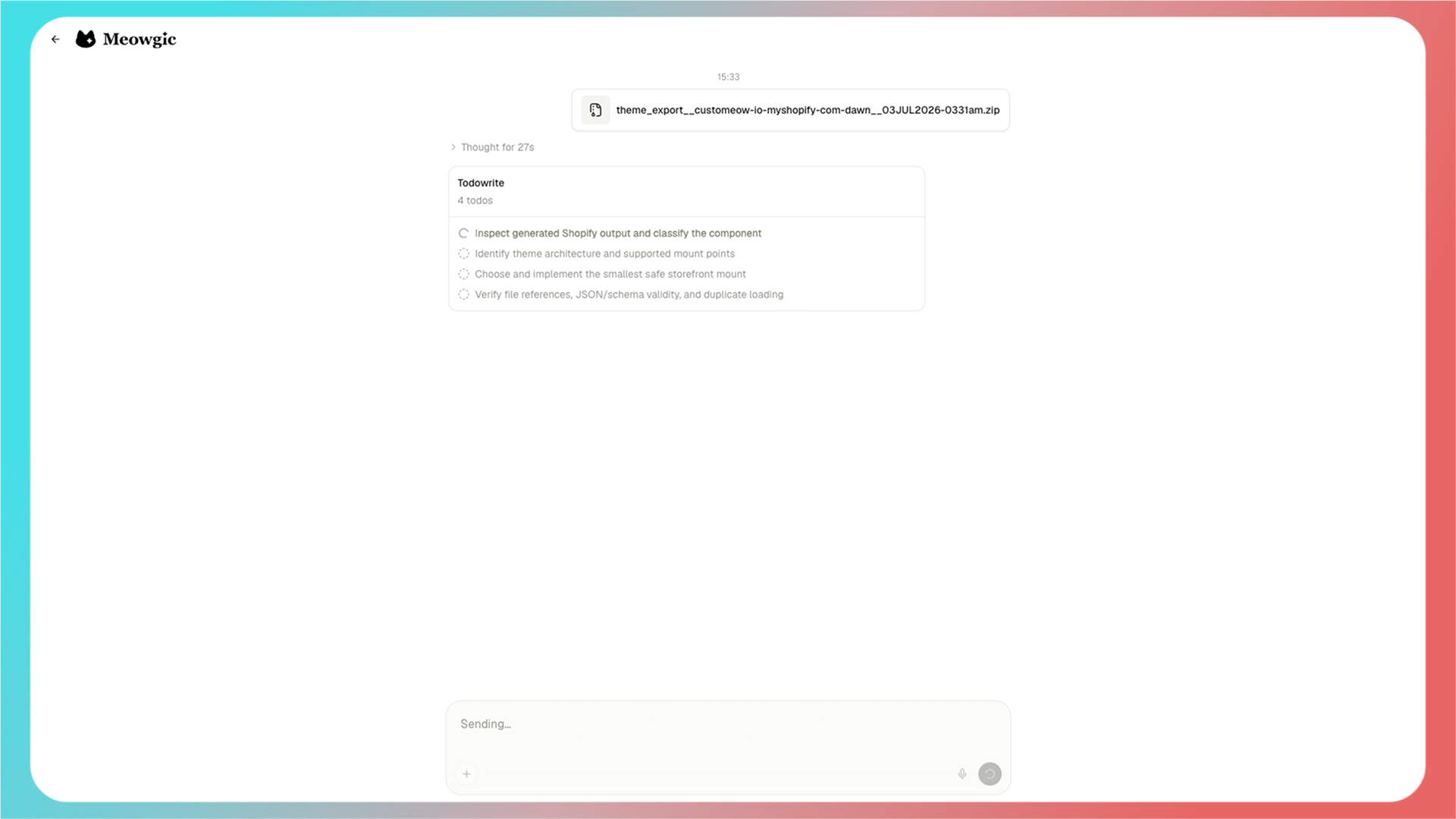
点击 **Start** 后，Meowgic 会根据你的主题模板文件自动开始集成。

<Frame>
  <img src="https://assets.staticmeow.com/meowgic/static/images/20260706/911caf3a-b514-4b12-8080-cb449f4be9ad.png" alt="Meowgic starts processing the uploaded theme file after the Start action." />
</Frame>

<Frame>
  <img src="https://assets.staticmeow.com/meowgic/static/images/20260706/badae060-4177-4ecb-8b05-f8502808bdcc.png" alt="Meowgic integration workspace showing the automatic theme integration to-do list." />
</Frame>

<br />

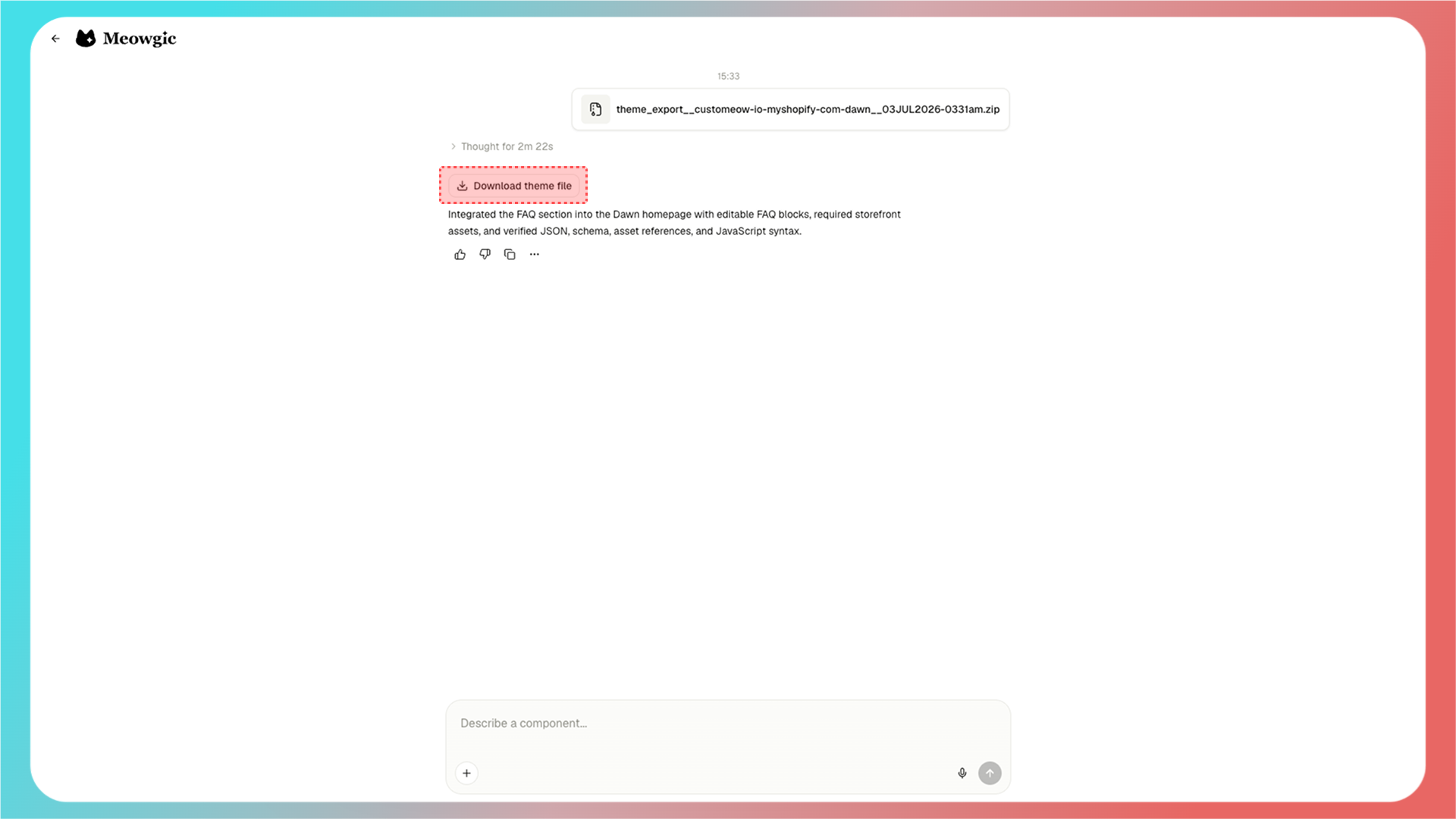
集成完成后，Meowgic 会生成一份新的主题模板文件，点击 **Download theme file** 下载。

<Frame>
  <img src="https://assets.staticmeow.com/meowgic/static/images/20260706/1998ddfe-9b17-44c1-ae79-2a2af33dc14a.png" alt="Meowgic reports the FAQ section was integrated and offers Download theme file." />
</Frame>

<br />

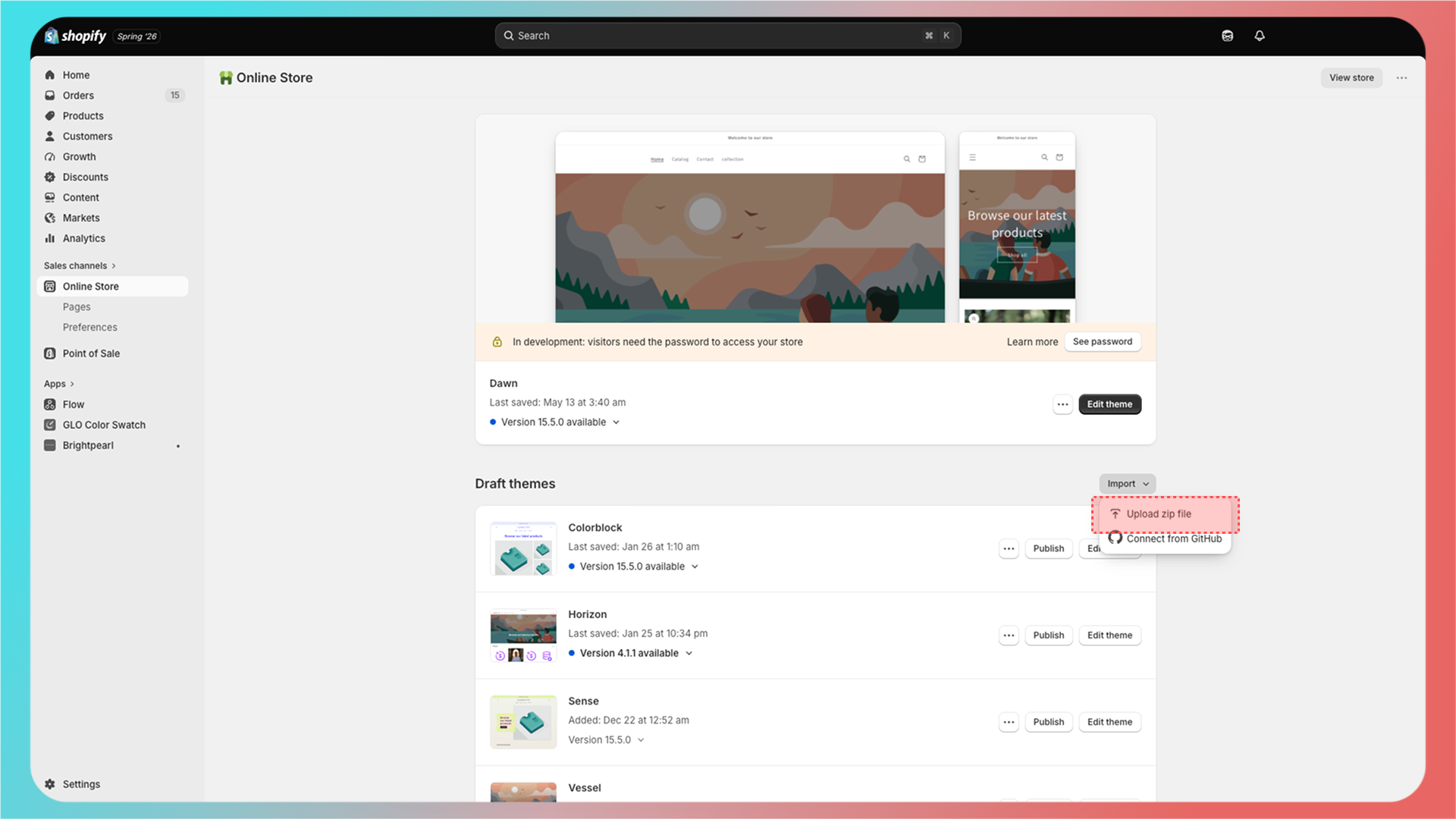
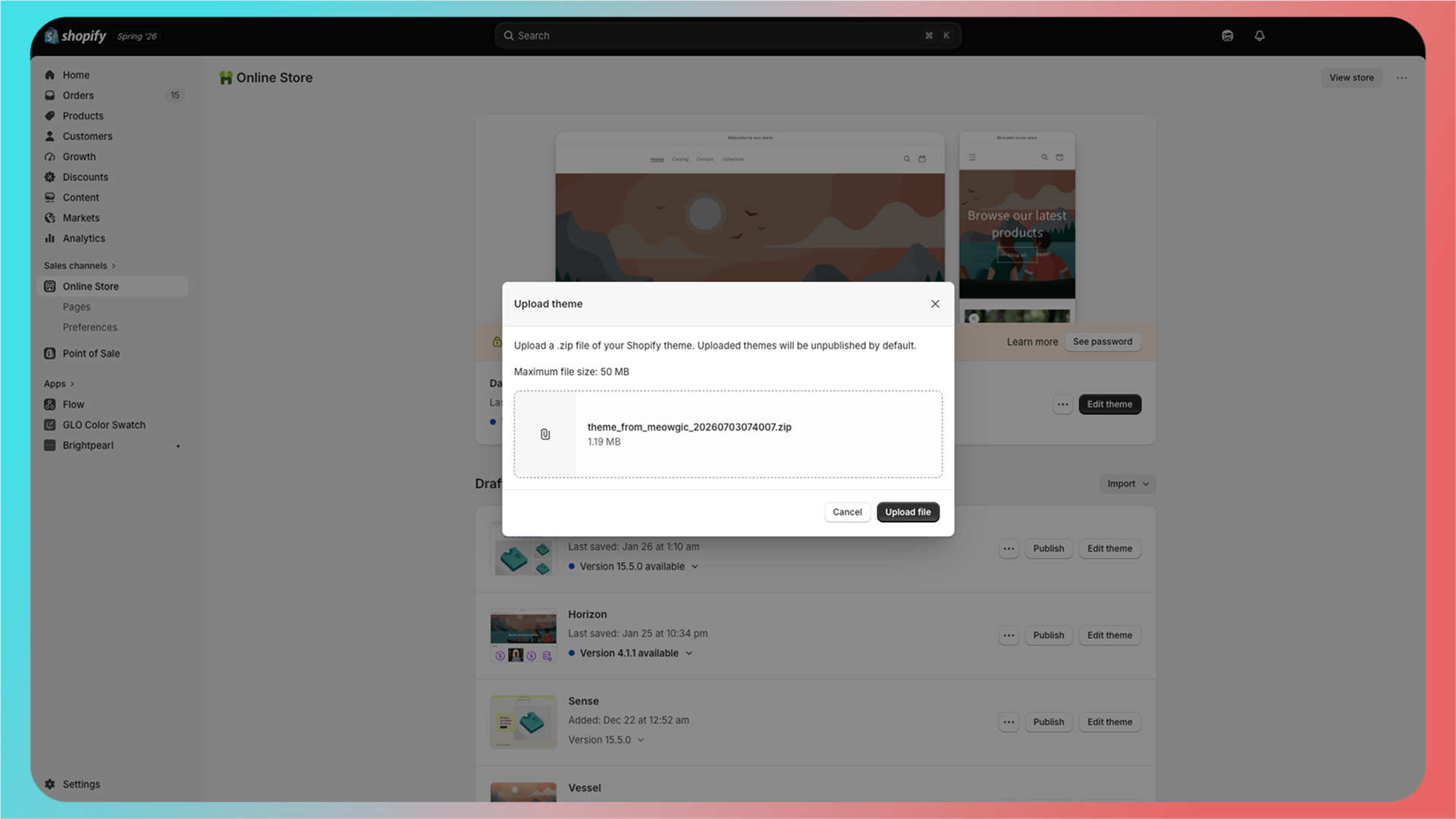
回到店铺后台的主题模板编辑页面，上传新的主题文件。

<Frame>
  <img src="https://assets.staticmeow.com/meowgic/static/images/20260706/e139625a-491b-42c8-82de-a198f26fd030.png" alt="Shopify Online Store themes page with the Import menu open to Upload zip file." />
</Frame>

<Frame>
  <img src="https://assets.staticmeow.com/meowgic/static/images/20260706/ad1ad8ec-95b9-45a1-81d7-dbe55ea77965.png" alt="Shopify Upload theme dialog with the Meowgic-generated theme ZIP ready to upload." />
</Frame>

<br />

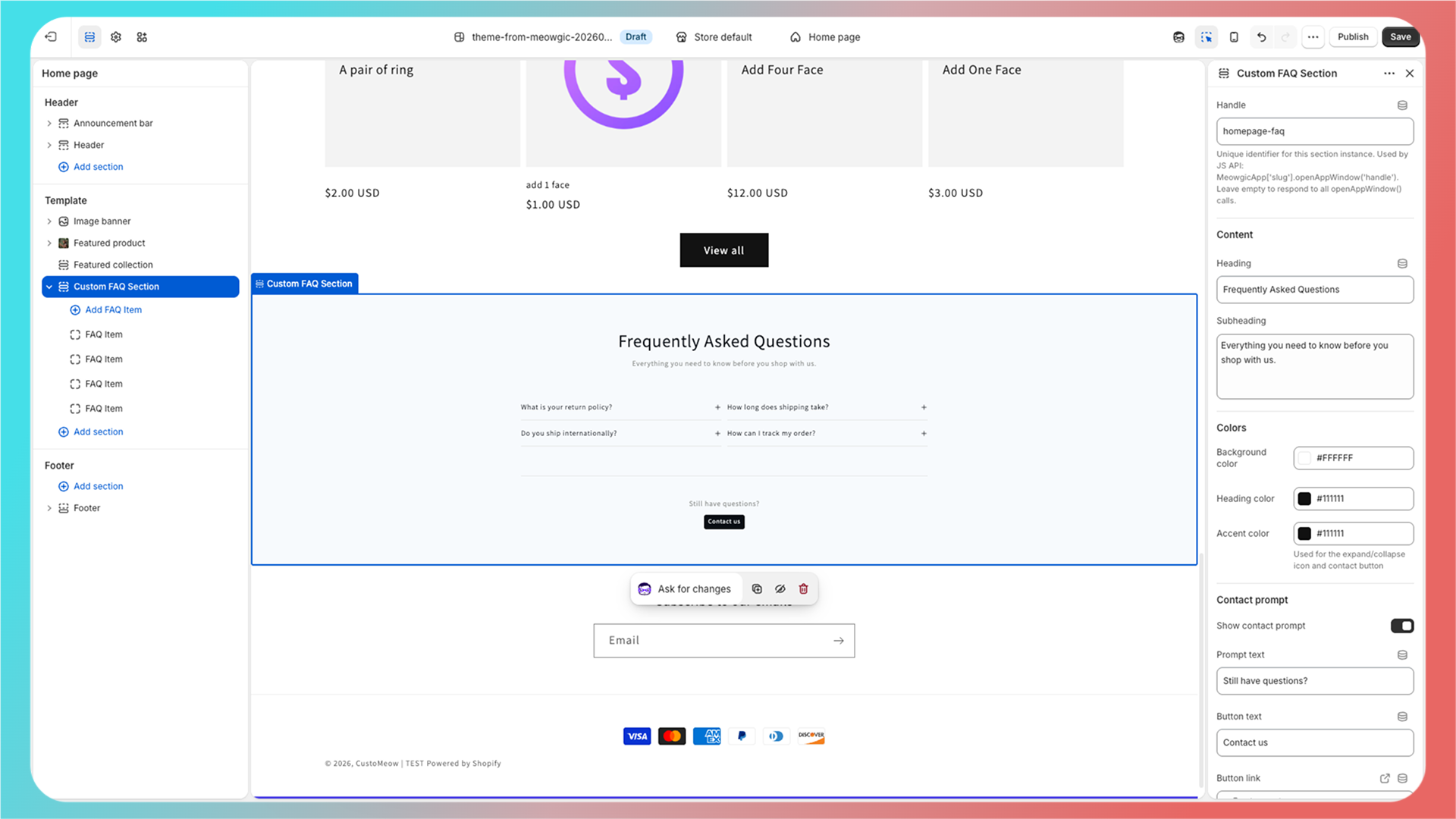
上传完成后，打开主题编辑器。此时，你可以在主题编辑器的 Section 列表中看到刚刚生成的应用。

<Frame>
  <img src="https://assets.staticmeow.com/meowgic/static/images/20260706/3c3227f5-c318-478f-91c3-e49d14e01856.png" alt="Shopify theme editor with Custom FAQ Section selected on the home page." />
</Frame>

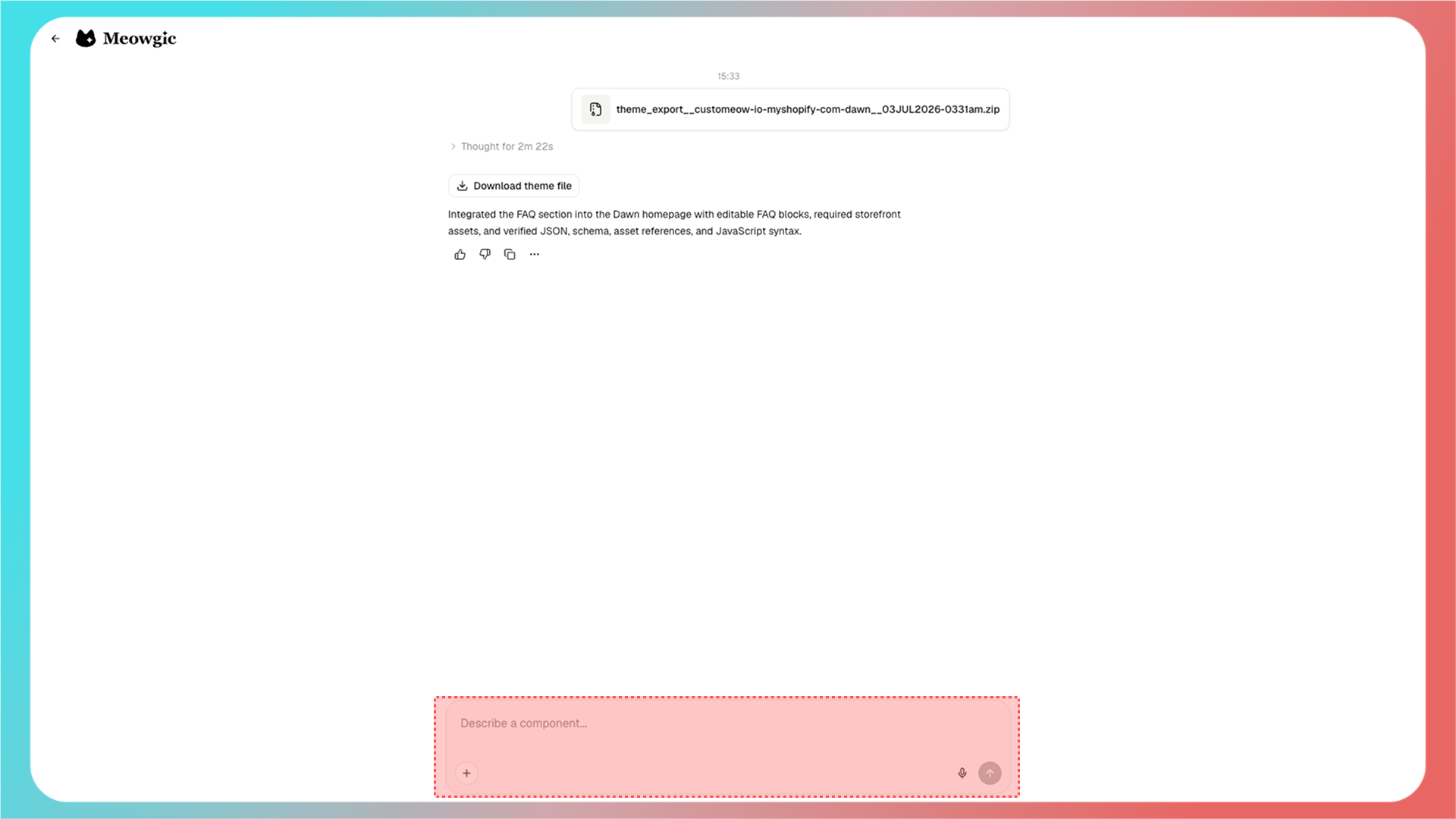
<Note>
  如果集成后发现应用无法正常使用，或效果与 Meowgic 中的预览不一致，请在集成页面的对话框中描述问题，让 Meowgic 进行修复。

  <Frame>
    <img src="https://assets.staticmeow.com/meowgic/static/images/20260706/7d92dd54-fa04-4300-a66f-28454e326f11.png" alt="Meowgic integration chat where users can describe issues for Meowgic to fix after installation." />
  </Frame>
</Note>

<br />

## 常见问题

<AccordionGroup>
  <Accordion title="编辑应用后需要重新发布吗？">
    需要。如果你在发布后更新了应用，请再次发布，这样预览链接和集成版本才会使用最新版本。
  </Accordion>

  <Accordion title="同一个 Meowgic 应用可以安装到 Shopify、SHOPLINE 和 Shoplazza 吗？">
    可以，但每个平台都需要下载并上传各自的主题文件。
  </Accordion>
</AccordionGroup>

<br />

<Update label="07/06/2026">
  ## 文章创建

  创建了该文章
</Update>