> ## Documentation Index
> Fetch the complete documentation index at: https://docs.meowgic.ai/llms.txt
> Use this file to discover all available pages before exploring further.

# How to submit your app to the Meowgic App Store

> Learn how to configure preset data, complete your App Store listing, submit your Meowgic app for review, and manage its review status.

<Note>
  This guide explains the app submission process. It does not cover review criteria or tips for passing review.
</Note>

## Process overview

<CardGroup cols={3}>
  <Card title="Configure preset data" icon="sliders-horizontal">
    Set up preset data for your app.
  </Card>

  <Card title="Submit your app" icon="file-up">
    Complete your app information and submit it for review.
  </Card>

  <Card title="Check review status" icon="hourglass">
    Track the status and result of your app review.
  </Card>
</CardGroup>

<br />

## 1. Configure preset data

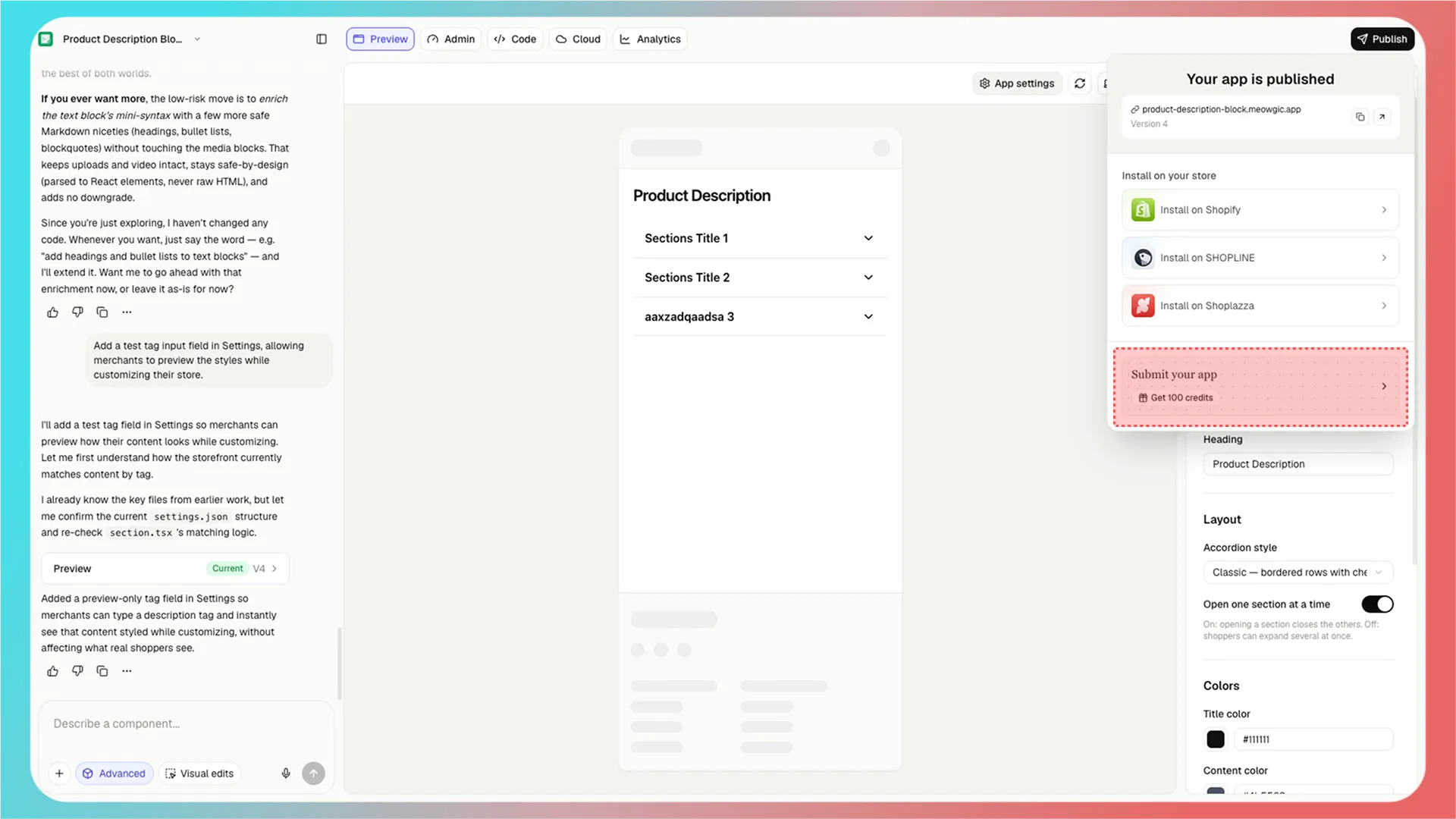
After you publish your app, click **Submit your app**.
<Frame>
  <img src="https://assets.staticmeow.com/meowgic/static/images/20260714/86e28fbc-a64b-4a1c-b4b8-e5d0841a42a4.png?x-oss-process=image/format,webp" alt="The published app sidebar with the Submit your app option highlighted." />
</Frame>

<br />

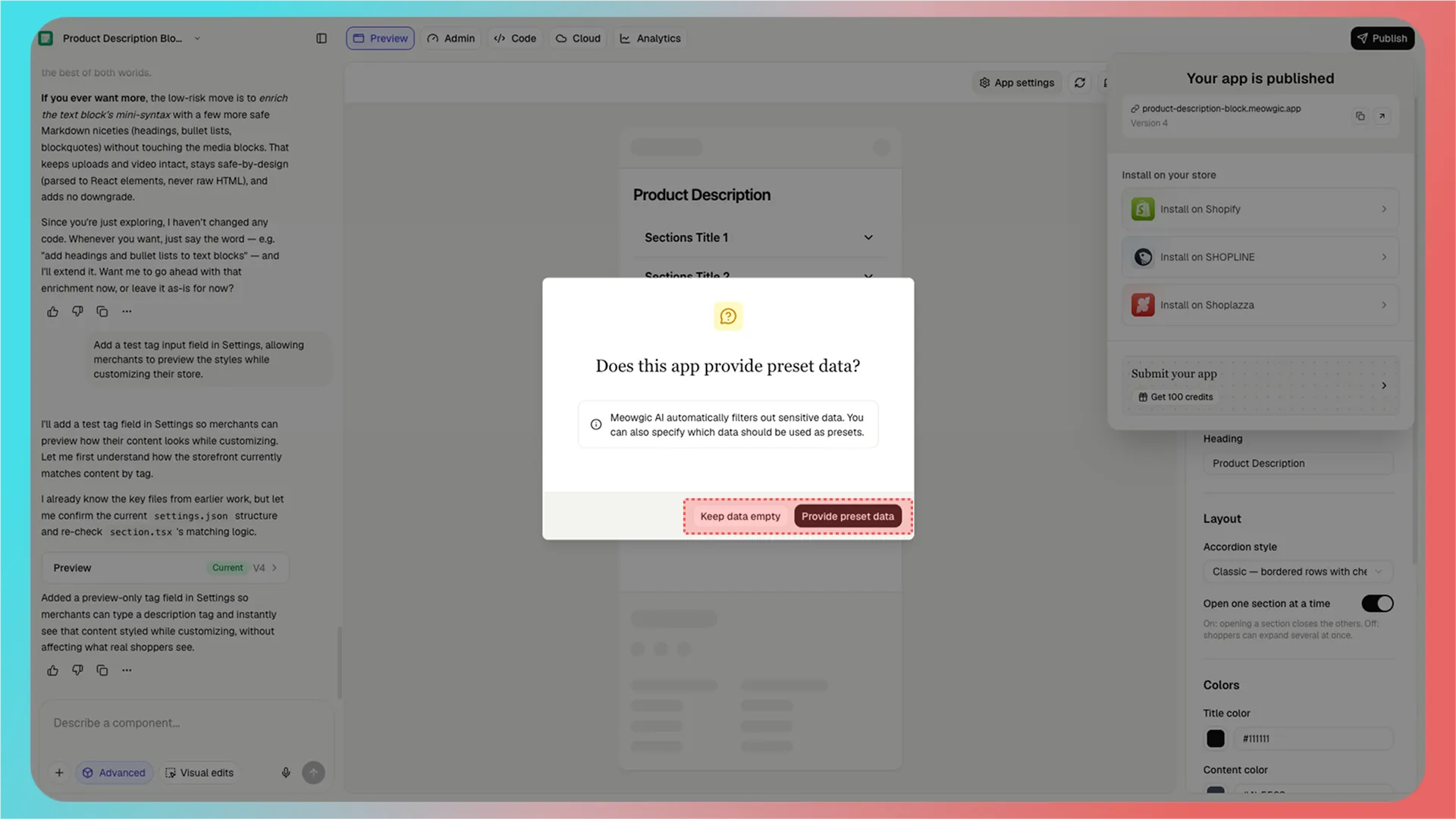
Meowgic asks whether you want to provide preset data.

If your app does not have an Admin area, click **Keep data empty**.

If your app has an Admin area and you want to include initial data, click **Provide preset data**.

<Info>
  **Preset data (Provide preset data)** is the initial data included with your app for other Meowgic users. When users get your app from the Meowgic App Store, they receive this data with it.
</Info>

<Frame>
  <img src="https://assets.staticmeow.com/meowgic/static/images/20260714/40ad3993-7d77-4b96-a7c4-a2929481803f.png?x-oss-process=image/format,webp" alt="A dialog asking whether the app provides preset data, with Keep data empty and Provide preset data buttons." />
</Frame>

<br />

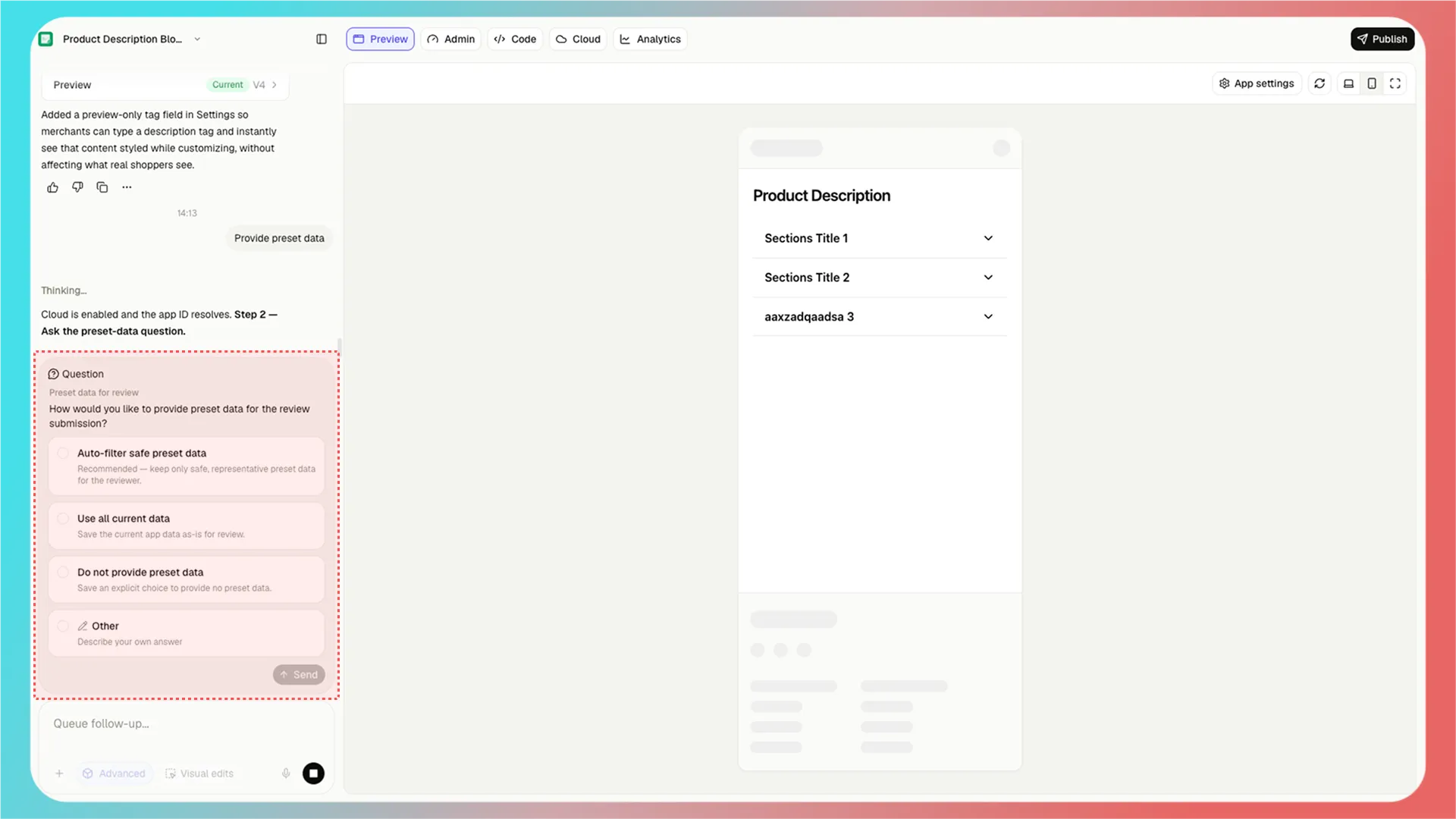
After you click **Provide preset data**, choose how to provide it. Select one of the following options, or use a custom option to describe which data you can provide:

* **Auto-filter safe preset data**: Meowgic uses AI to review your current app data and selects only data that is safe to display publicly as preset data.
* **Use all current data**: Use all of your app's current data as preset data.
* **Do not provide preset data**: Do not provide any preset data for your app.
* **Other**: Add your own instructions to specify which data can be used as preset data.
<Frame>
  <img src="https://assets.staticmeow.com/meowgic/static/images/20260714/4a49e6f7-c771-4957-b9ec-c885b33dd1dd.png?x-oss-process=image/format,webp" alt="The preset data options: Auto-filter safe preset data, Use all current data, Do not provide preset data, and Other." />
</Frame>

<br />

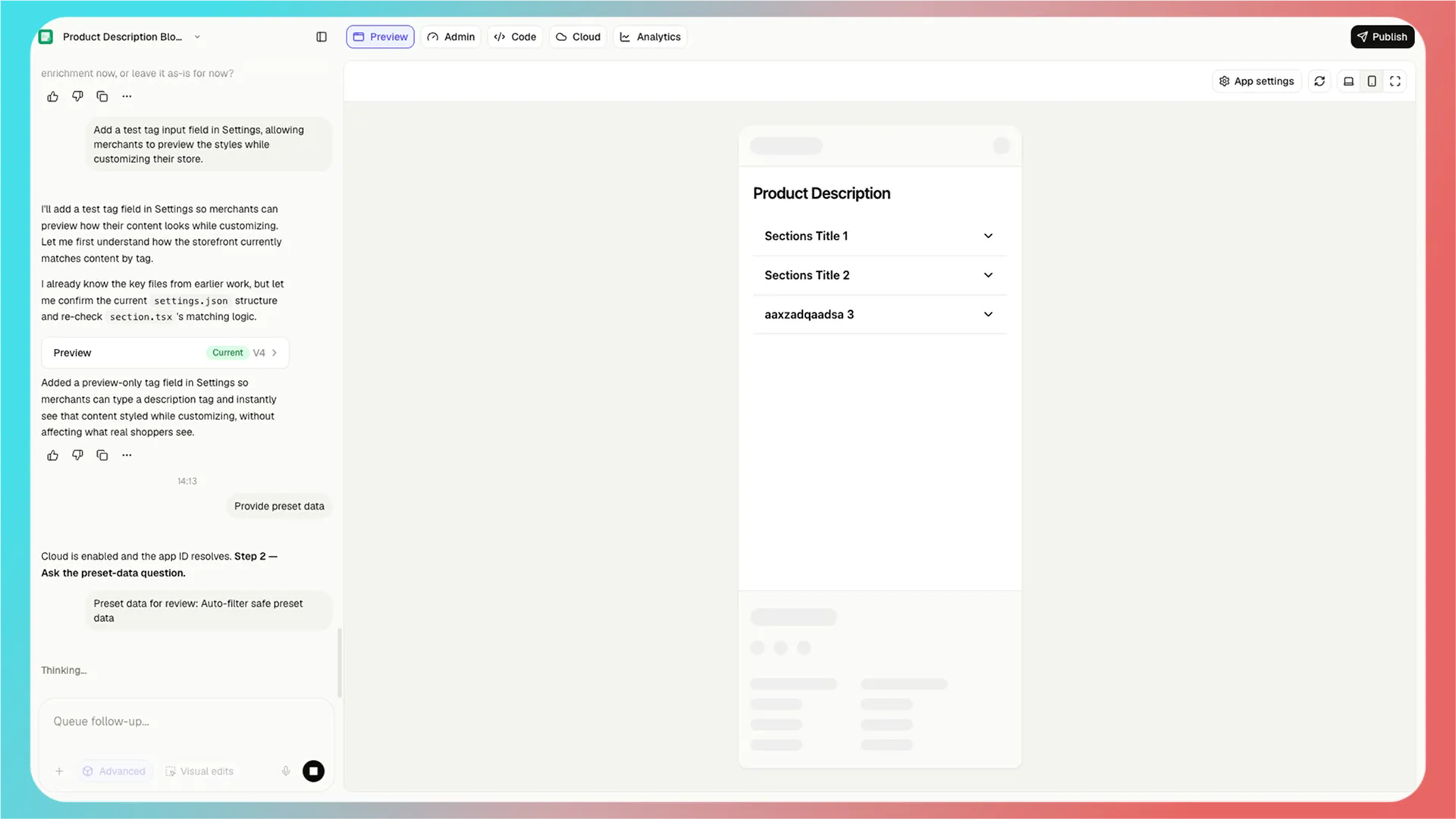
Meowgic saves preset data based on your selection. Continue after you see a success message.
<Frame>
  <img src="https://assets.staticmeow.com/meowgic/static/images/20260714/afa9470b-27c3-4240-8450-cb77d01b0c46.png?x-oss-process=image/format,webp" alt="The Meowgic chat panel shows Auto-filter safe preset data selected and preset data processing in progress." />
</Frame>

<br />

## 2. Submit your app for review

After you configure preset data, click the app name in the upper-left corner to open its menu, then select **Submit your app**.
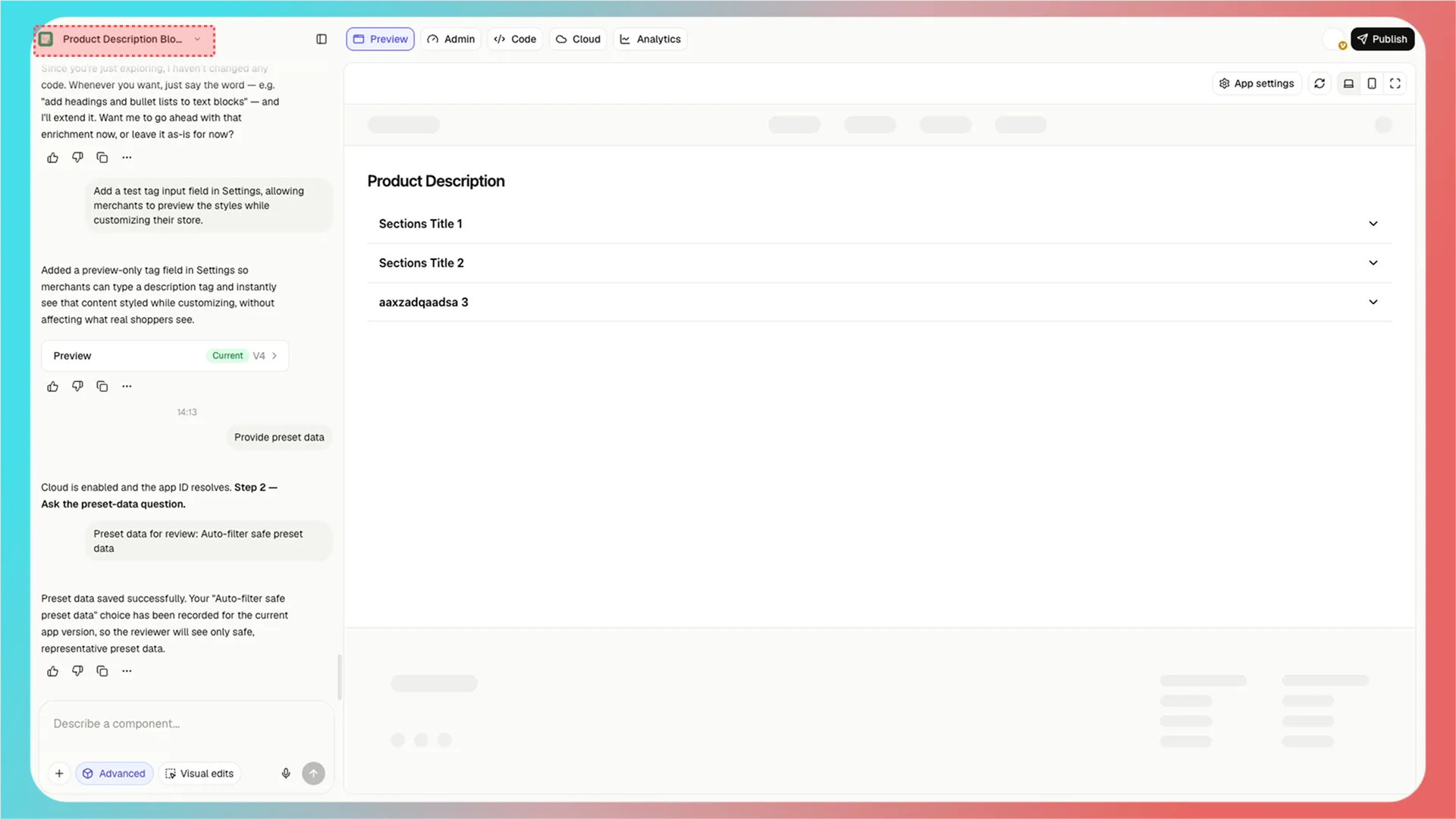
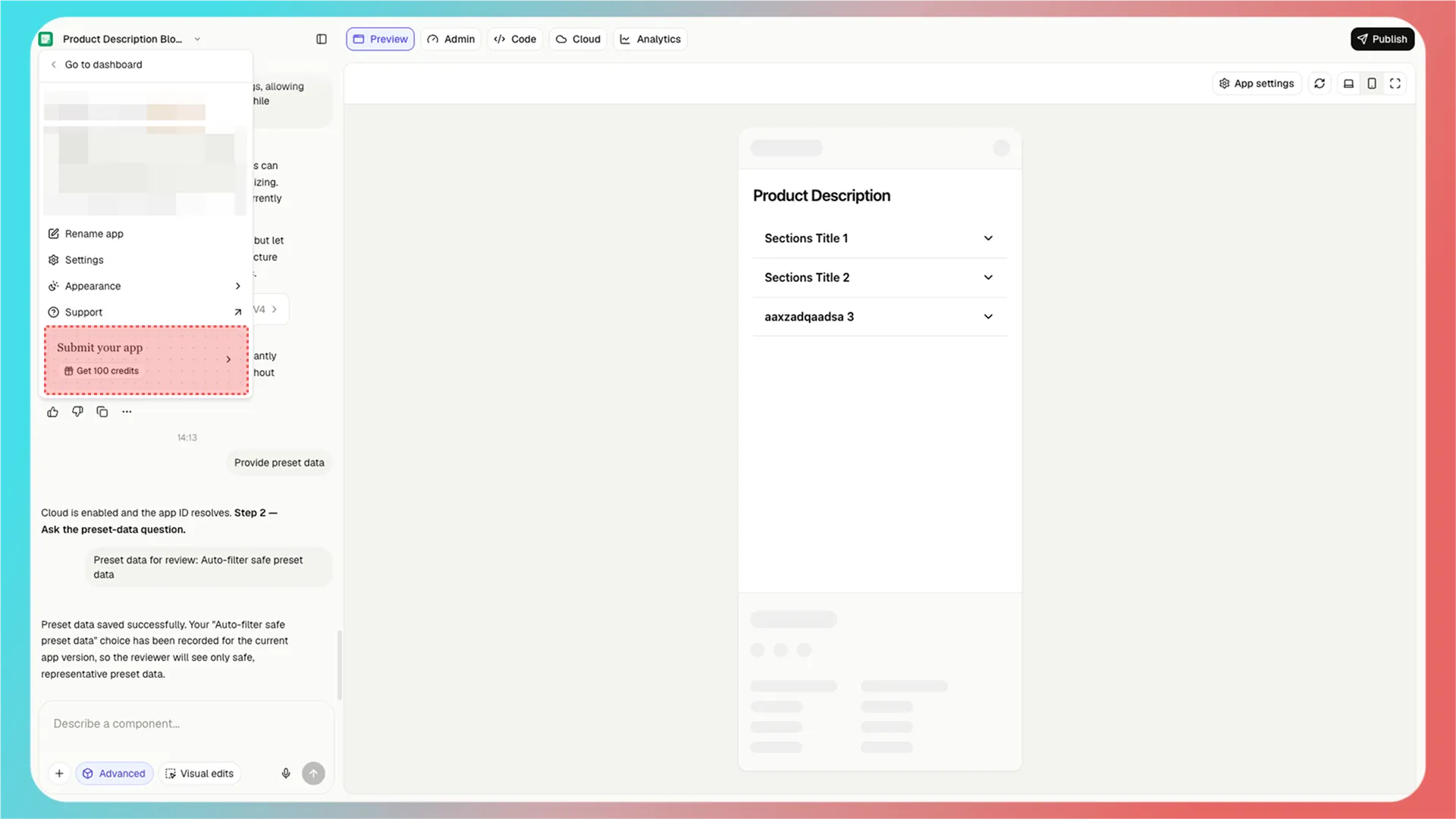
<Frame>
  <img src="https://assets.staticmeow.com/meowgic/static/images/20260714/99eaf8b8-0f90-4452-84d9-6ea975d77a73.png?x-oss-process=image/format,webp" alt="The app name menu button in the upper-left corner of the Meowgic editor." />
</Frame>

<Frame>
  <img src="https://assets.staticmeow.com/meowgic/static/images/20260714/70743443-edb9-48de-bea1-4fbb1724143d.png?x-oss-process=image/format,webp" alt="The Submit your app option in the app name menu." />
</Frame>

<br />

In the **Submit your app** window, complete the basic app information, App Store listing content, demo URL, pricing details, and contact information.
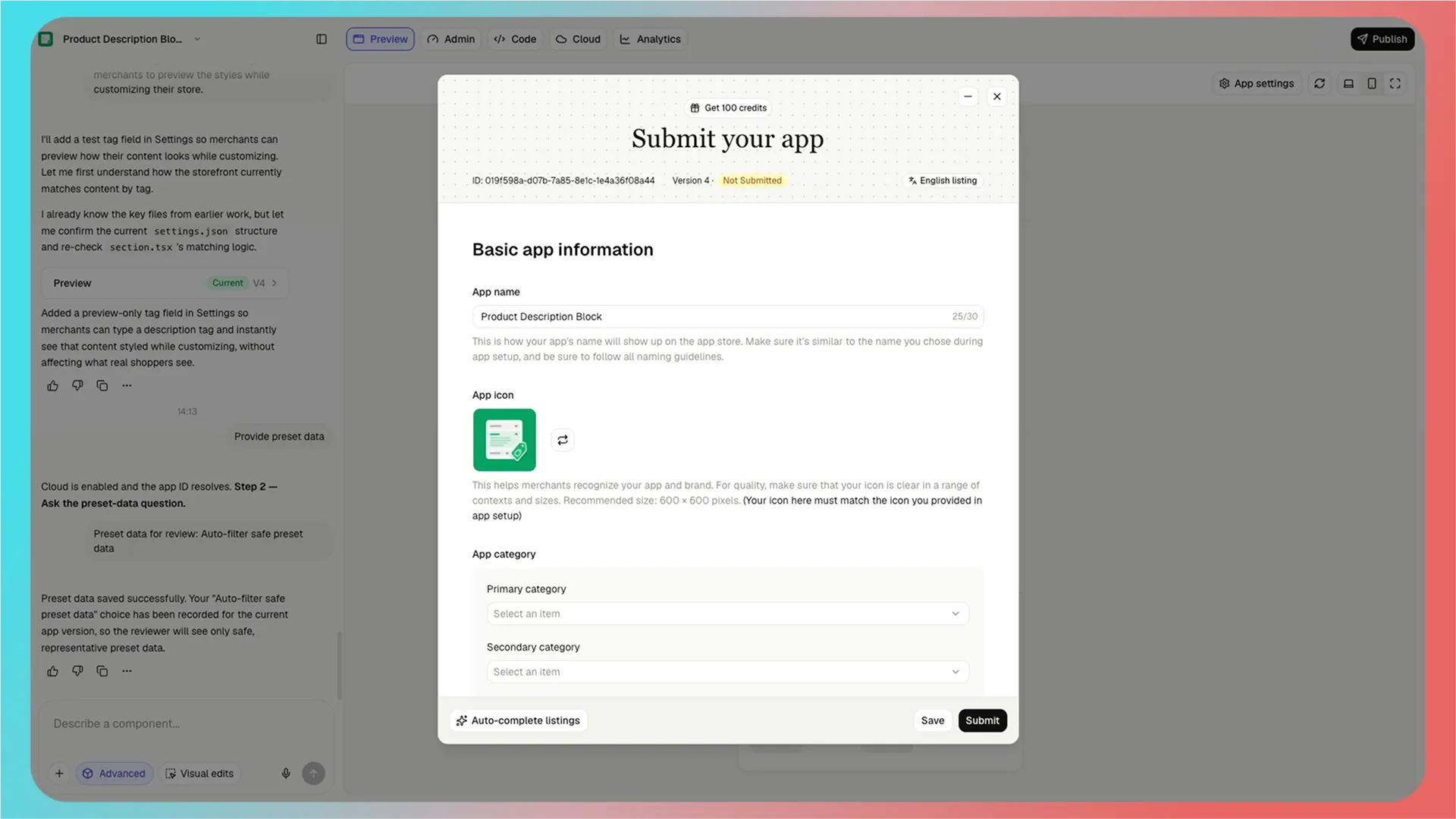
<Frame>
  <img src="https://assets.staticmeow.com/meowgic/static/images/20260714/0b997c9d-b20a-48d2-83fd-e32e92743864.png?x-oss-process=image/format,webp" alt="The Basic app information section of the Submit your app form, with app name, app icon, and category fields." />
</Frame>

<br />

When you finish, click **Submit** in the lower-right corner.
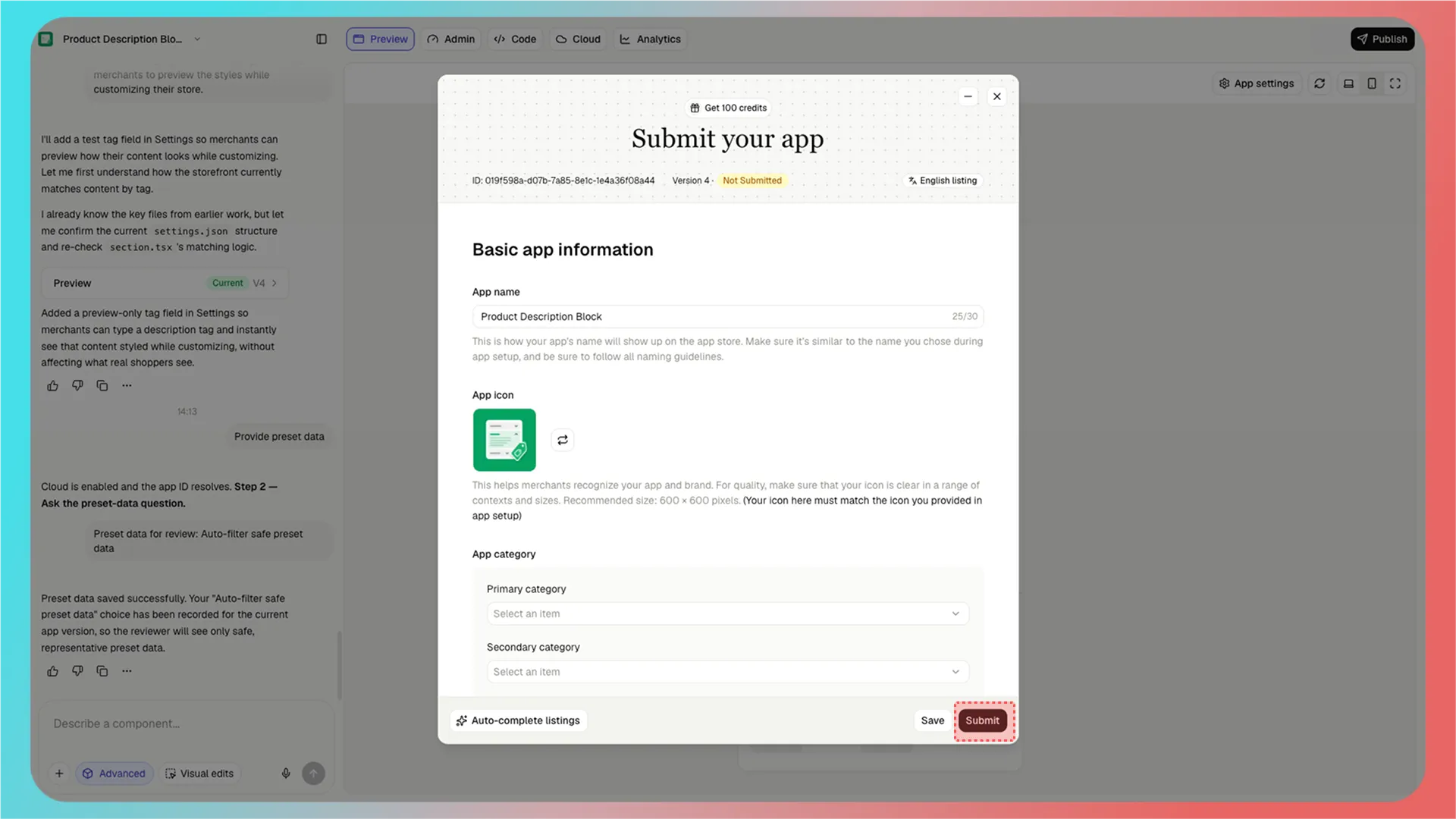
<Frame>
  <img src="https://assets.staticmeow.com/meowgic/static/images/20260714/3908f479-a8d4-4e93-9356-bfd7c46ebd65.png?x-oss-process=image/format,webp" alt="The Submit button in the lower-right corner of the completed Submit your app form." />
</Frame>

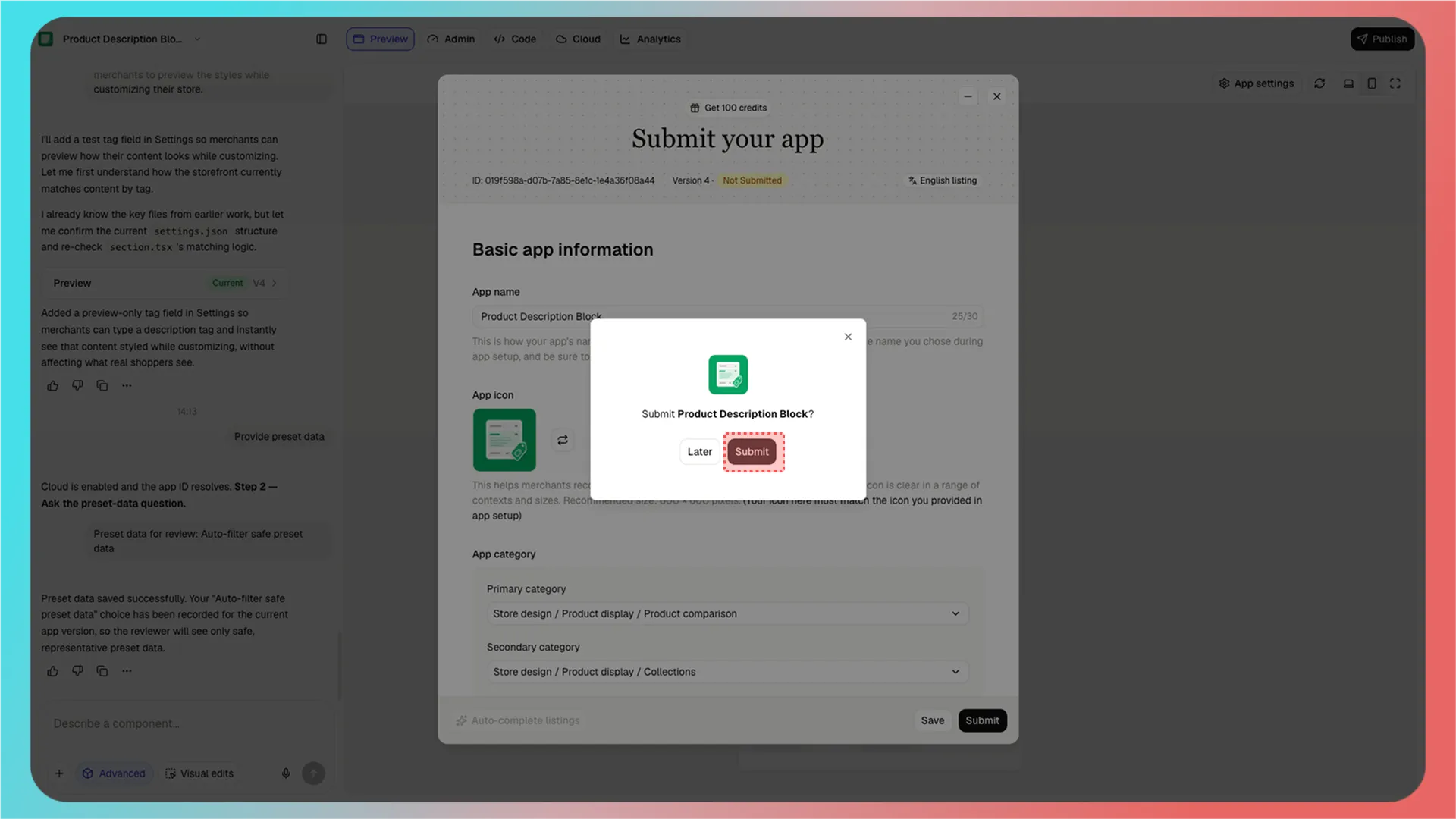
In the confirmation dialog, click **Submit** again to send your app for review.
<Frame>
  <img src="https://assets.staticmeow.com/meowgic/static/images/20260714/89931a68-426c-4178-9ada-0a92c1d2469e.png?x-oss-process=image/format,webp" alt="The confirmation dialog for submitting the app, with Later and Submit buttons." />
</Frame>

<br />

## 3. Check review status

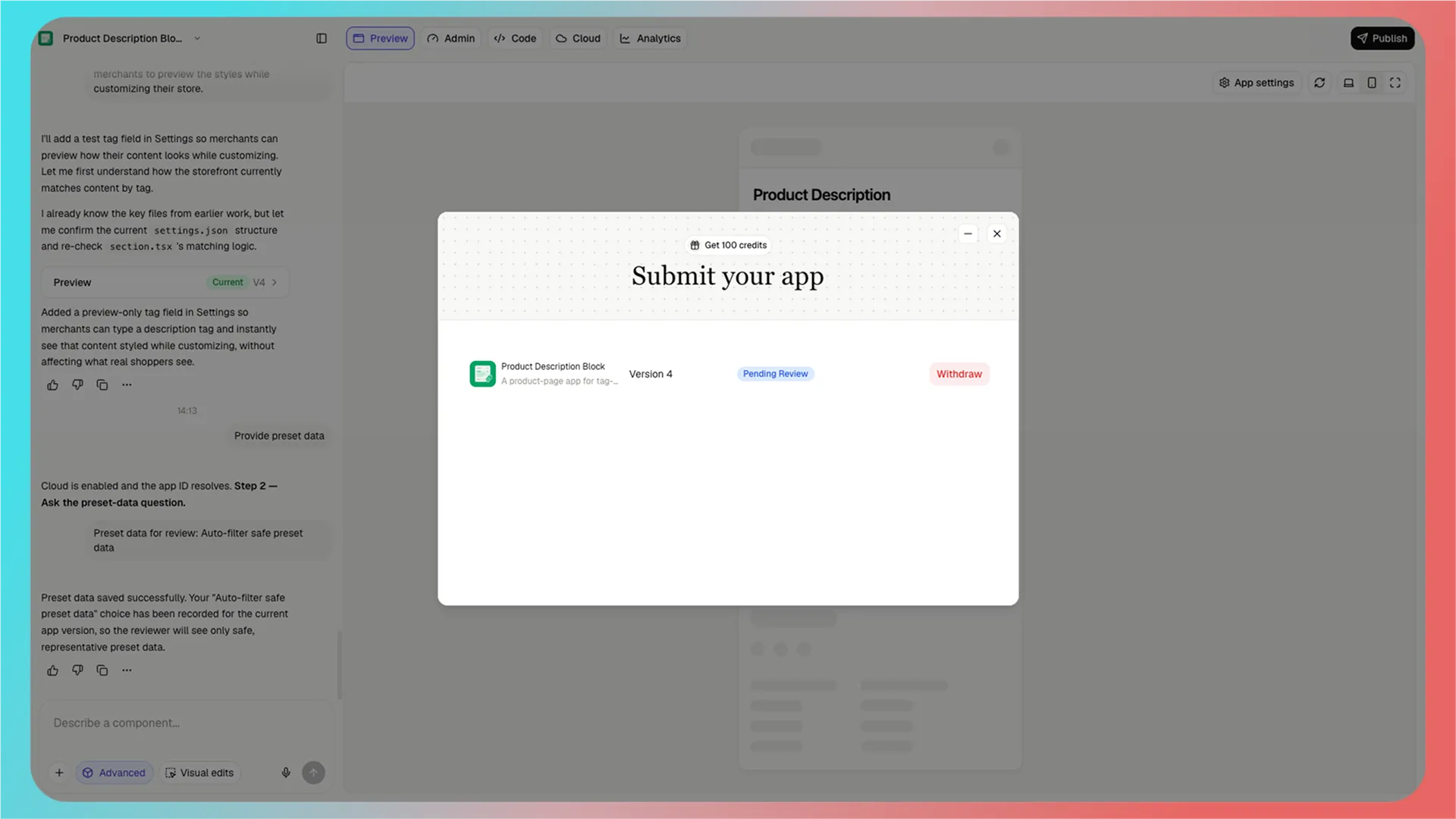
After you submit your app, its status changes to **Pending Review** and the Meowgic team starts reviewing it. At this stage, click **Withdraw** to cancel the submission.
<Frame>
  <img src="https://assets.staticmeow.com/meowgic/static/images/20260714/da504e07-5393-4beb-9dd6-d975ec564cae.png?x-oss-process=image/format,webp" alt="The app submission list with the status set to Pending Review and a Withdraw button." />
</Frame>

<br />

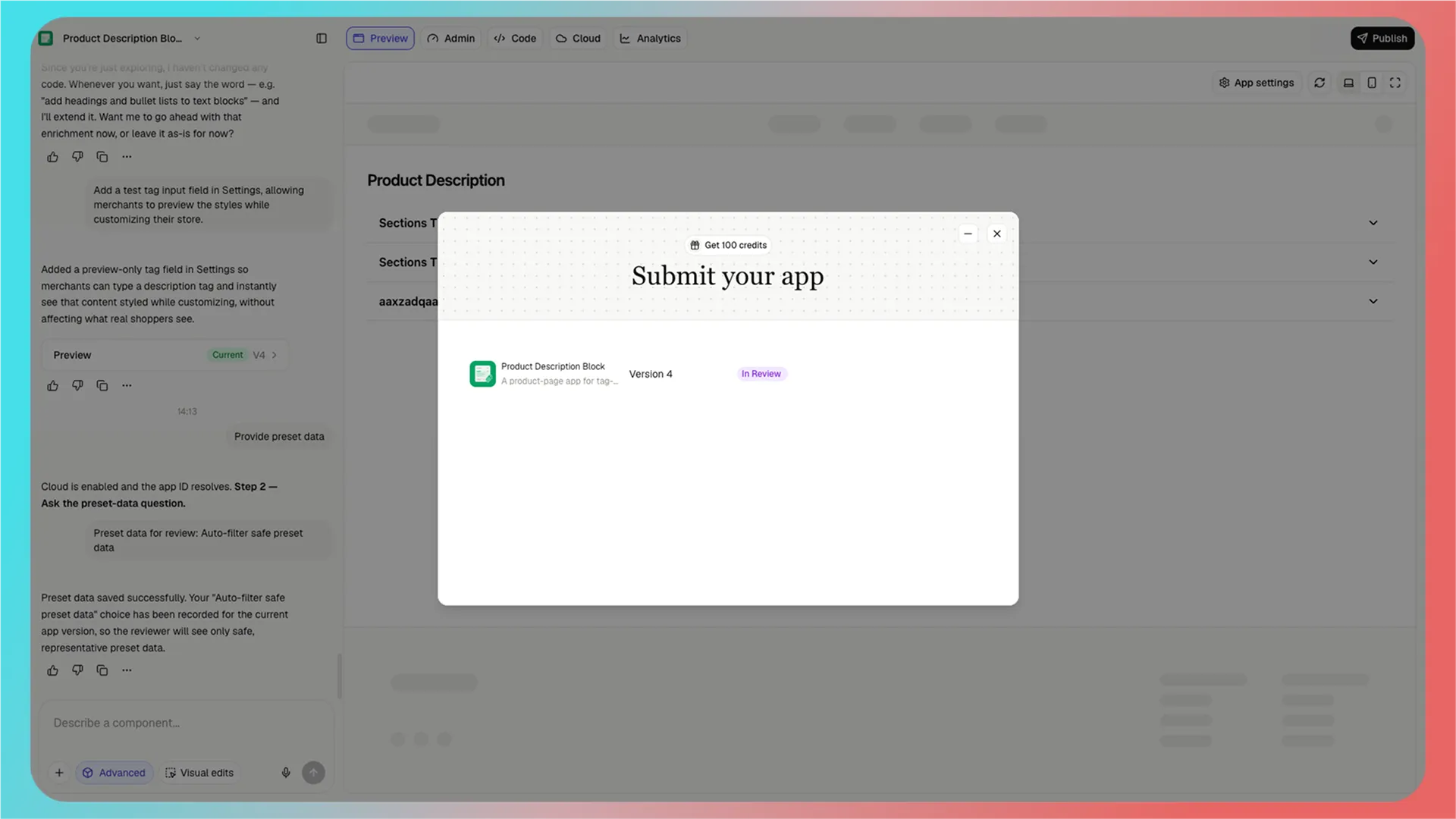
When the status is **In Review**, the Meowgic team is reviewing your app.
<Frame>
  <img src="https://assets.staticmeow.com/meowgic/static/images/20260714/c03cab2a-a6dc-4153-b423-47a64c64415a.png?x-oss-process=image/format,webp" alt="The app submission list with the status set to In Review." />
</Frame>

<br />

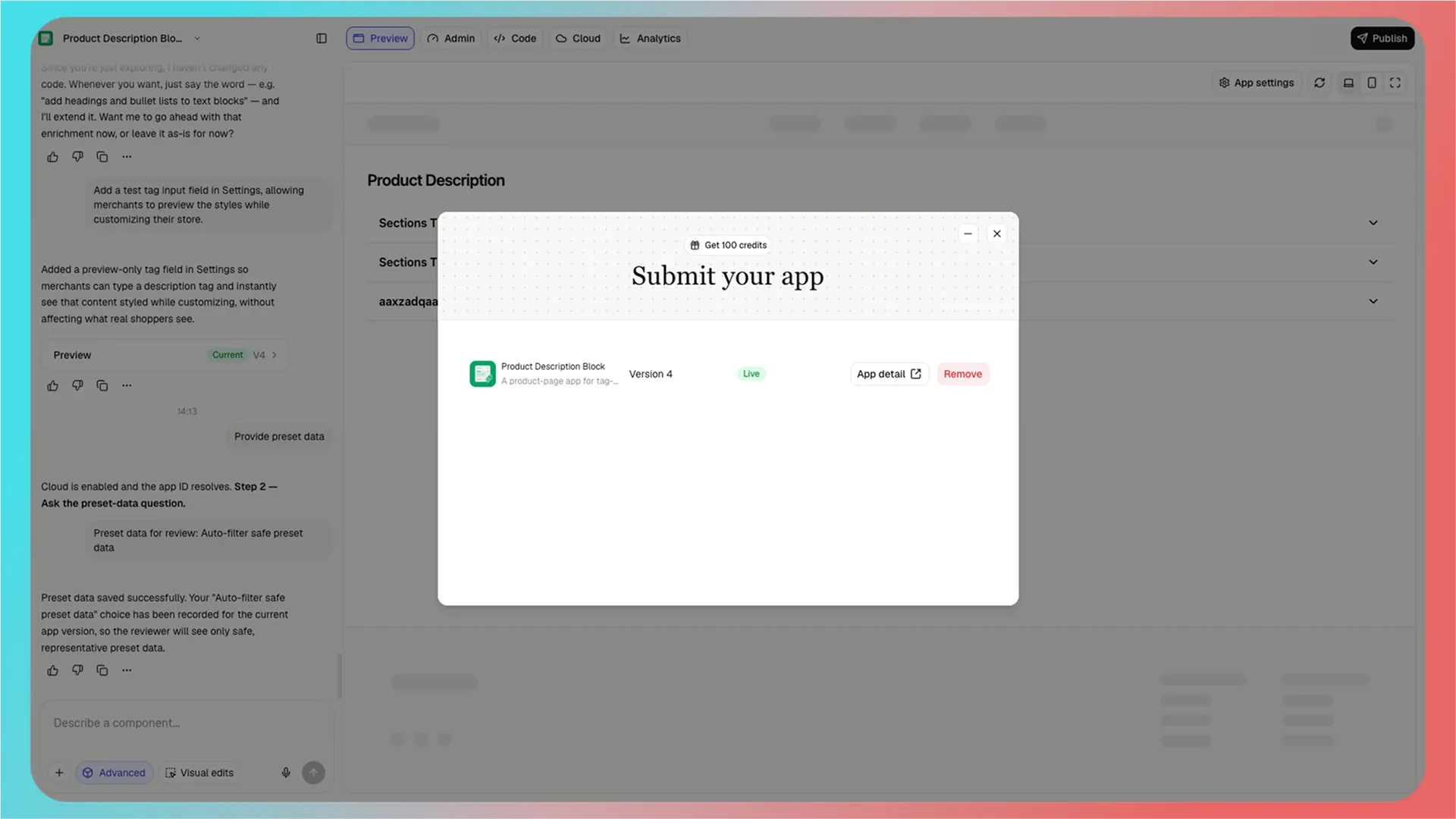
After approval, the status changes to **Live**. Click **App detail** to view your app's listing in the Meowgic App Store.

To remove a live app, click **Remove**.
<Frame>
  <img src="https://assets.staticmeow.com/meowgic/static/images/20260714/e70e77cd-e458-449c-87c8-b9a666b974aa.png?x-oss-process=image/format,webp" alt="The approved app submission with the status set to Live and App detail and Remove buttons." />
</Frame>

<br />

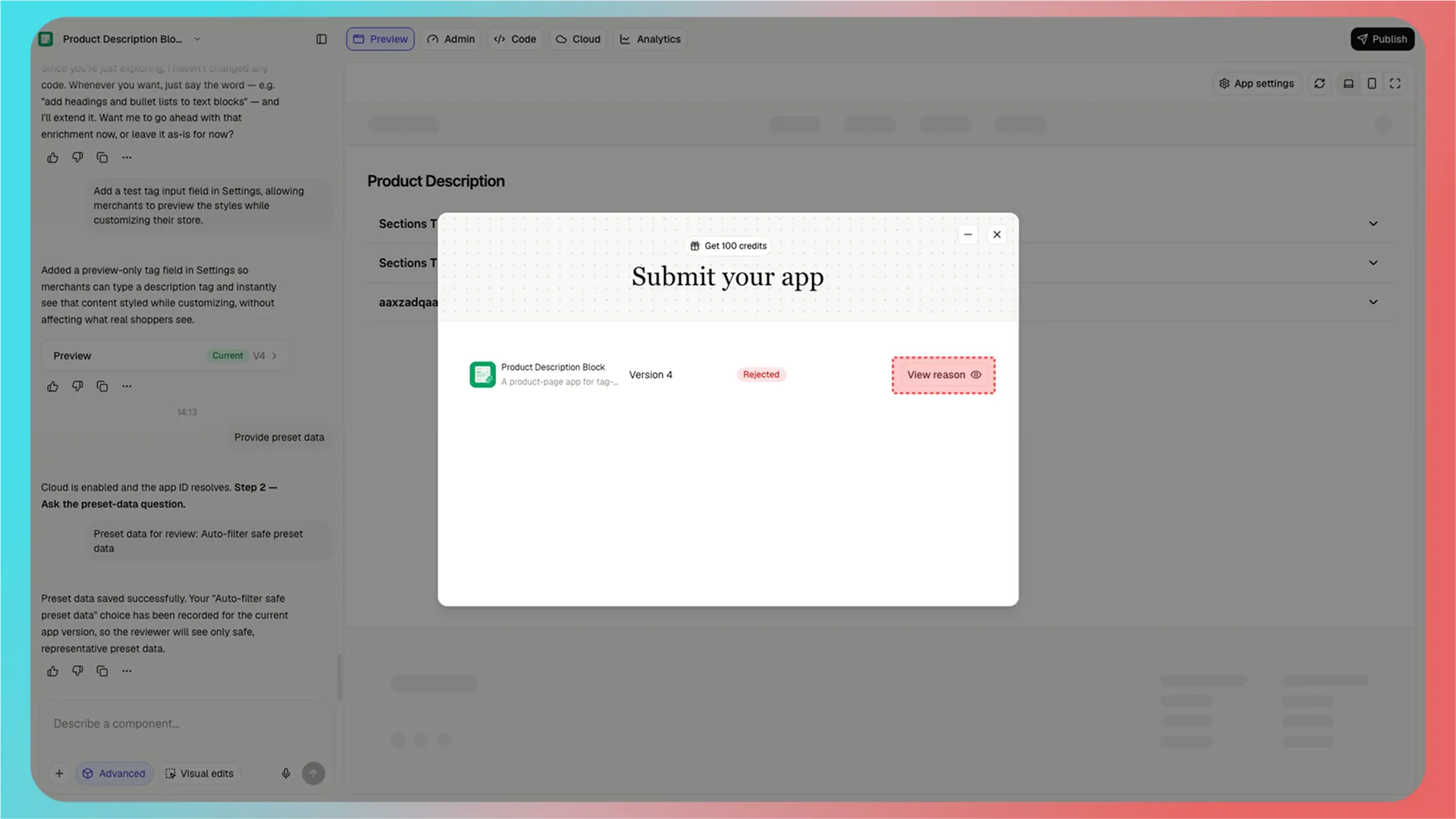
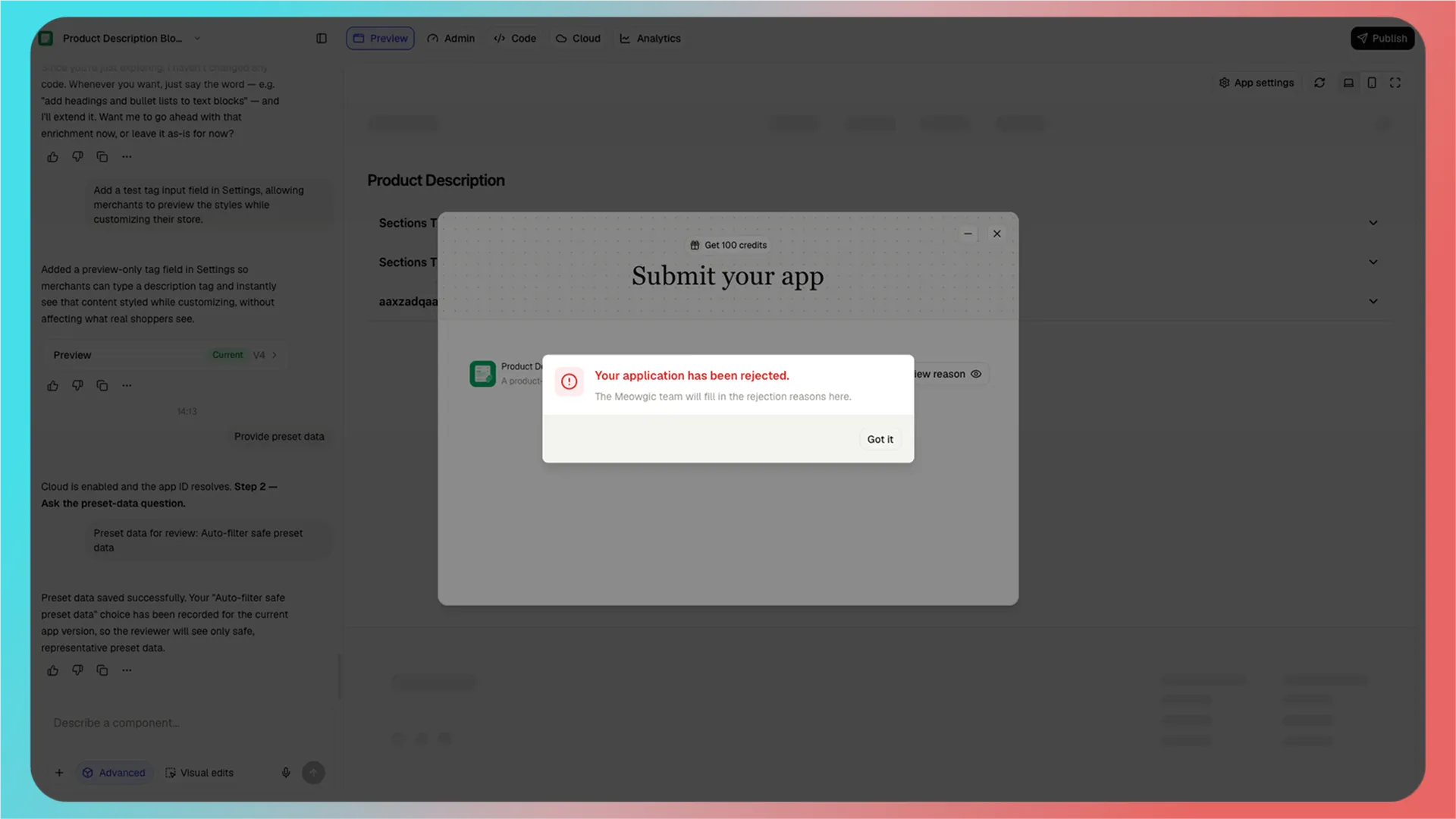
If your app does not pass review, do not worry. Click **View reason** to see Meowgic's feedback. Make the requested updates, then submit your app for review again.
<Frame>
  <img src="https://assets.staticmeow.com/meowgic/static/images/20260714/44fe460a-df91-4332-8091-dca3ec857986.png?x-oss-process=image/format,webp" alt="The rejected app submission with a View reason button." />
</Frame>

<Frame>
  <img src="https://assets.staticmeow.com/meowgic/static/images/20260714/2559cd9b-0cb1-45ed-809a-0b80fc71fb69.png?x-oss-process=image/format,webp" alt="The rejection-reason dialog for an app that did not pass review." />
</Frame>

<br />

Ready to get started? Turn your idea into an app that more users can discover.

<br />

## Frequently asked questions

<AccordionGroup>
  <Accordion title="What is preset data?">
    Preset data is the initial data included with your app for other Meowgic users. When users get your app from the Meowgic App Store, they receive this data with it.
  </Accordion>

  <Accordion title="Does my app need preset data if it has no Admin area?">
    No. When you submit your app, click **Keep data empty**.
  </Accordion>

  <Accordion title="How should I choose a preset data option?">
    We recommend **Auto-filter safe preset data** in most cases. Meowgic uses AI to select data that is safe to display publicly. Choose **Use all current data** only if all of your current data can be shared. Choose **Other** if you have specific requirements.
  </Accordion>

  <Accordion title="What information do I need to submit?">
    Complete the basic app information, App Store listing content, demo URL, pricing details, and contact information. This includes your app name, icon, category, introduction, details, features, video URL, screenshots, support email, and app submission email.
  </Accordion>

  <Accordion title="Can I withdraw a submission?">
    Yes. When the status is **Pending Review**, click **Withdraw** to cancel the submission.
  </Accordion>

  <Accordion title="What should I do if my app does not pass review?">
    Click **View reason** to see Meowgic's feedback. Make the requested updates, then submit your app for review again.
  </Accordion>

  <Accordion title="How can I preview an approved app listing?">
    When the status changes to **Live**, click **App detail** to view its listing in the Meowgic App Store.
  </Accordion>
</AccordionGroup>

<br />

## Related reading

<Columns cols={2}>
  <Card title="Best practices" icon="dumbbell" href="/tips-tricks/best-practices">
    Learn how to use screenshots, reference links, and visual editing to build apps more accurately.
  </Card>

  <Card title="Create an app" icon="wand-sparkles" href="/tips-tricks/create-app-let-it-work-on-your-store">
    Learn how to create and configure an app in Meowgic.
  </Card>

  <Card title="App integrations" icon="store" href="/integrations/introduction">
    Learn how to integrate your app with your store.
  </Card>

  <Card title="Welcome to Meowgic" icon="paw-print" href="/">
    Explore Meowgic's core capabilities and the full workflow from creating an app to publishing it.
  </Card>
</Columns>
