> ## Documentation Index
> Fetch the complete documentation index at: https://docs.meowgic.ai/llms.txt
> Use this file to discover all available pages before exploring further.
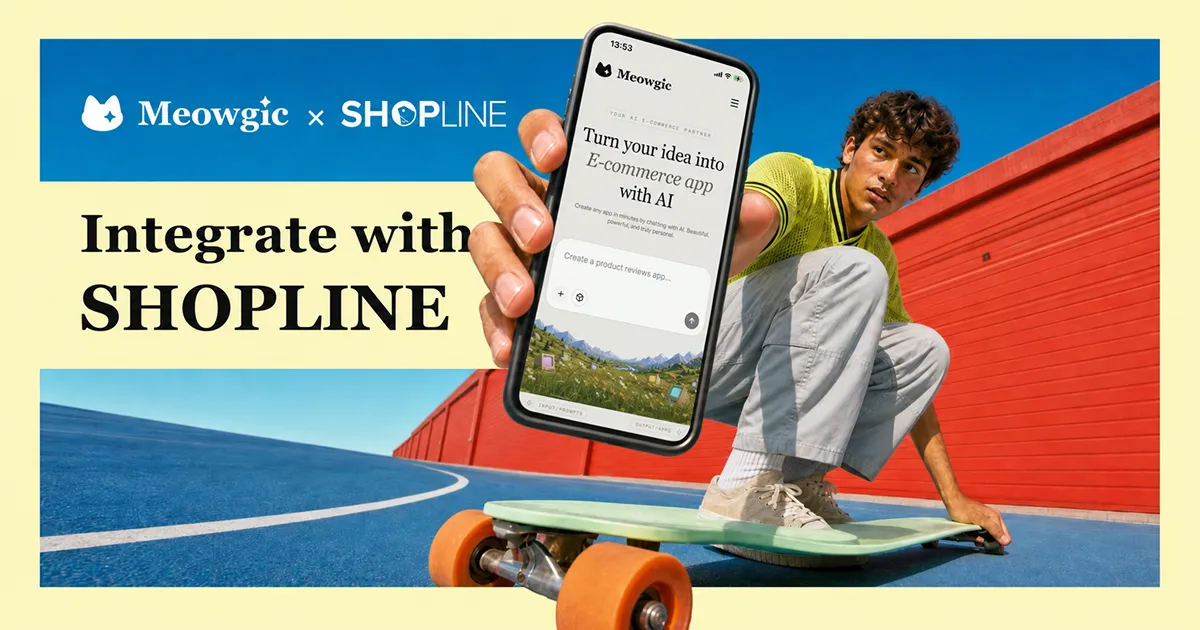
# Integrate your Meowgic app with SHOPLINE
> Learn how to integrate your Meowgic app into a SHOPLINE store and complete setup and configuration.
 ## Prepare your app
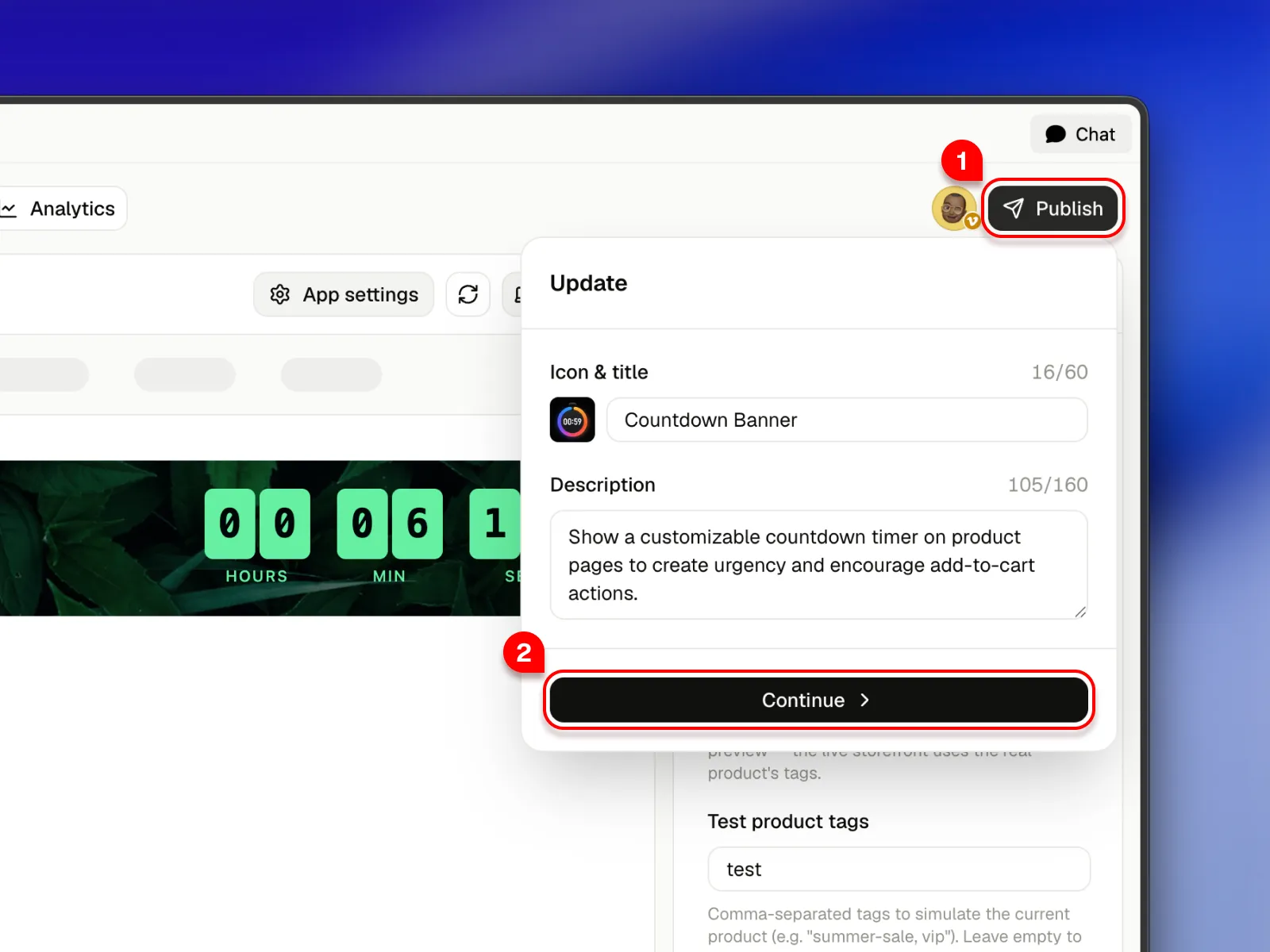
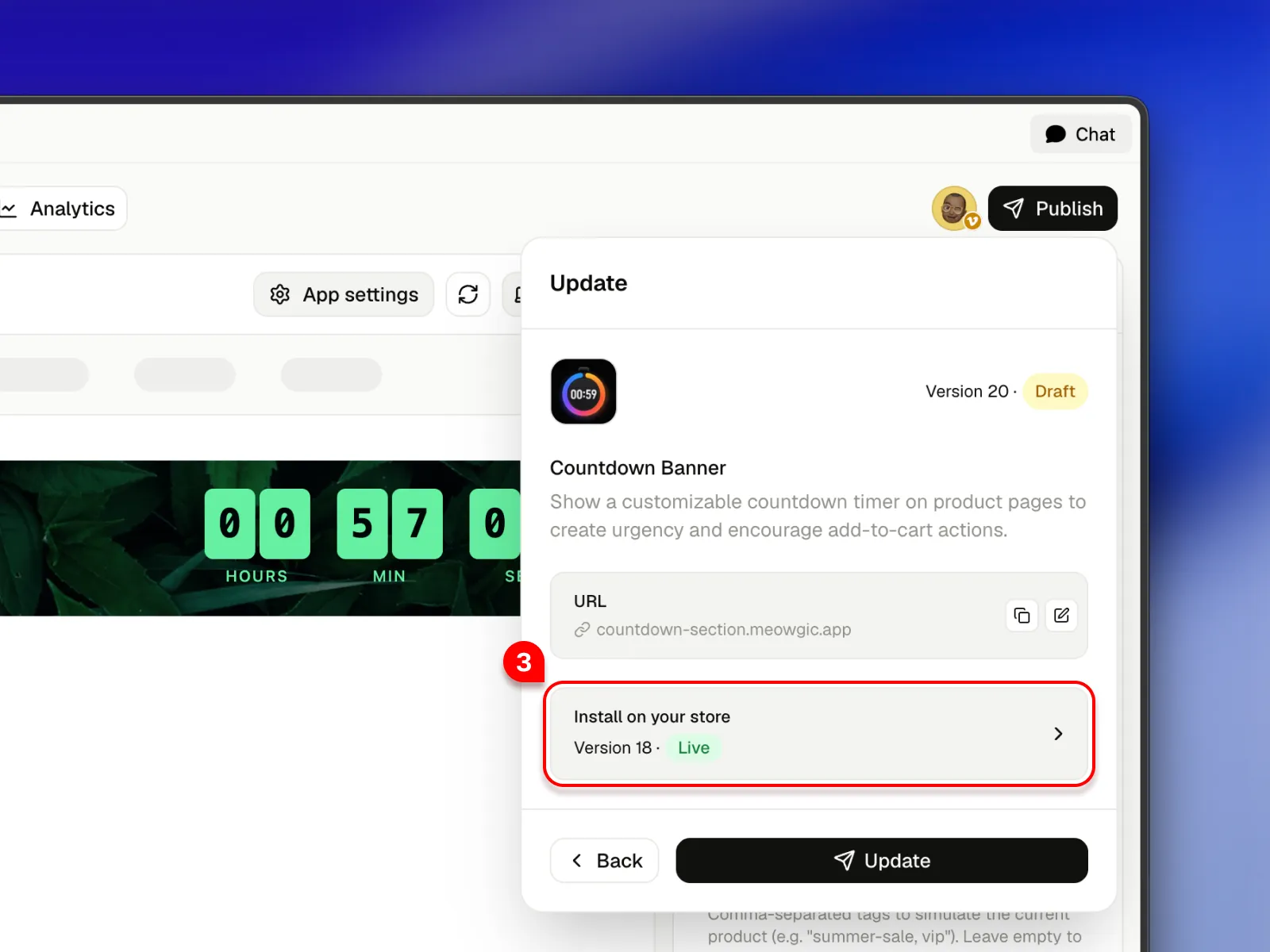
Open your app, click **Publish** in the upper-right corner, then select **Install to your store**.
## Prepare your app
Open your app, click **Publish** in the upper-right corner, then select **Install to your store**.
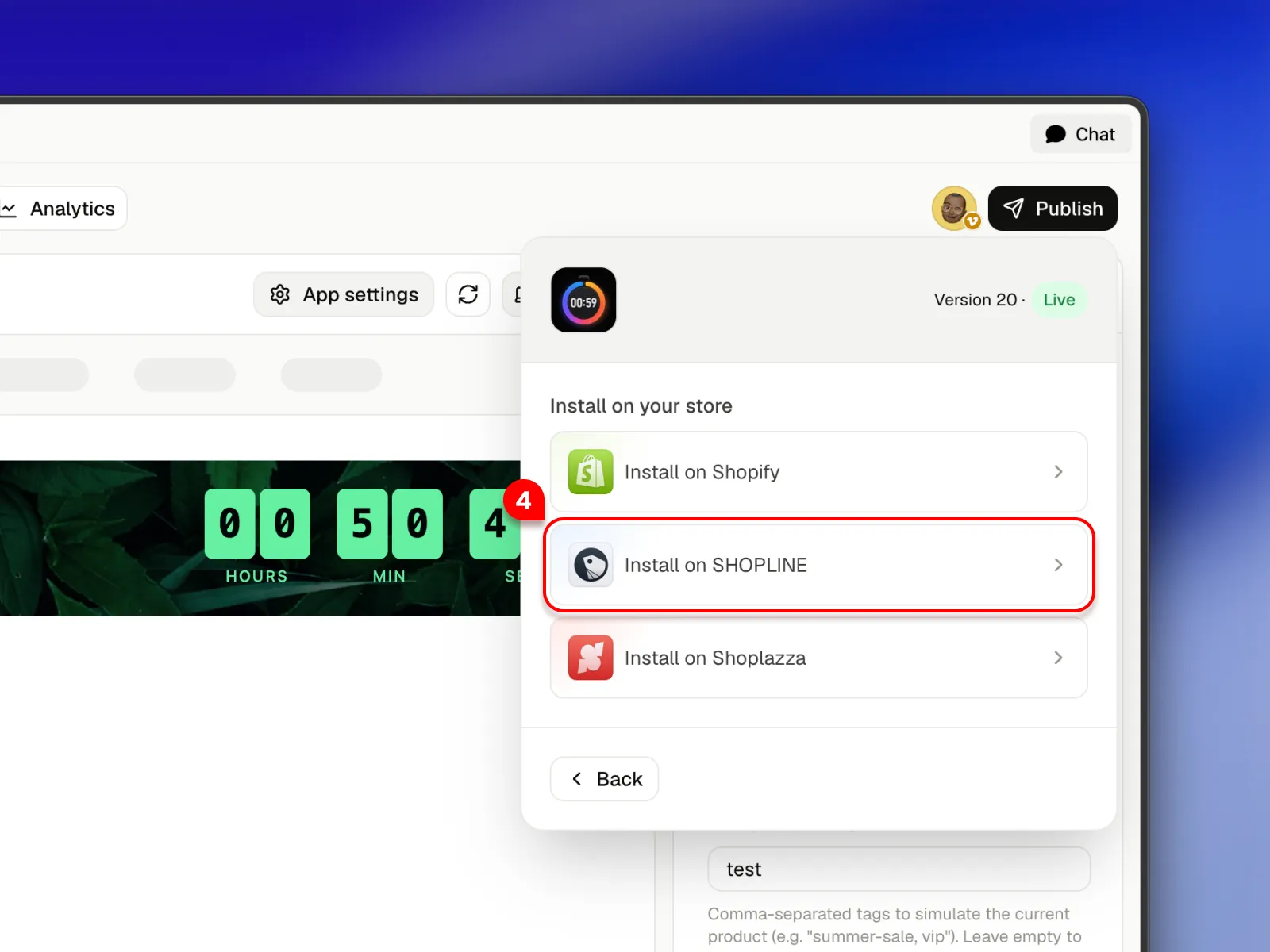
 Choose **SHOPLINE** as the target platform to start the integration flow.
 ## Start integration
You can integrate your app in two ways:
* Automatic integration: If your Meowgic account is already connected to your SHOPLINE store, you can pick a target theme and let Meowgic handle installation and future updates automatically.
* Manual integration: Download your theme file from SHOPLINE and upload it to Meowgic. Meowgic AI applies the integration, and you then download the updated theme file and upload it back to SHOPLINE.
### Automatic integration (coming soon)
This feature is on the way. Stay tuned.
### Manual integration
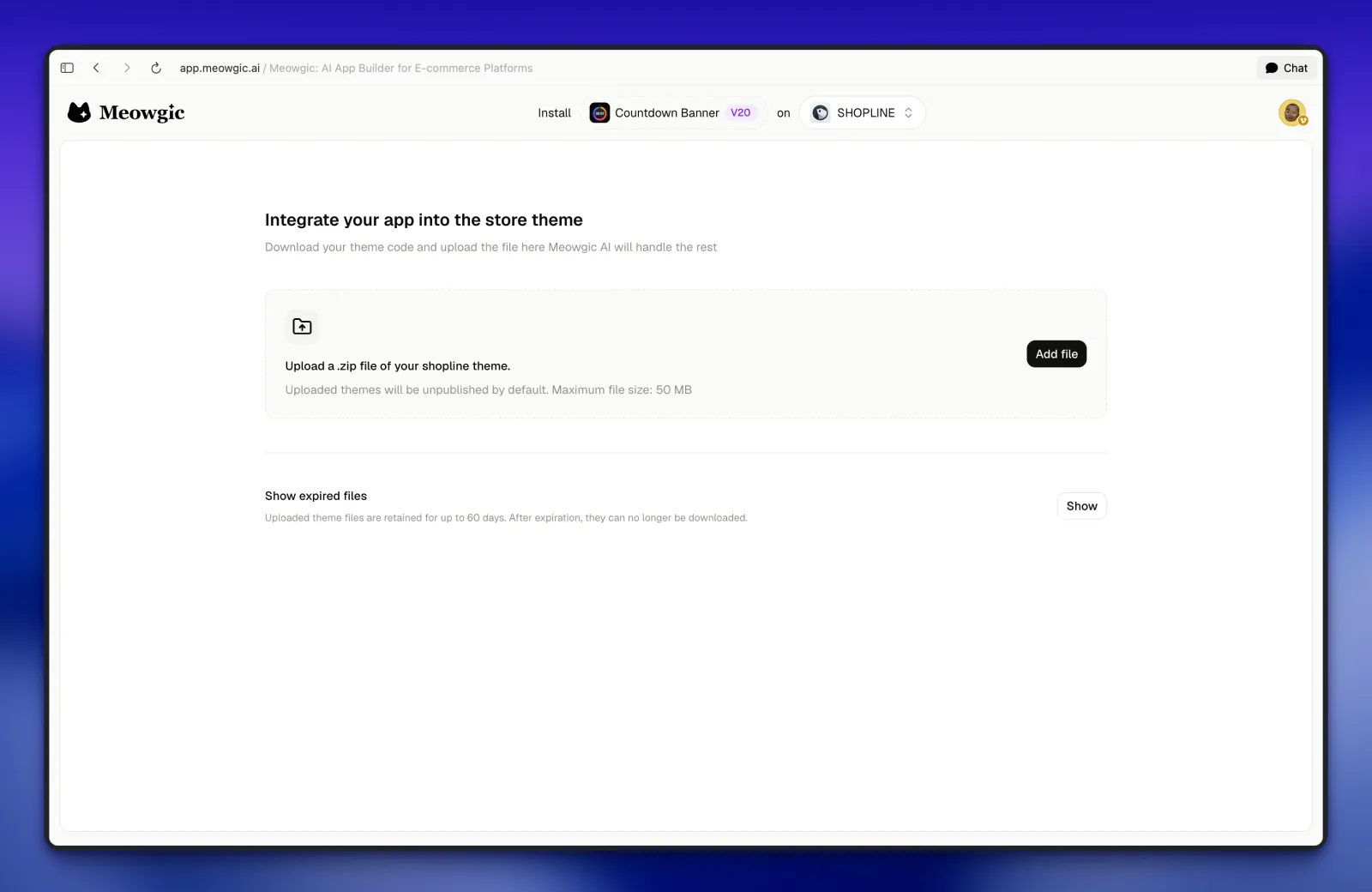
On the integration page, you can view the current app version and target platform. You can also switch versions to review their integration history.
## Start integration
You can integrate your app in two ways:
* Automatic integration: If your Meowgic account is already connected to your SHOPLINE store, you can pick a target theme and let Meowgic handle installation and future updates automatically.
* Manual integration: Download your theme file from SHOPLINE and upload it to Meowgic. Meowgic AI applies the integration, and you then download the updated theme file and upload it back to SHOPLINE.
### Automatic integration (coming soon)
This feature is on the way. Stay tuned.
### Manual integration
On the integration page, you can view the current app version and target platform. You can also switch versions to review their integration history.
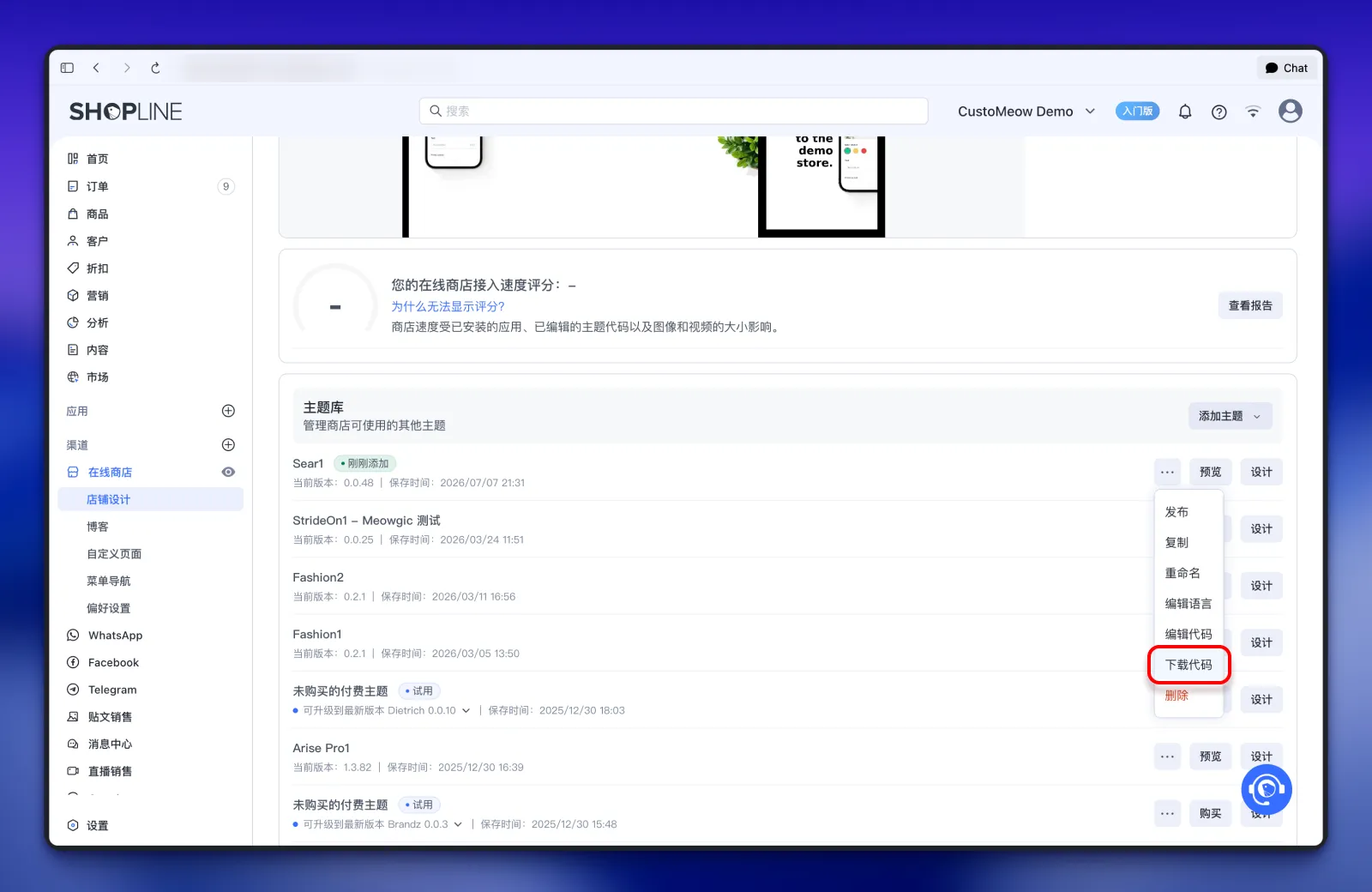
 Go to your SHOPLINE admin and download your store theme file.
 Upload the theme file, then click **Start** to begin integration.
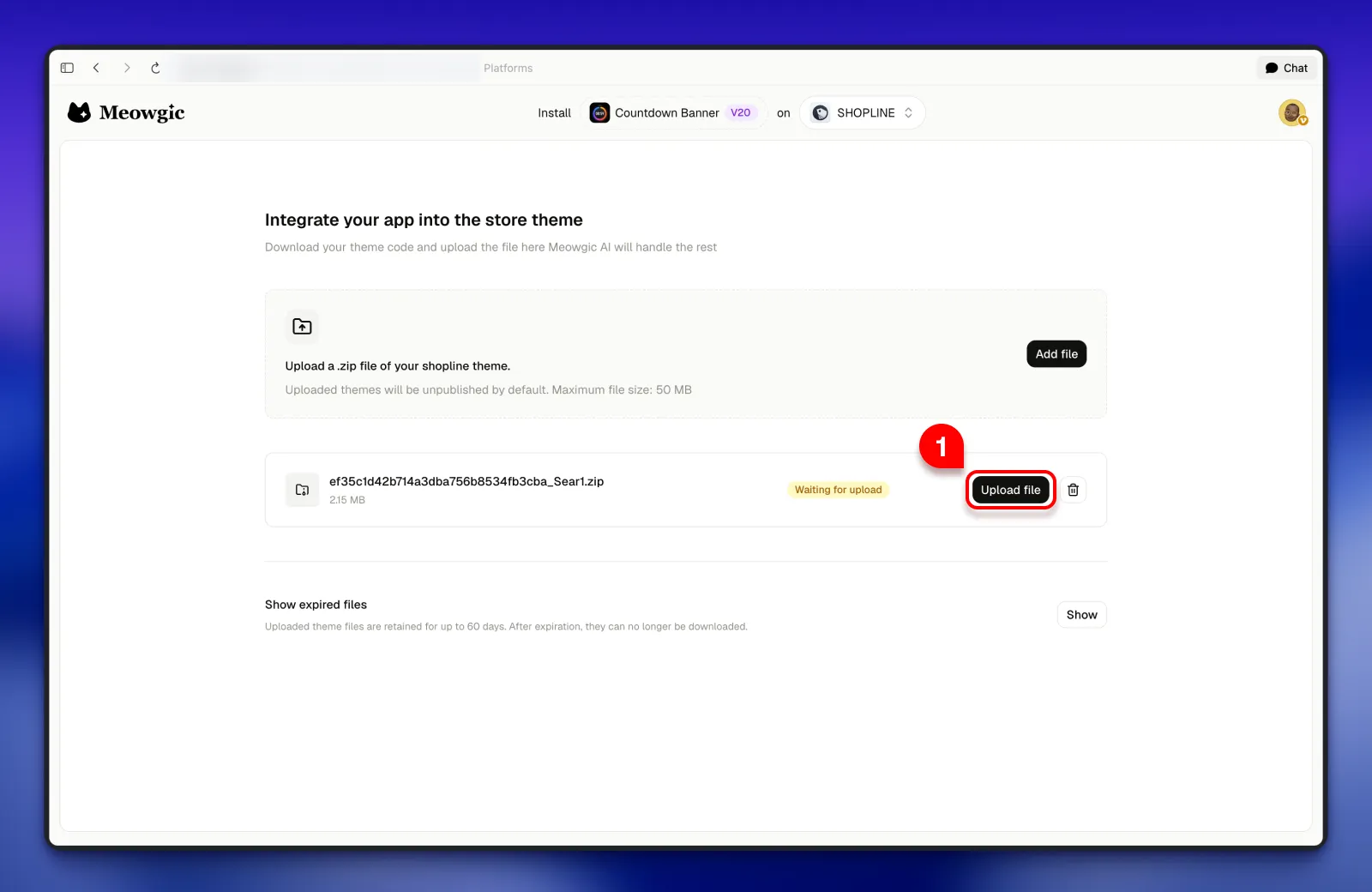
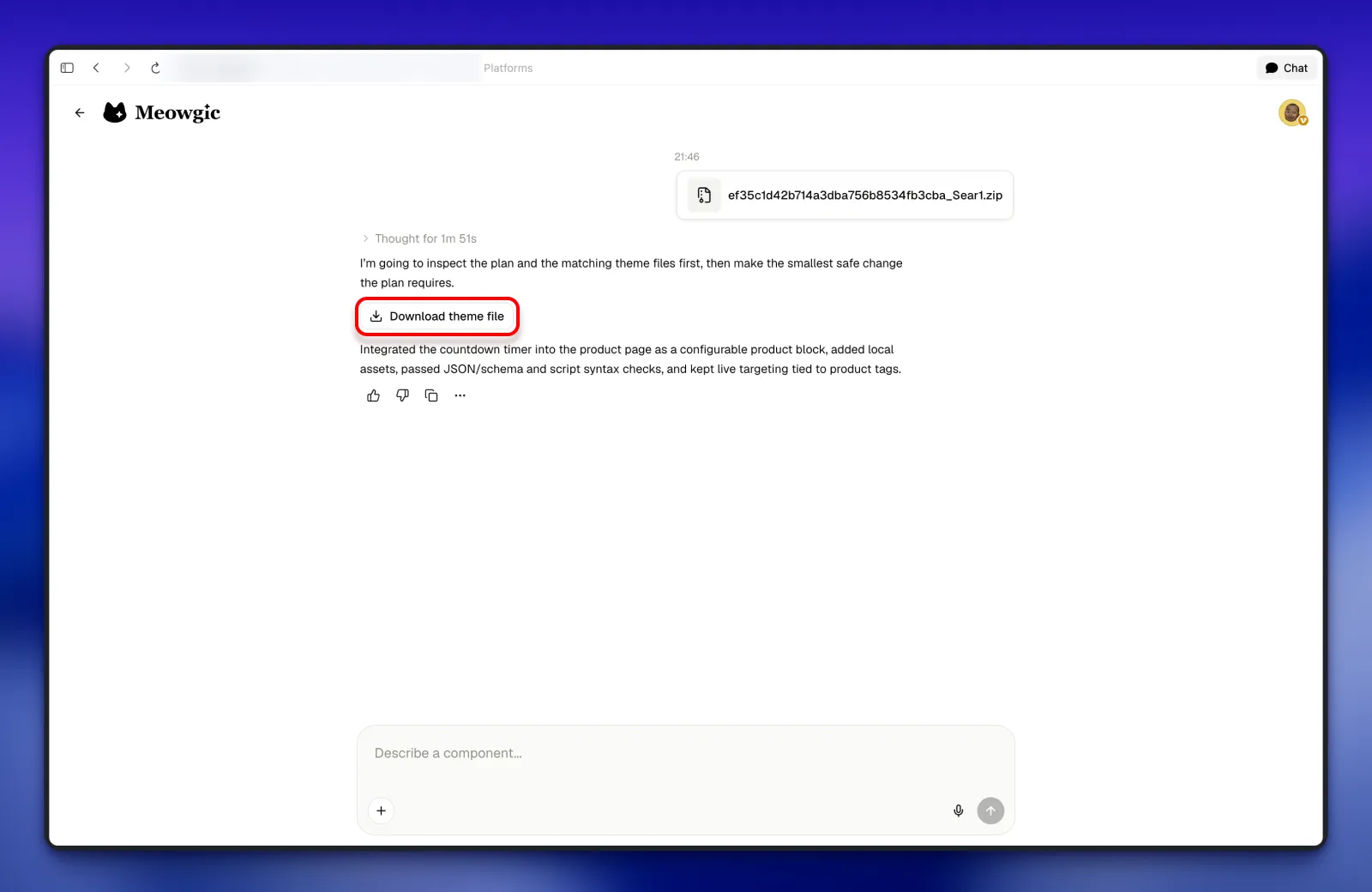
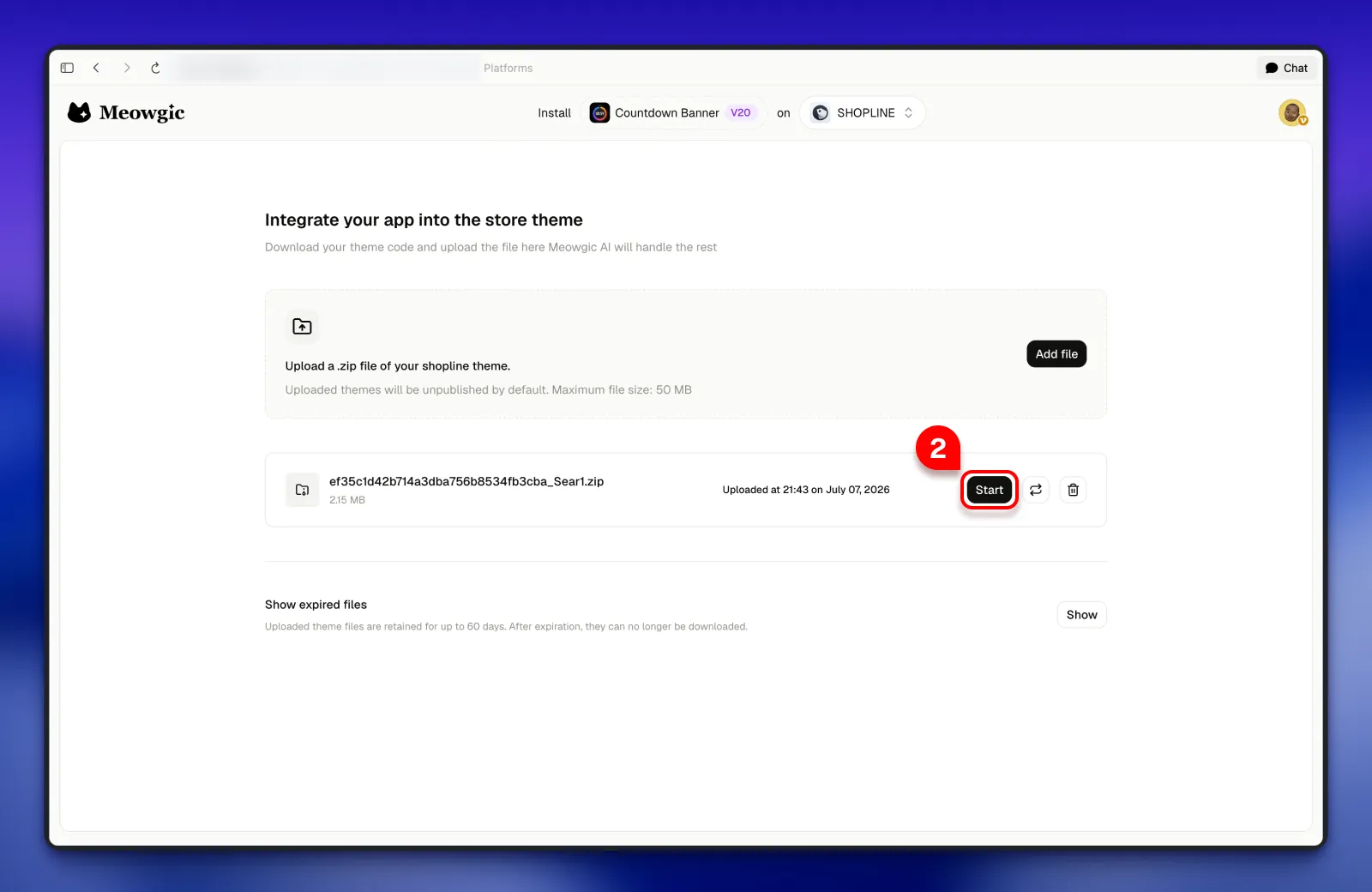 Meowgic AI analyzes your theme file and embeds the app for you. When integration is complete, it generates an updated theme file. Click **Download theme file** to save it.
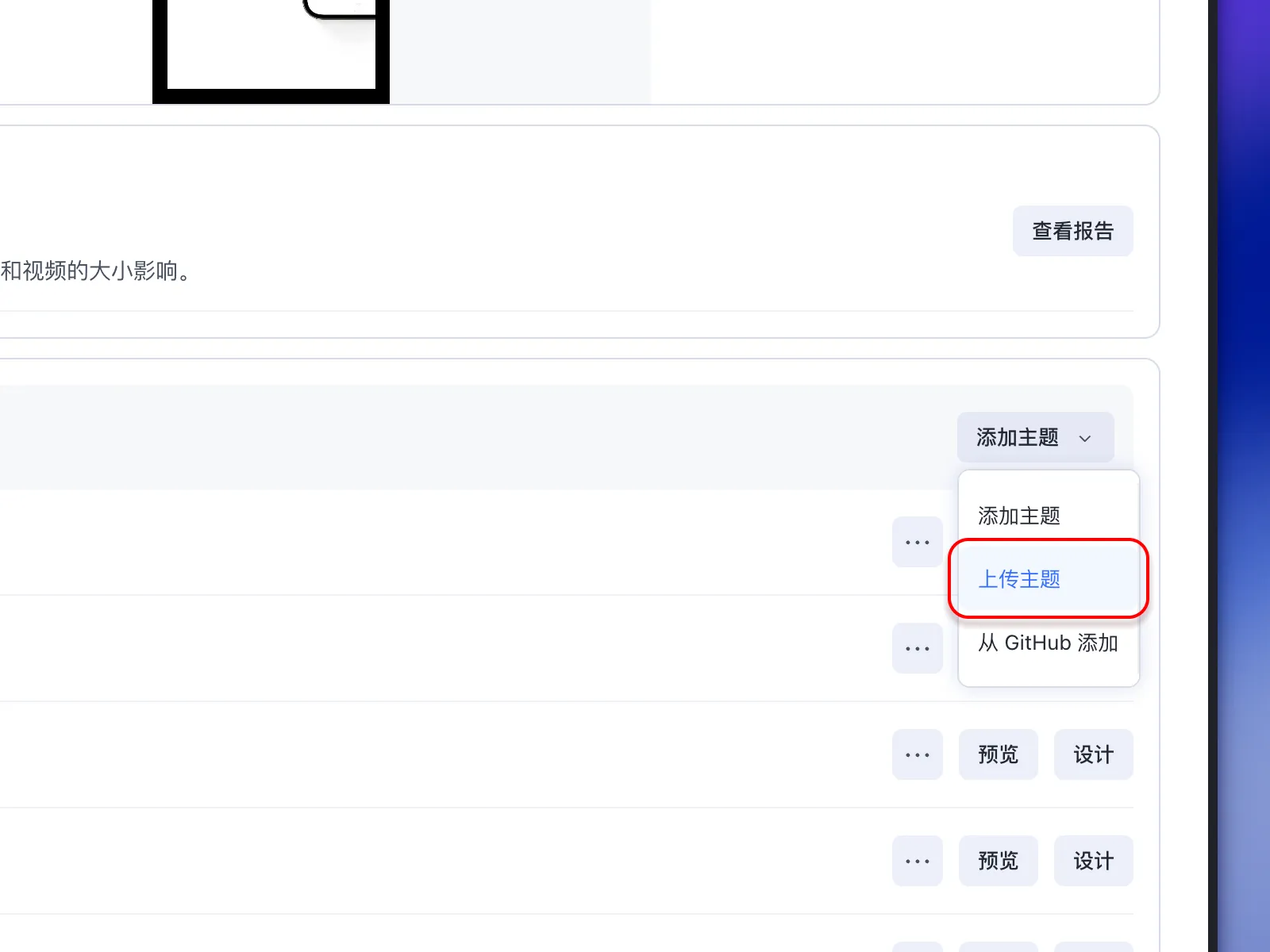
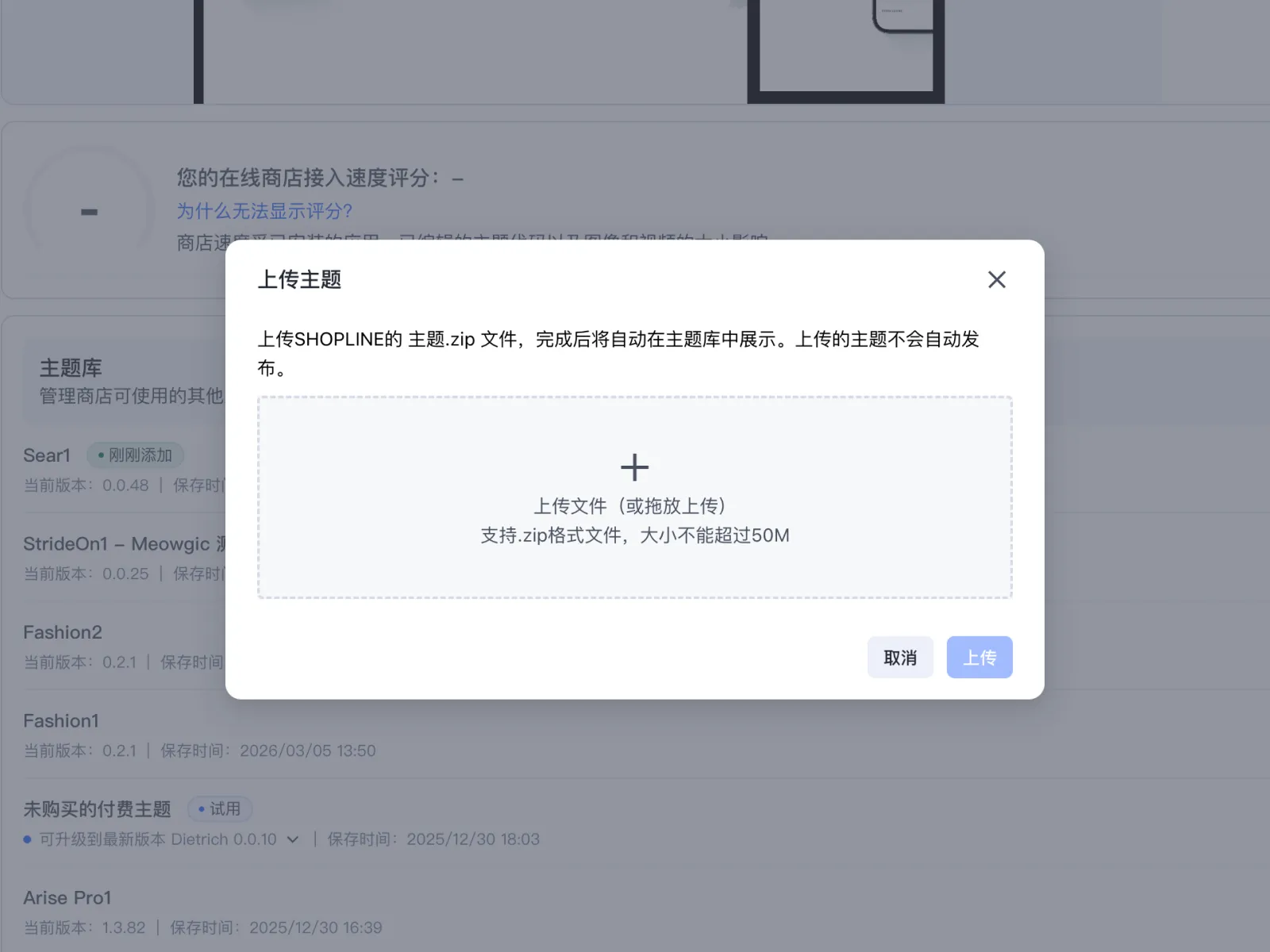
 Return to SHOPLINE and upload the updated theme file.
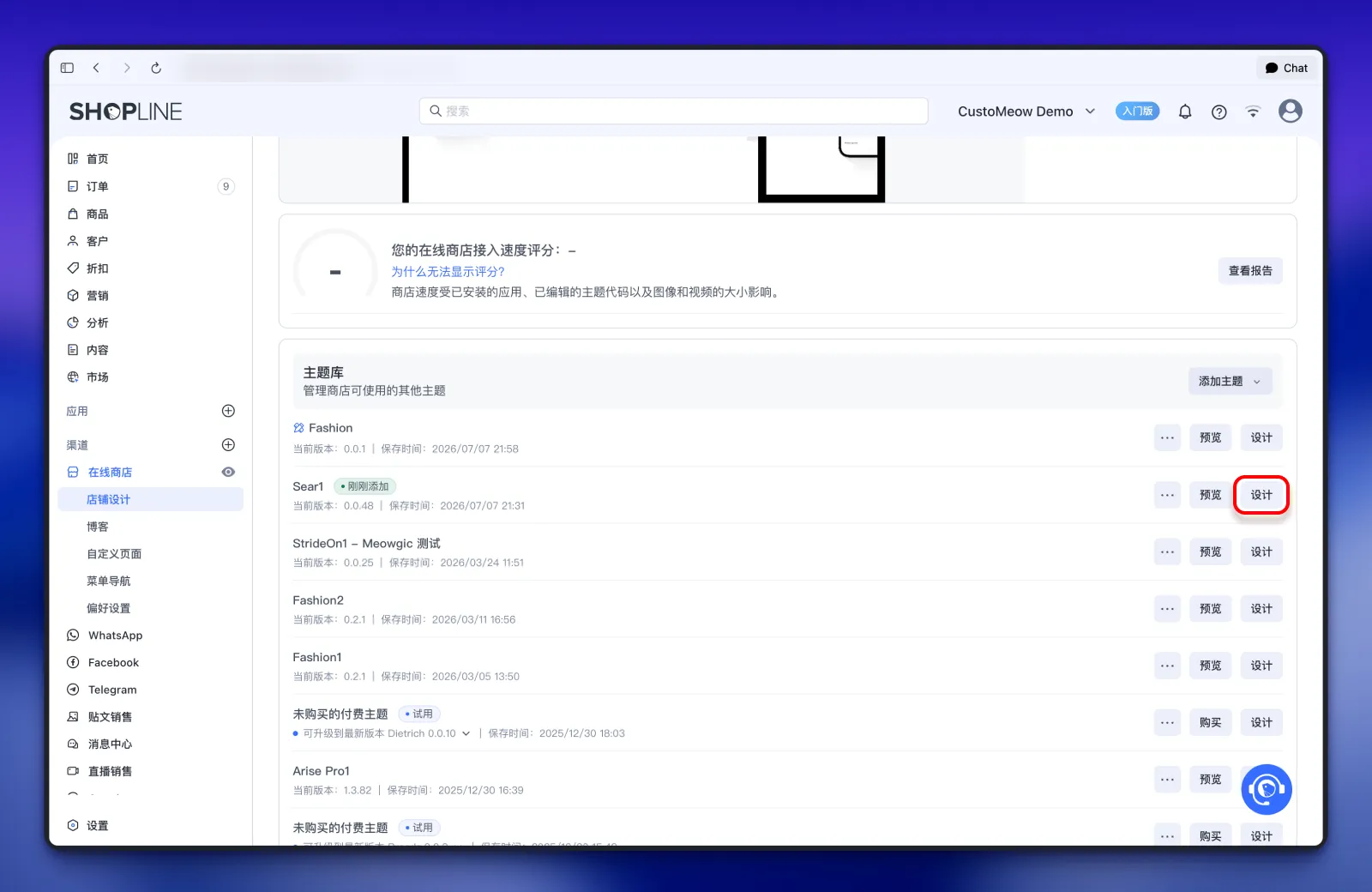
 After the upload finishes, click **Edit theme**, then locate the page template tied to the app you created.
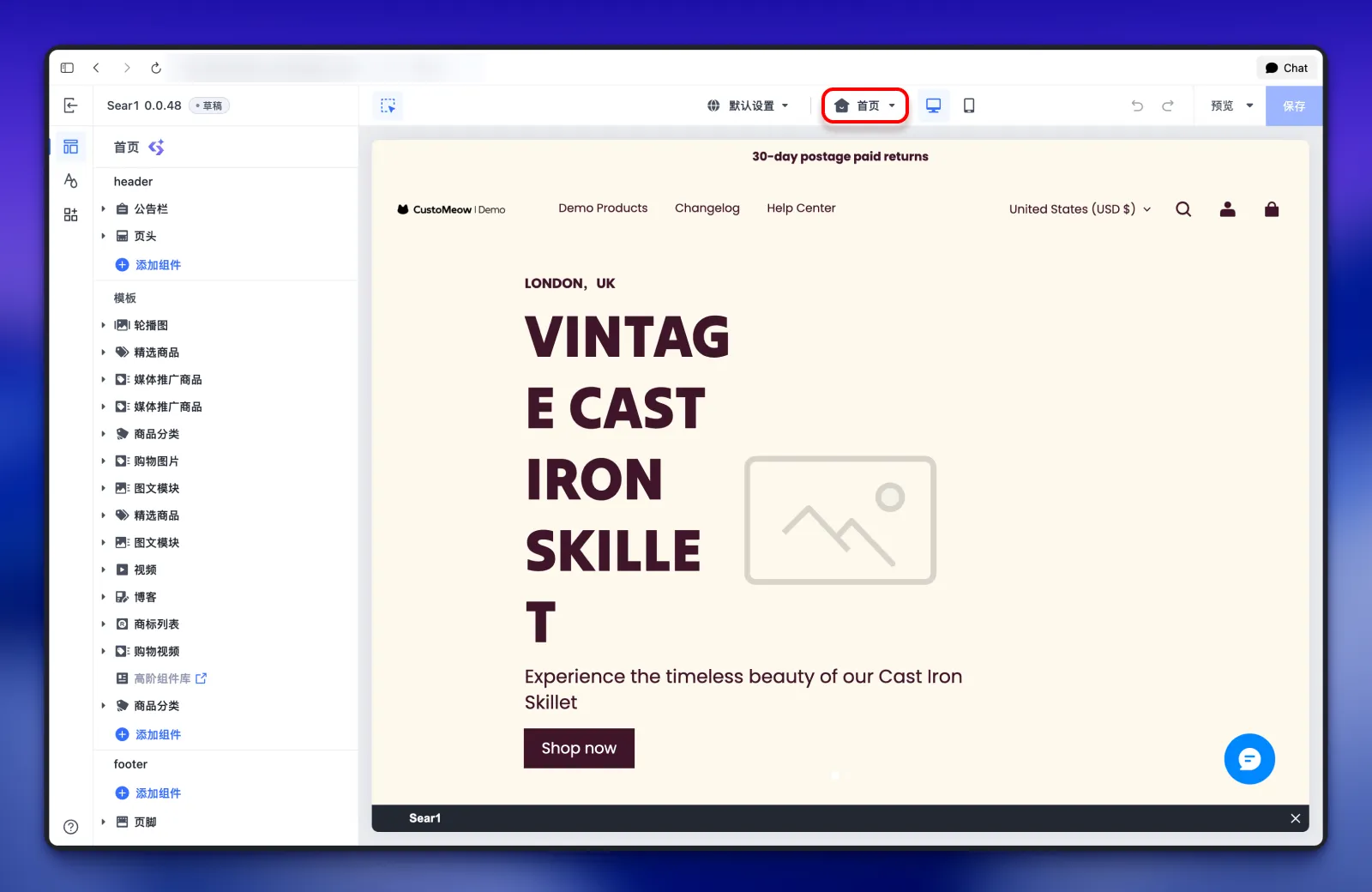 When you create or edit an app, Meowgic AI uses both your conversation context and app details to decide the best placement in your theme. For example, if you asked to place a countdown app in the product info area, it will only appear in product page templates.
Once you open the app's template, the Meowgic app is already embedded by default. Select it to enable it and start configuration.
When you create or edit an app, Meowgic AI uses both your conversation context and app details to decide the best placement in your theme. For example, if you asked to place a countdown app in the product info area, it will only appear in product page templates.
Once you open the app's template, the Meowgic app is already embedded by default. Select it to enable it and start configuration.
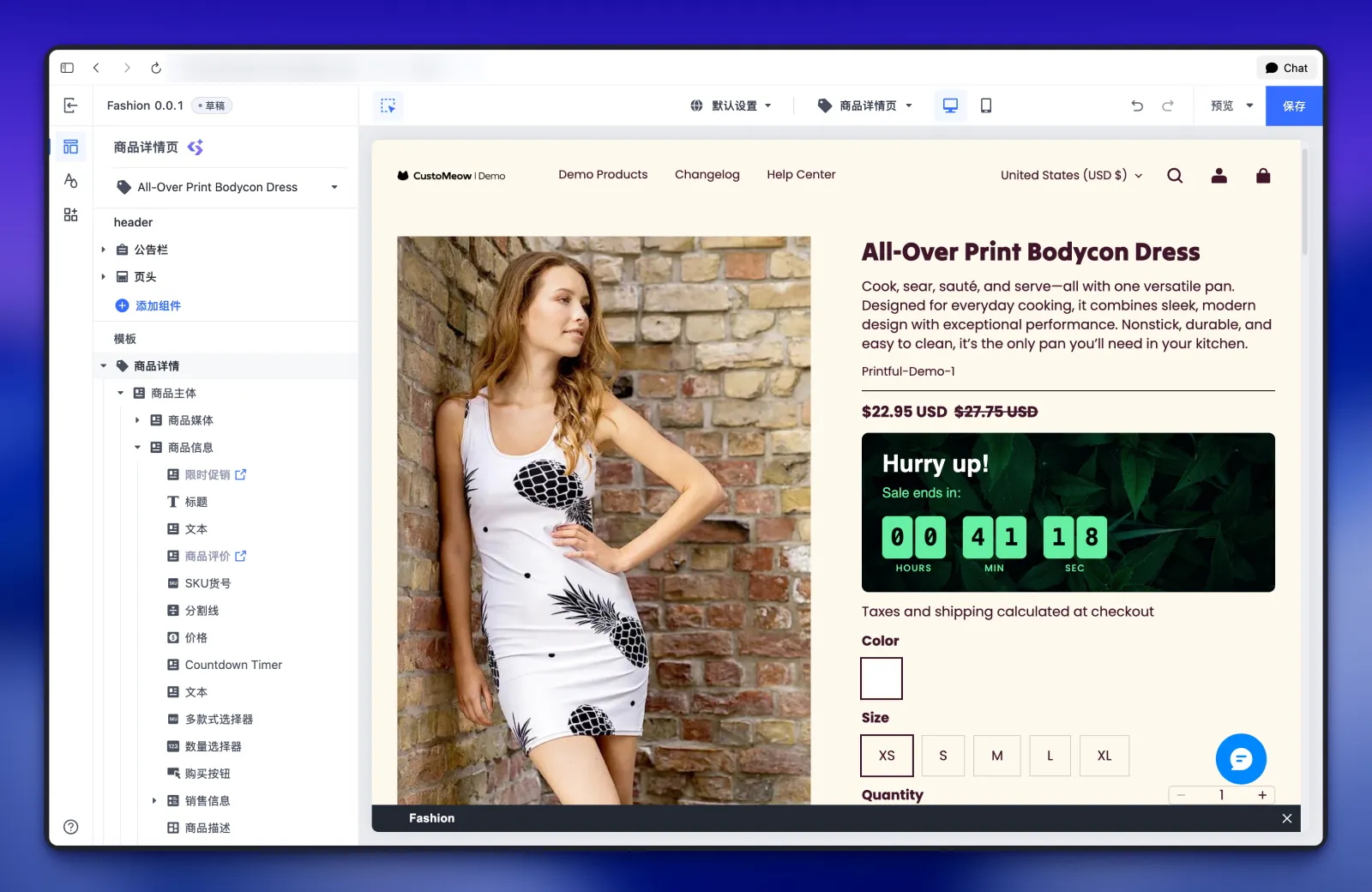 After setup, save the theme and publish it. Your Meowgic app is now integrated with your SHOPLINE store.
Back on the Meowgic integration page, you can review all integration runs and related change records for the current app version.
After setup, save the theme and publish it. Your Meowgic app is now integrated with your SHOPLINE store.
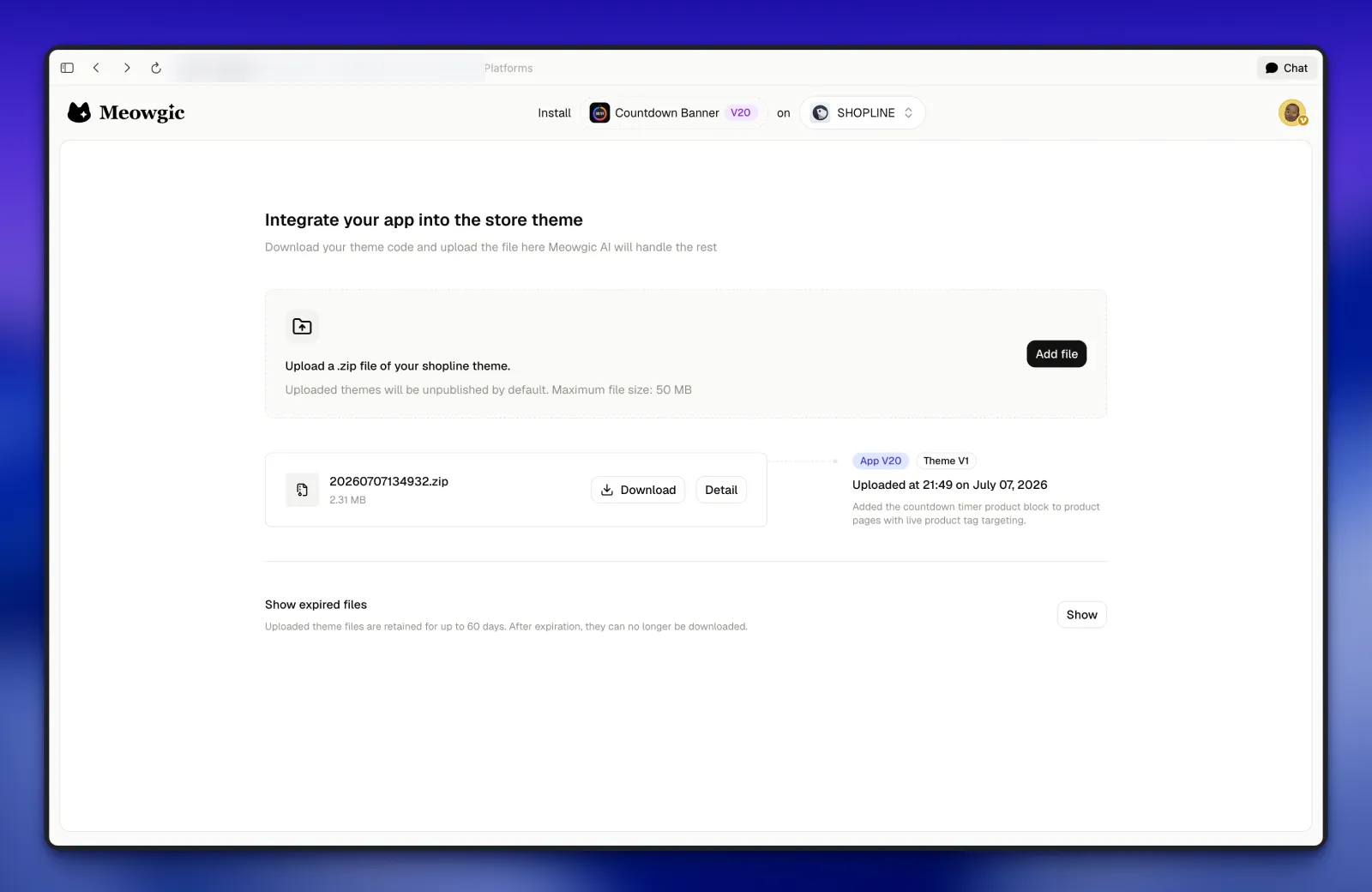
Back on the Meowgic integration page, you can review all integration runs and related change records for the current app version.
 ## Tips
* If you run into issues while configuring your Meowgic app in SHOPLINE, or want further adjustments, describe what you need directly on the integration page. Meowgic AI can apply the changes automatically. You usually only need to return to the app editor when the app's admin settings or core behavior changes significantly.
* If your app covers product-related scenarios, such as color options, product customization, or gift features, the system integrates based on the requirements you defined during app creation. After integration, you can keep refining behavior with Meowgic AI, such as attaching custom parameters on add-to-cart or adjusting cart styles and interactions.
* You can also use Meowgic AI to design your theme.
* Explore more features and use cases as your store evolves.
## Tips
* If you run into issues while configuring your Meowgic app in SHOPLINE, or want further adjustments, describe what you need directly on the integration page. Meowgic AI can apply the changes automatically. You usually only need to return to the app editor when the app's admin settings or core behavior changes significantly.
* If your app covers product-related scenarios, such as color options, product customization, or gift features, the system integrates based on the requirements you defined during app creation. After integration, you can keep refining behavior with Meowgic AI, such as attaching custom parameters on add-to-cart or adjusting cart styles and interactions.
* You can also use Meowgic AI to design your theme.
* Explore more features and use cases as your store evolves.