> ## Documentation Index
> Fetch the complete documentation index at: https://docs.meowgic.ai/llms.txt
> Use this file to discover all available pages before exploring further.
# Integrate your Meowgic app with Shoplazza
> Learn how to integrate your Meowgic app into a Shoplazza store and complete setup and configuration.
 ## Prepare your app
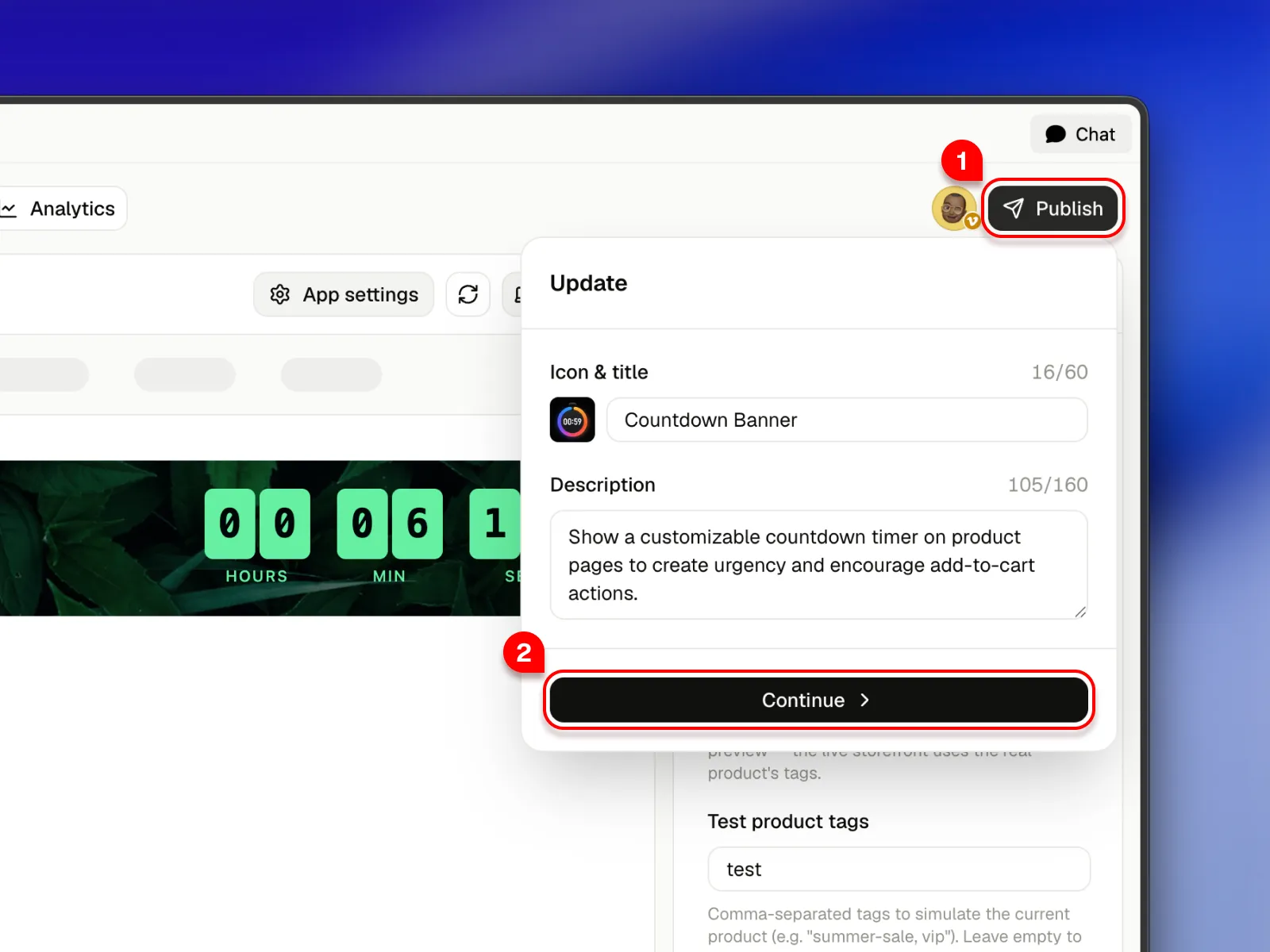
Open your app, click **Publish** in the upper-right corner, and select **Install to your store**.
## Prepare your app
Open your app, click **Publish** in the upper-right corner, and select **Install to your store**.
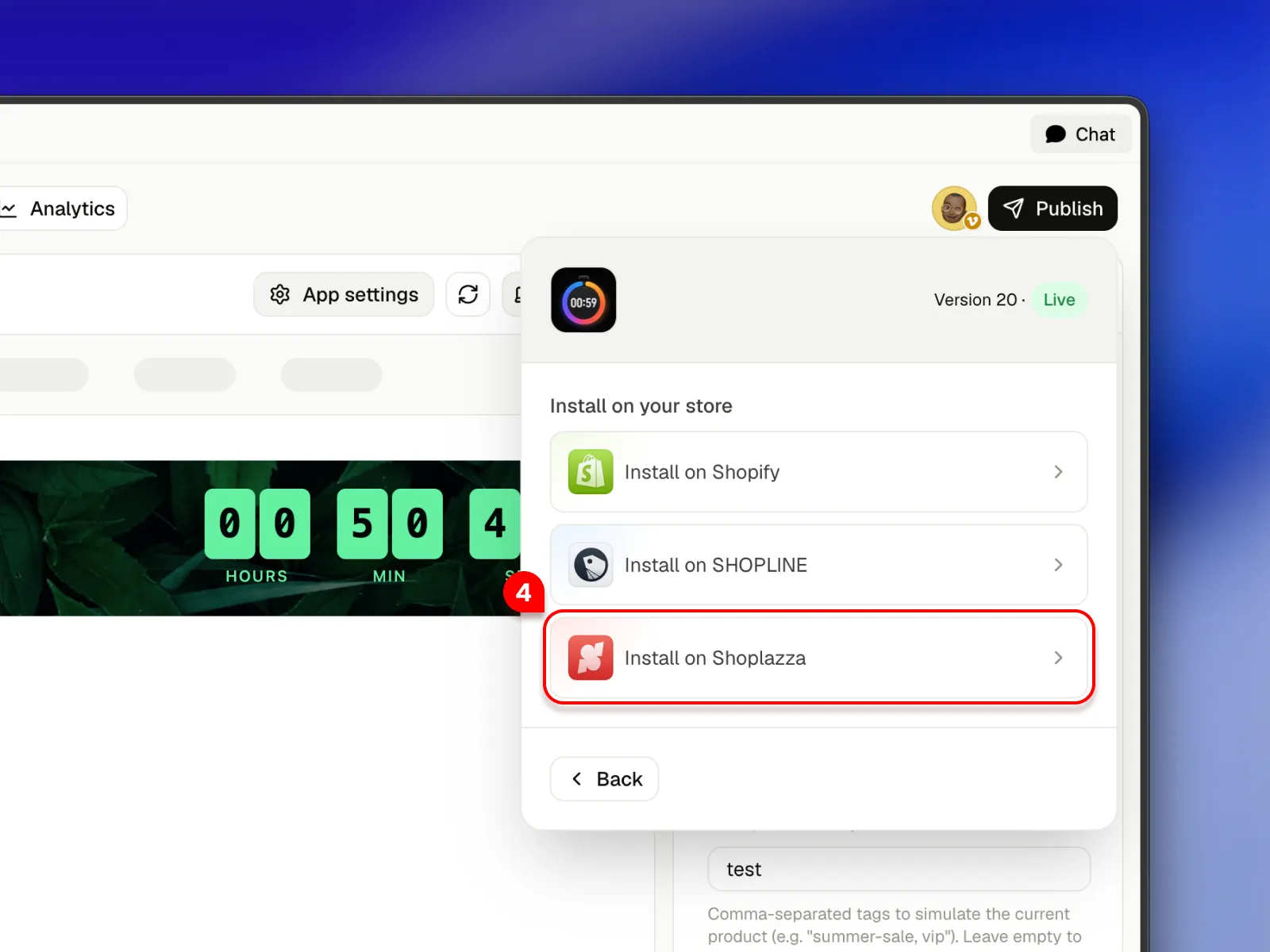
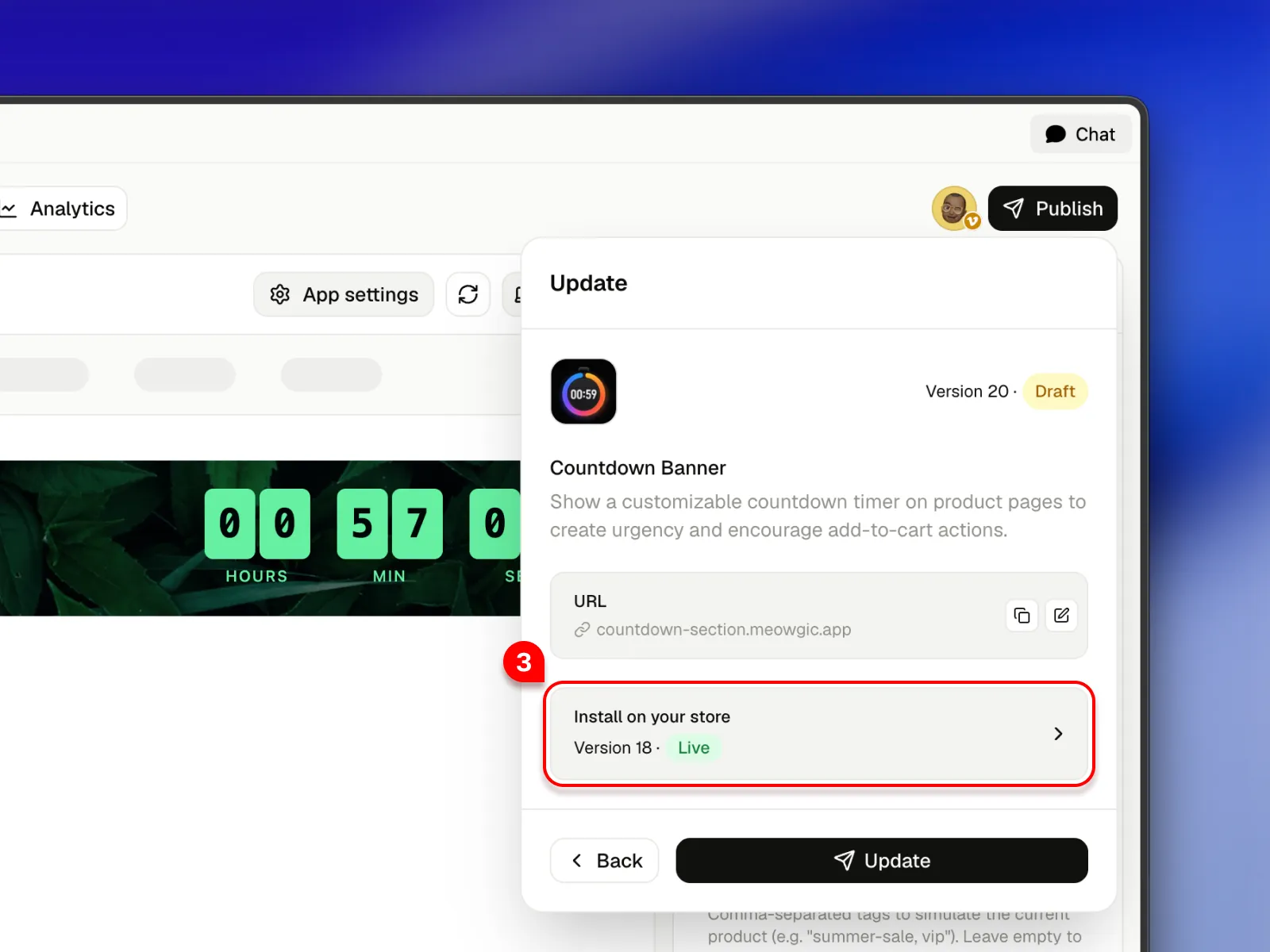 Select **Shoplazza** as the target platform to begin the integration process.
 ## Start integration
Meowgic supports two integration methods:
* **Automatic integration:** If your Meowgic account is connected to a Shoplazza store, you can select a target theme and let Meowgic automatically add the app and apply future updates.
* **Manual integration:** Download your theme file from Shoplazza and upload it to Meowgic. Meowgic AI will integrate the app into the theme automatically. Once complete, download the updated theme file and import it back into your Shoplazza store.
### Automatic integration (coming soon)
This feature is coming soon.
### Manual integration
On the integration page, you can view the current app version and target platform. You can also switch between versions to review their integration history.
## Start integration
Meowgic supports two integration methods:
* **Automatic integration:** If your Meowgic account is connected to a Shoplazza store, you can select a target theme and let Meowgic automatically add the app and apply future updates.
* **Manual integration:** Download your theme file from Shoplazza and upload it to Meowgic. Meowgic AI will integrate the app into the theme automatically. Once complete, download the updated theme file and import it back into your Shoplazza store.
### Automatic integration (coming soon)
This feature is coming soon.
### Manual integration
On the integration page, you can view the current app version and target platform. You can also switch between versions to review their integration history.
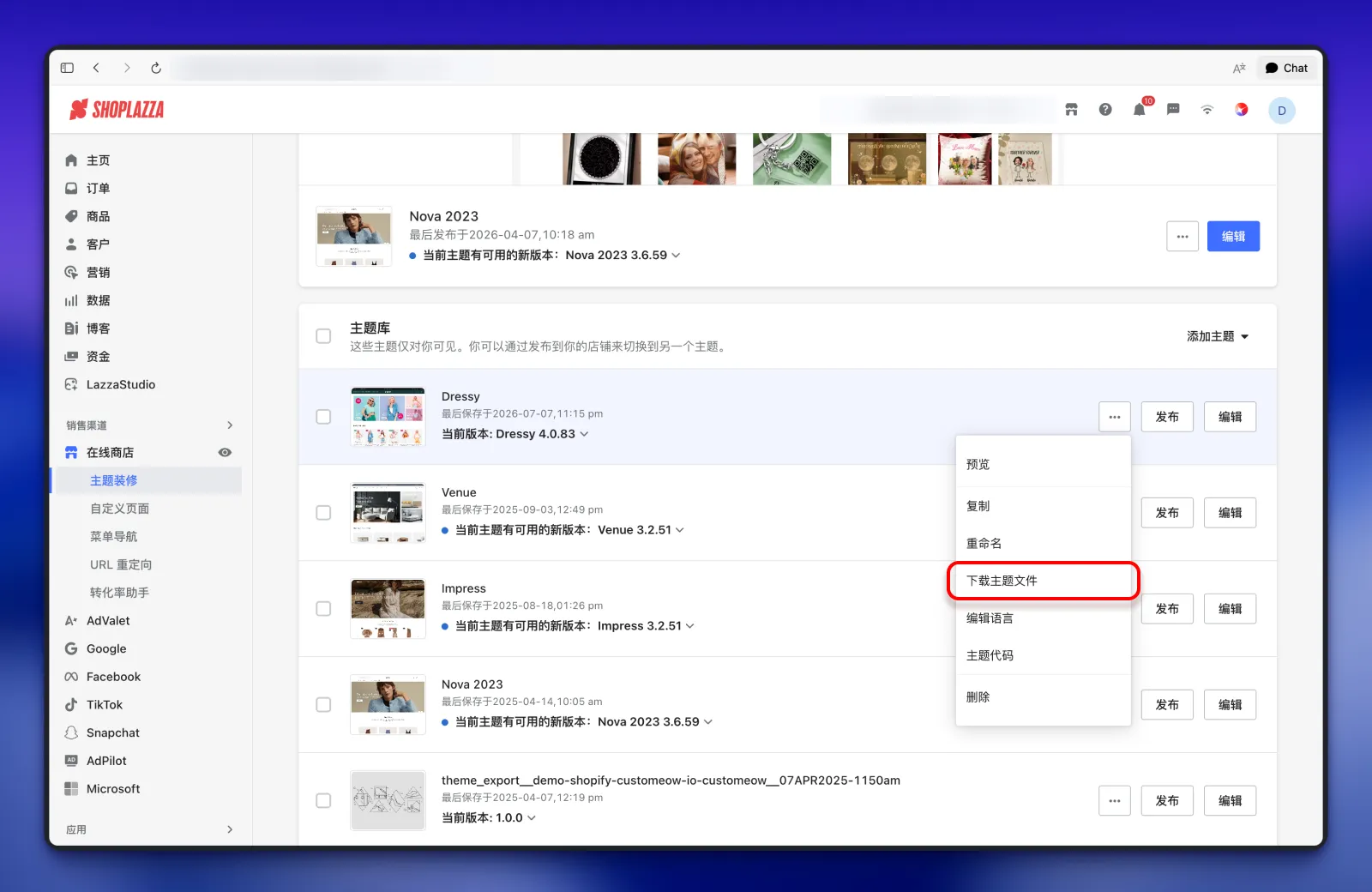
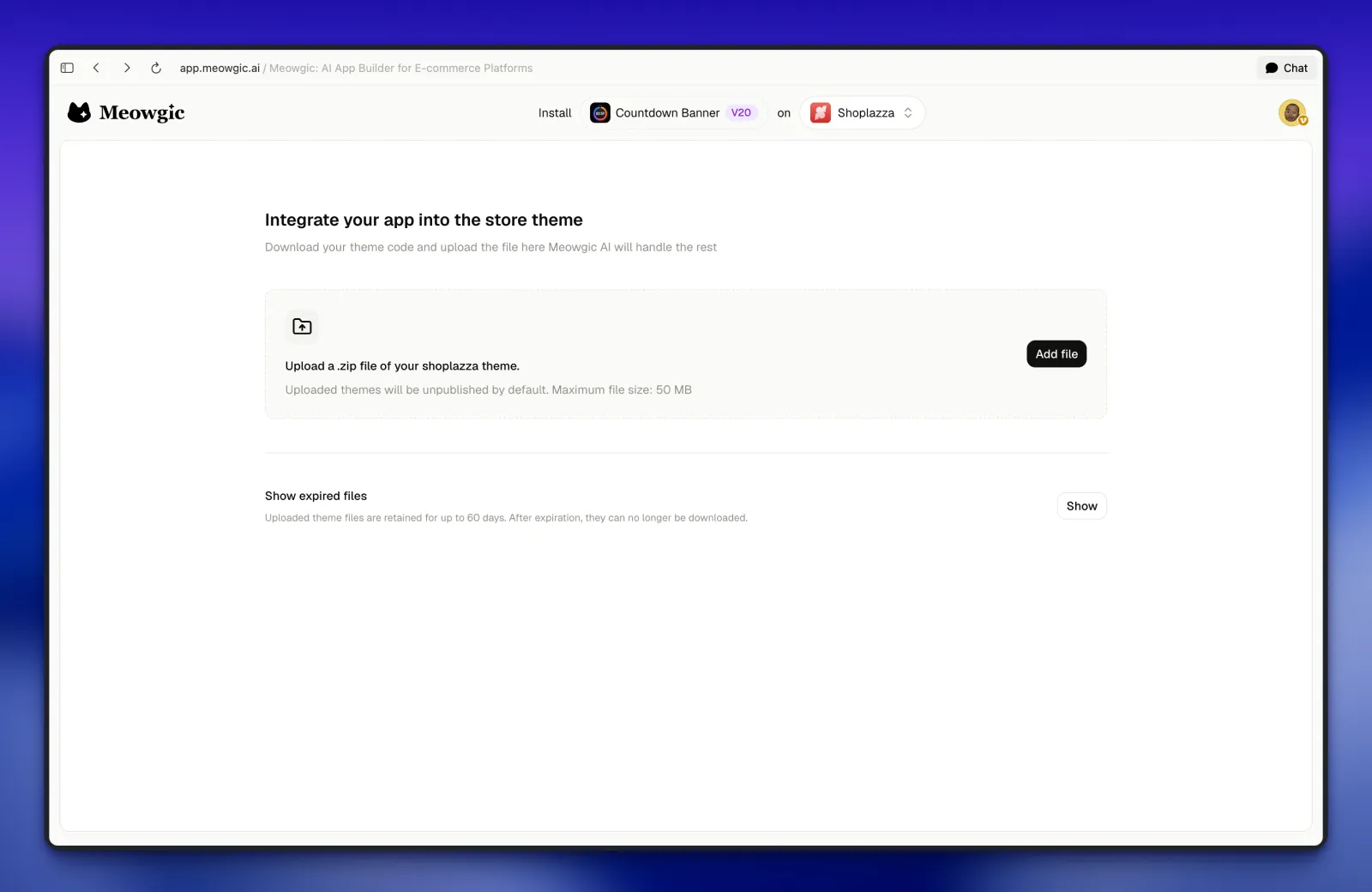 Open your Shoplazza admin and download your store theme file.
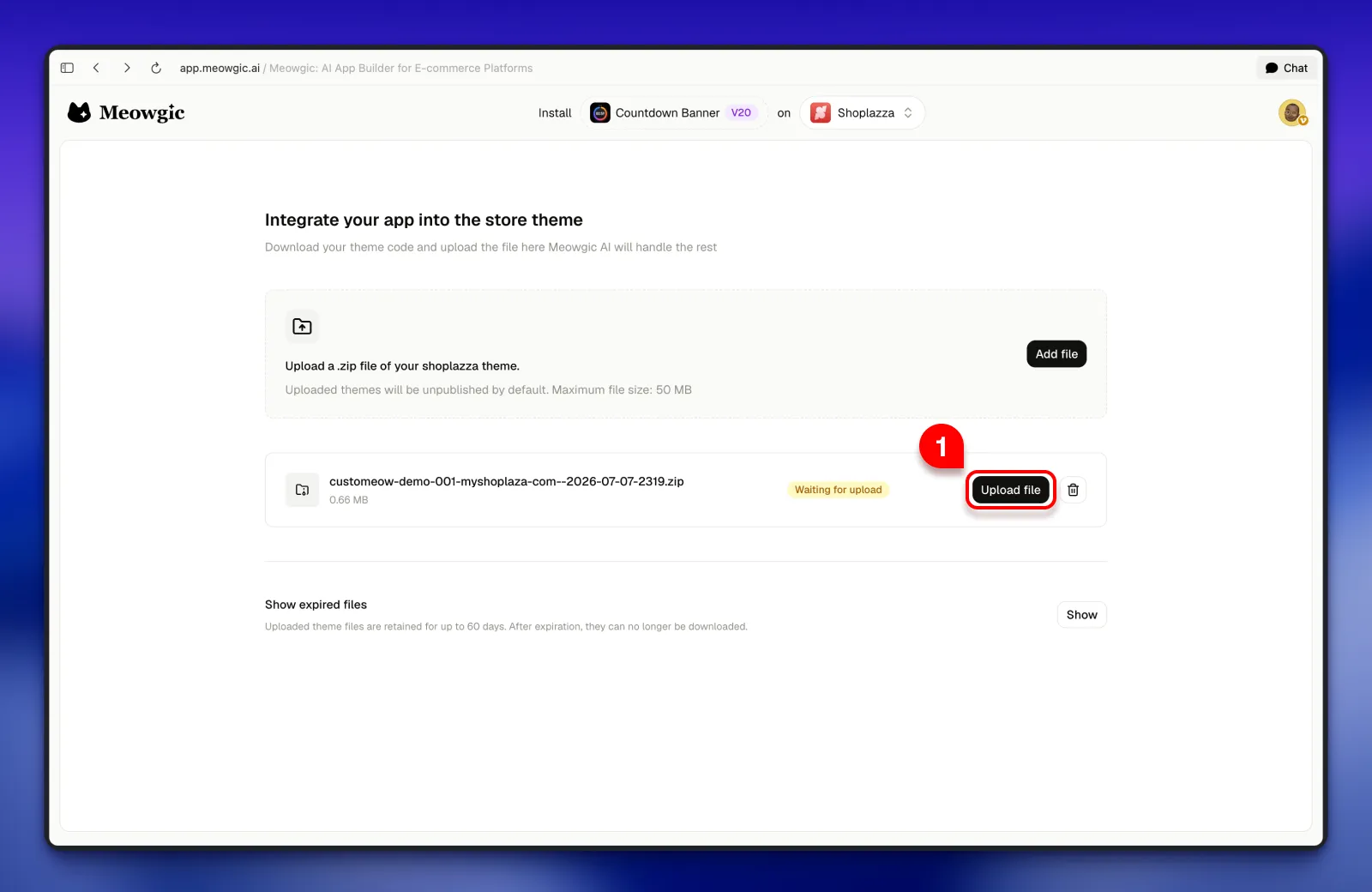
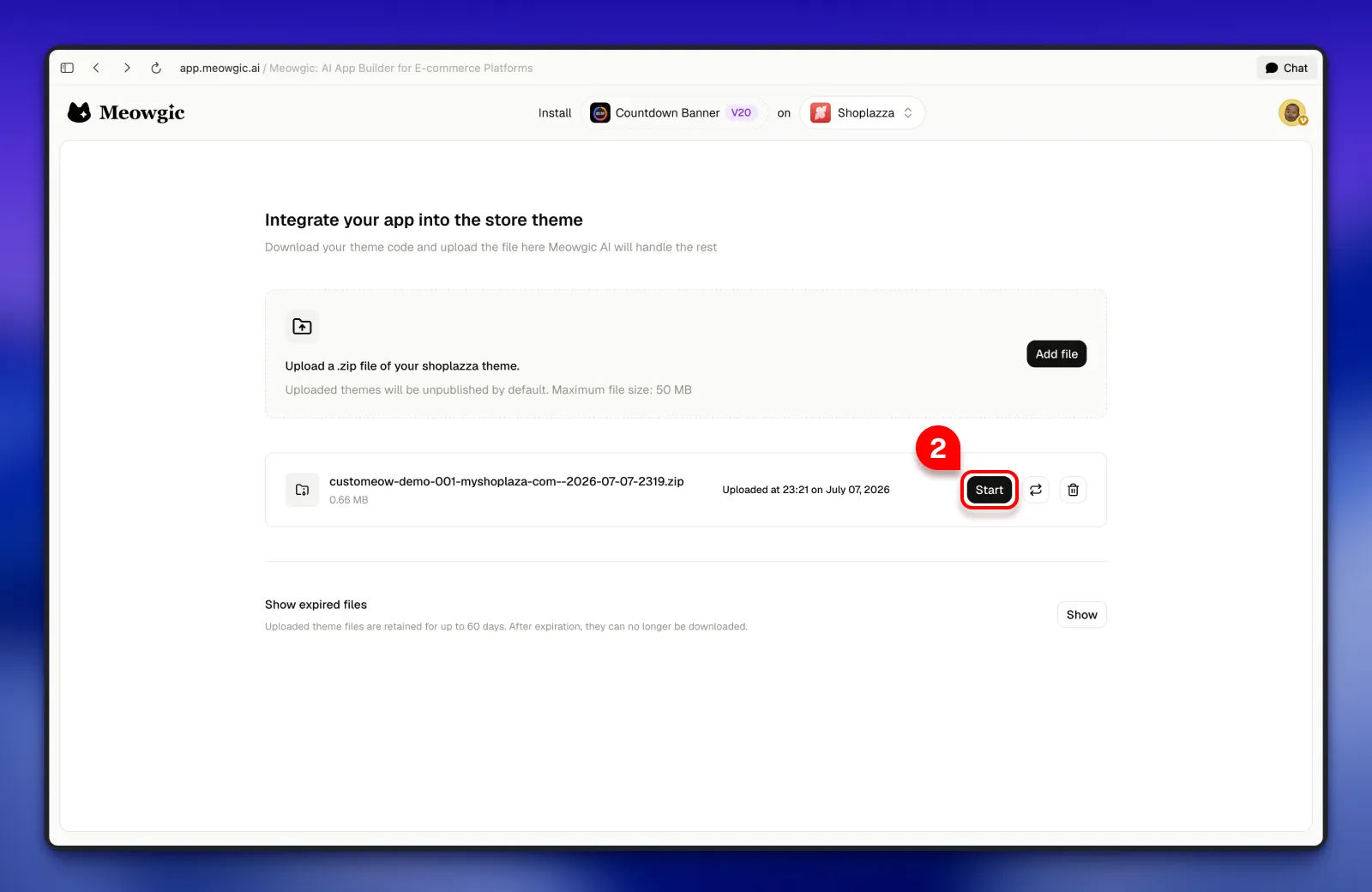
 Upload the theme file to Meowgic. Once the upload is complete, click **Start** to begin the integration.
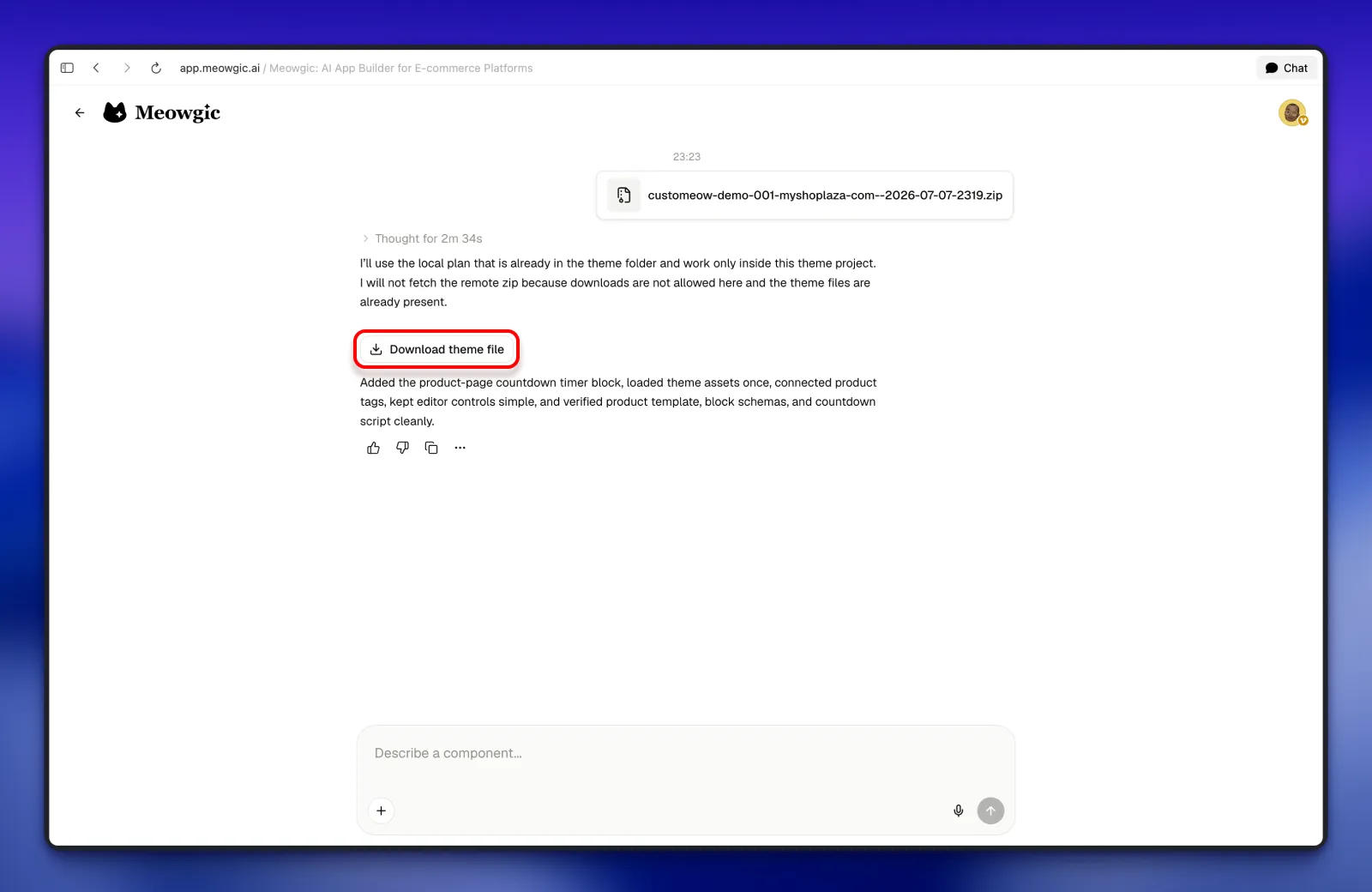
 Meowgic AI will analyze the theme files and embed your app in the appropriate location. Once the integration is complete, Meowgic will generate an updated theme package. Click **Download theme file** to save it.
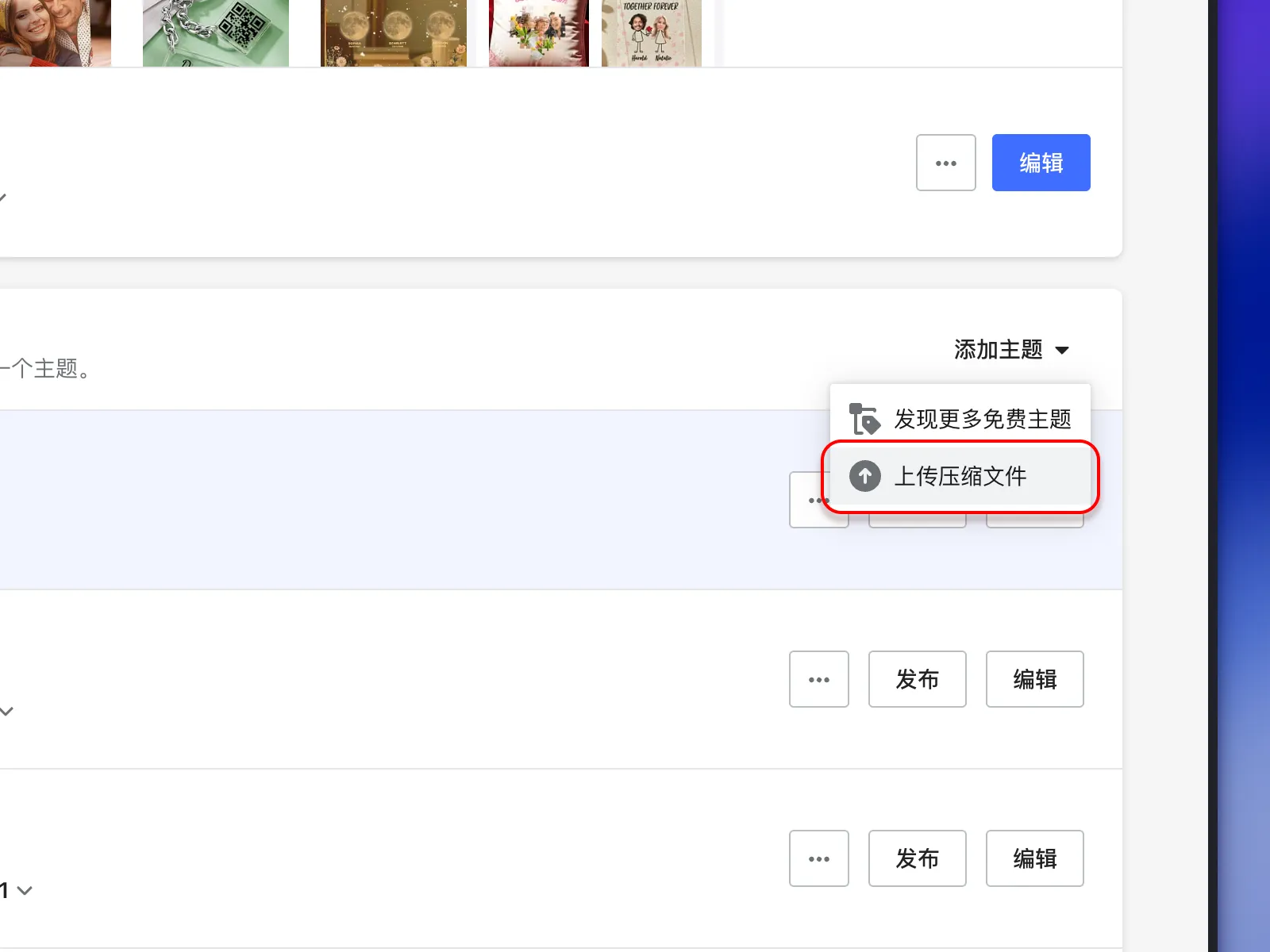
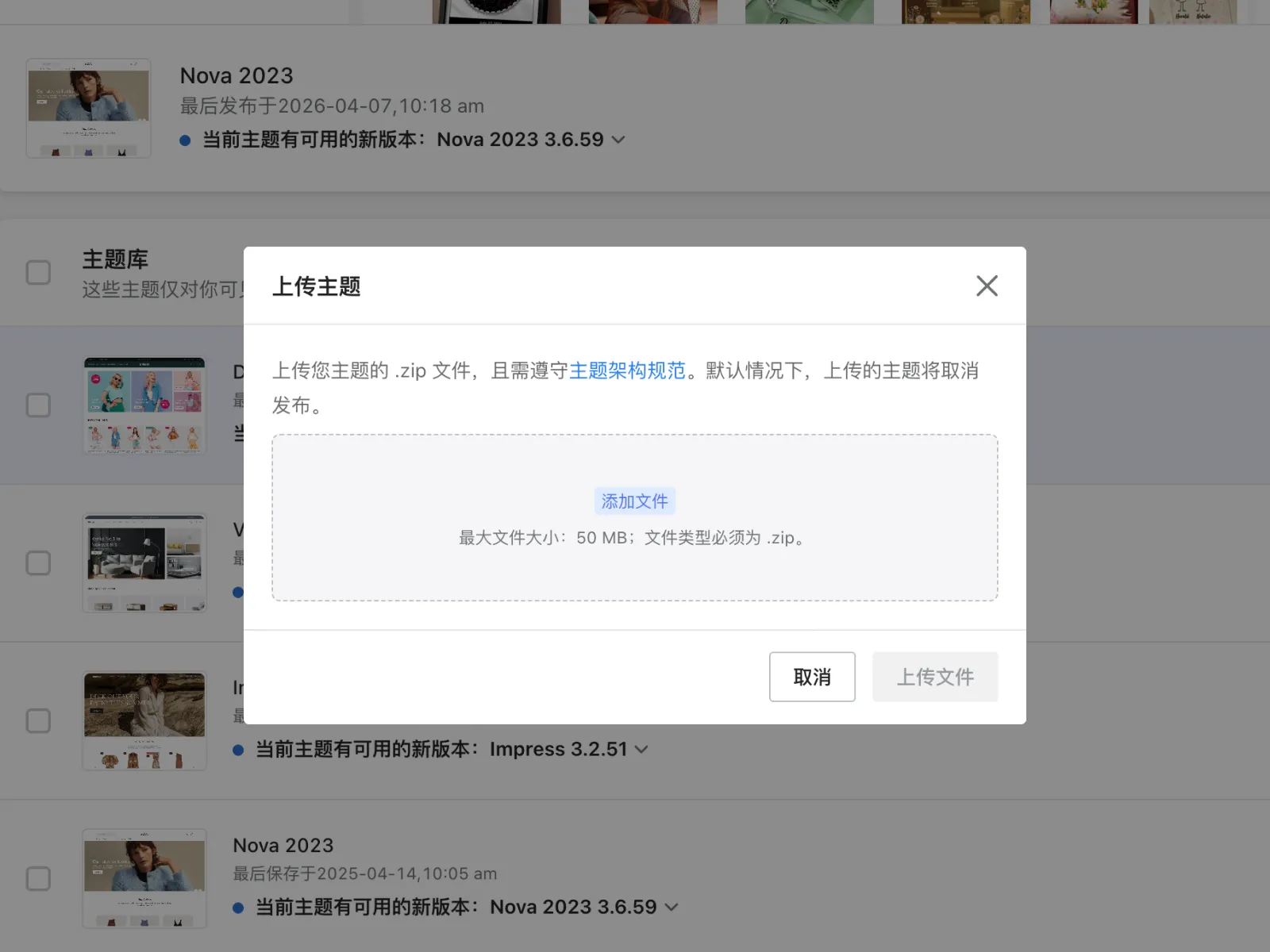
 Return to your Shoplazza store and upload the updated theme file.
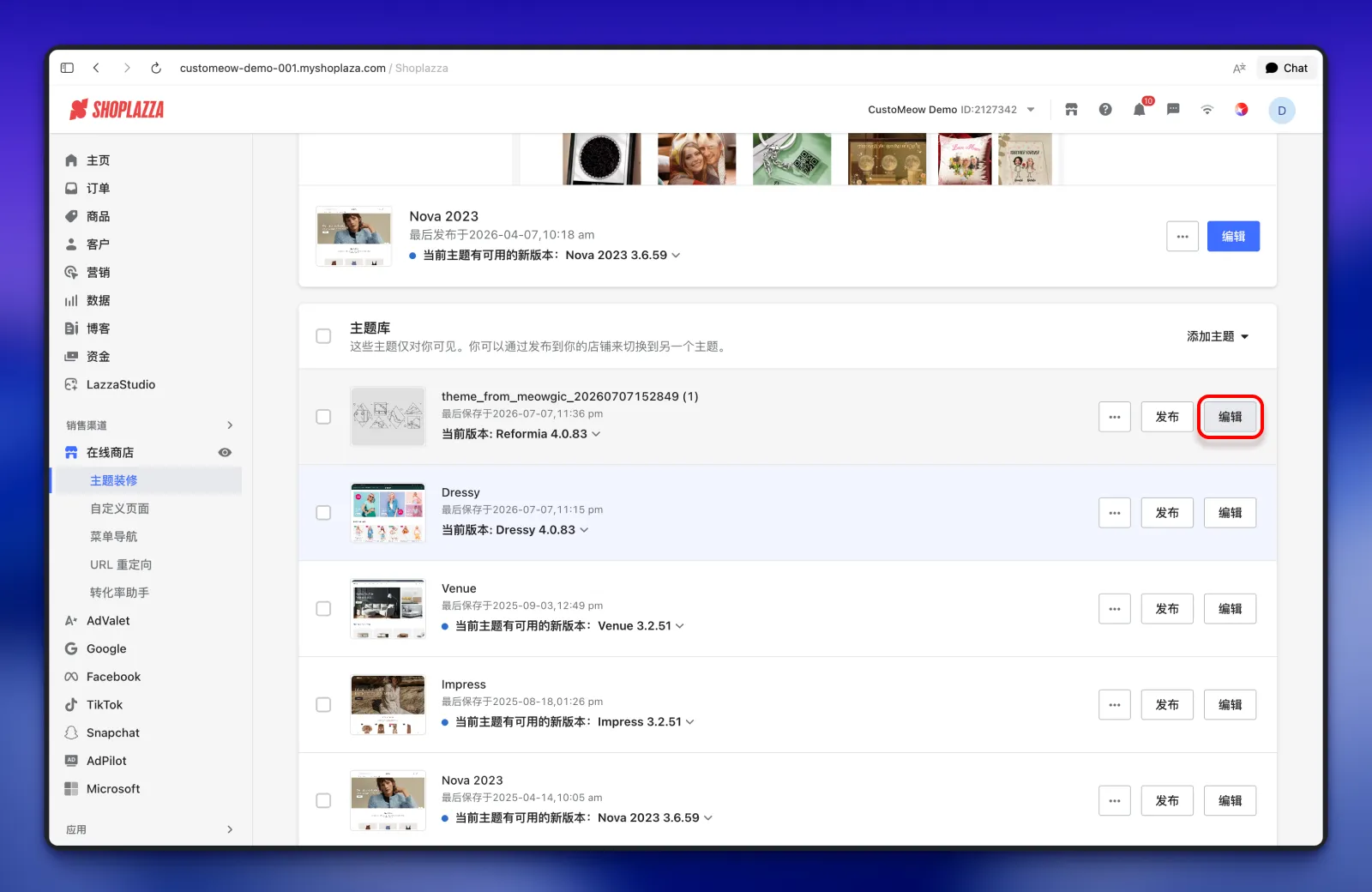
 After the theme file has been uploaded, click **Edit theme**, then open the page template associated with your app.
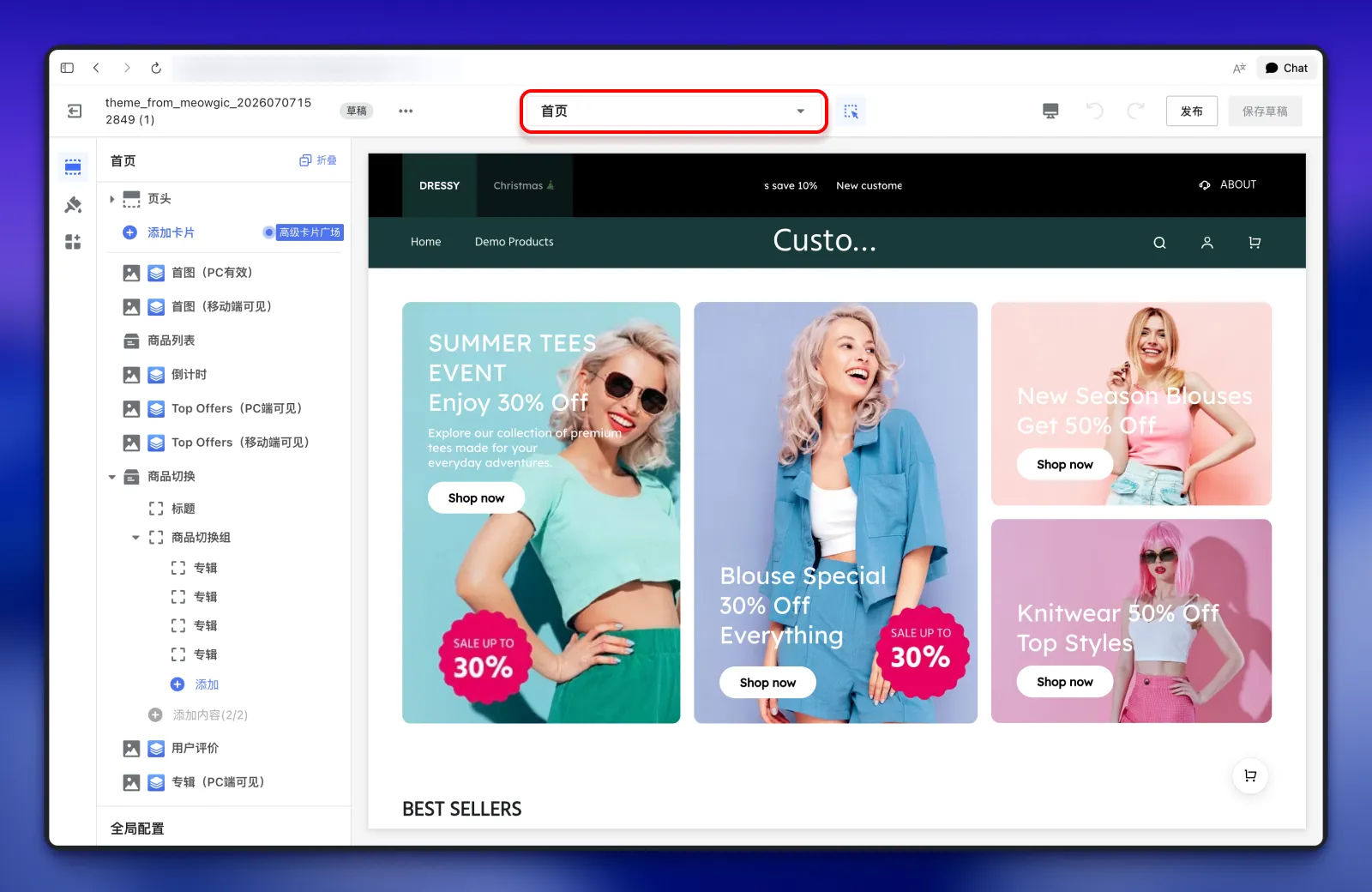 When you create or edit an app, Meowgic AI uses your conversation and app details to determine the most suitable location in the theme.
For example, if you asked for a countdown timer to appear in the product information area, the app will only be available within product page templates.
After opening the relevant page template, the Meowgic app will already be embedded in the theme. Select the app to enable it and begin configuring its settings.
When you create or edit an app, Meowgic AI uses your conversation and app details to determine the most suitable location in the theme.
For example, if you asked for a countdown timer to appear in the product information area, the app will only be available within product page templates.
After opening the relevant page template, the Meowgic app will already be embedded in the theme. Select the app to enable it and begin configuring its settings.
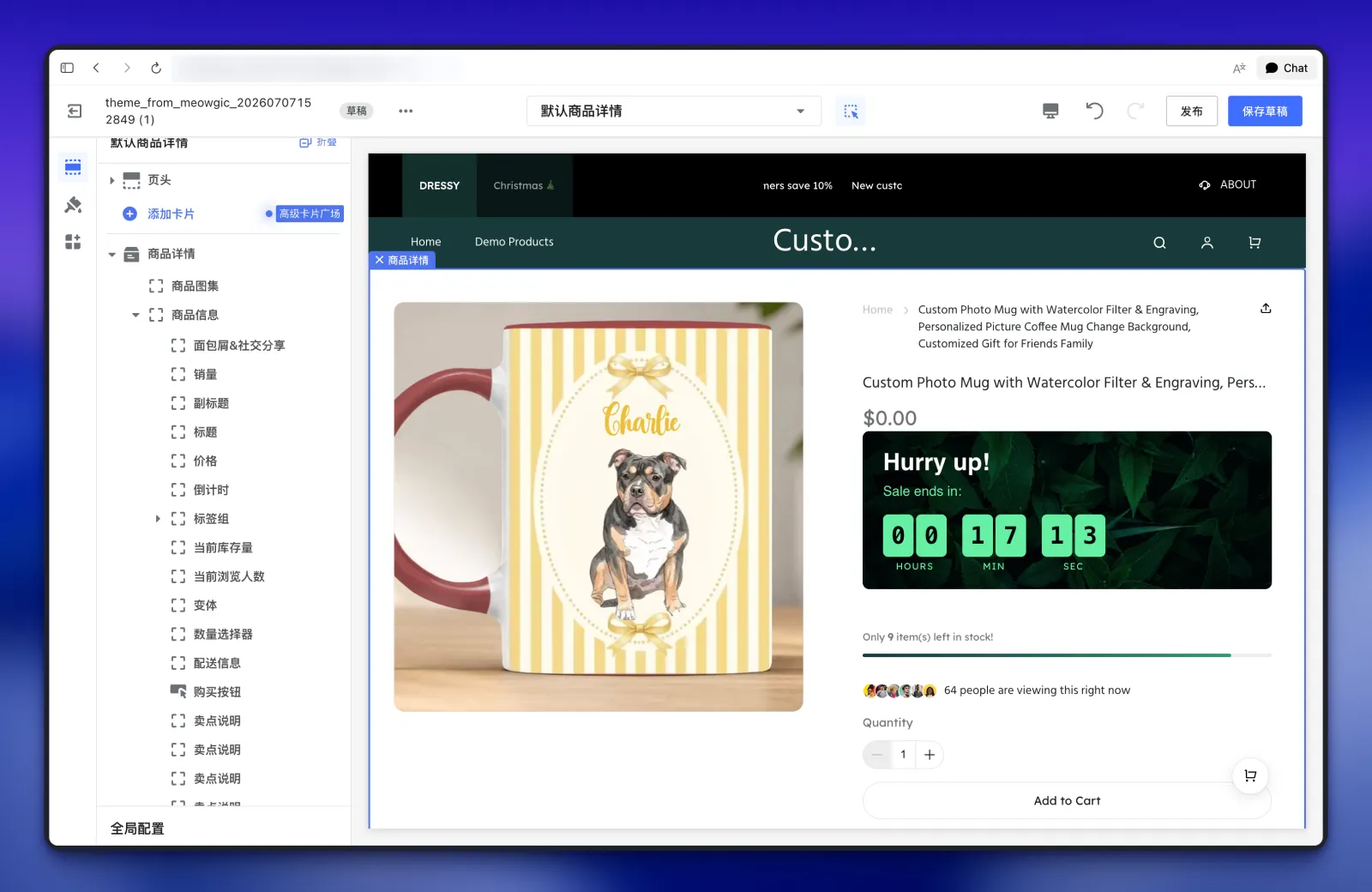 Once the configuration is complete, save the theme and publish it to your live store. Your Meowgic app is now integrated with Shoplazza.
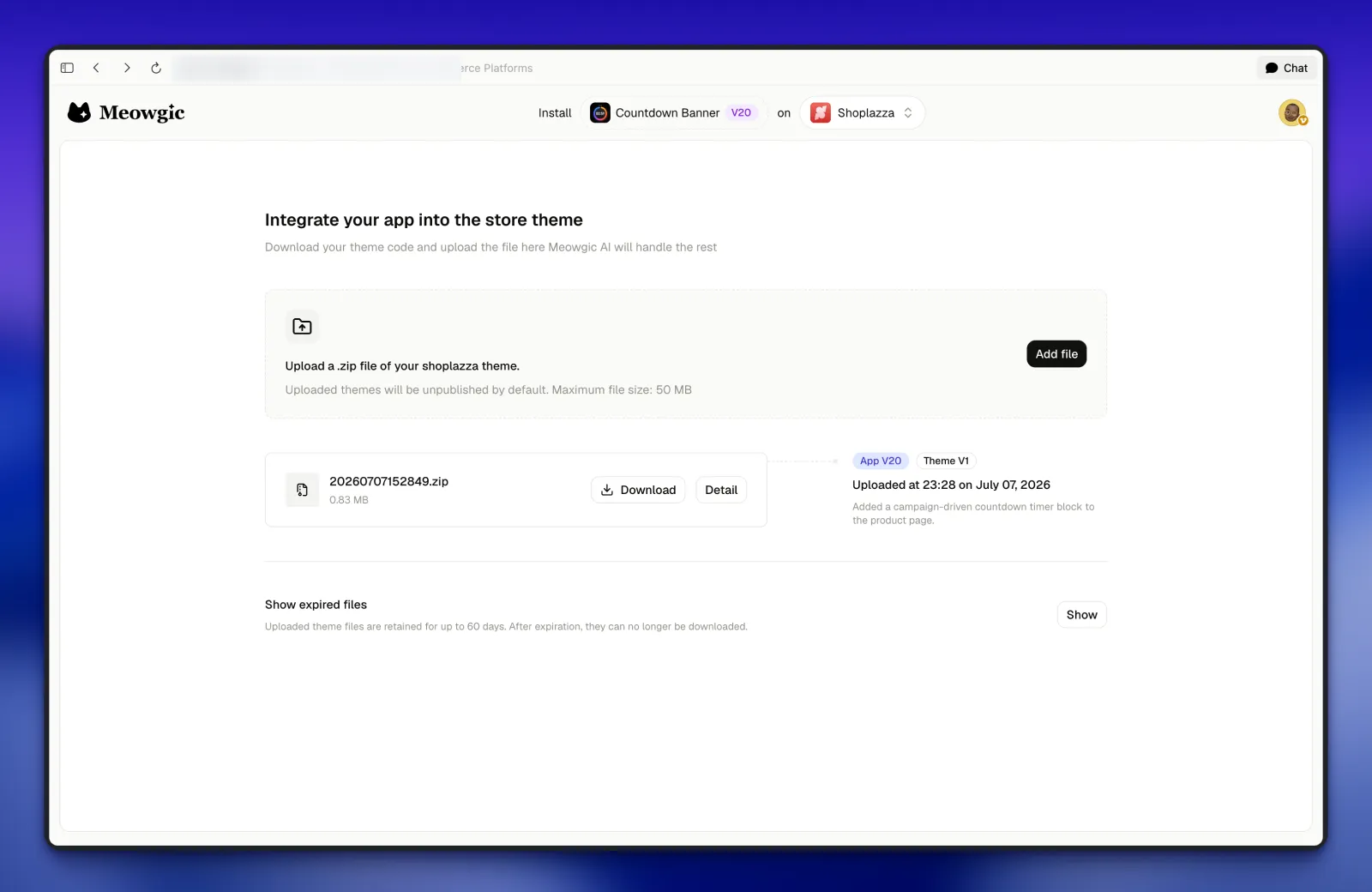
Return to the Meowgic integration page to view all integrations and modification records associated with the current app version.
Once the configuration is complete, save the theme and publish it to your live store. Your Meowgic app is now integrated with Shoplazza.
Return to the Meowgic integration page to view all integrations and modification records associated with the current app version.
 ## Tips
* If you encounter an issue while configuring the Meowgic app in your store, or need to make further adjustments, describe the issue or request directly to Meowgic AI from the integration page. Meowgic AI can update the integration for you. You only need to return to the main app editor when making major changes to the app's admin system or core functionality.
* If your app is related to products, such as color options, an online customizer, or gifting features, Meowgic will integrate it according to the requirements you provided while building the app. After the initial integration, you can continue asking Meowgic AI to add cart parameters, modify the cart design, or adjust its interaction logic.
* You can also use Meowgic AI to customize and redesign your store theme.
* Explore more features and integration possibilities as you continue building with Meowgic.
## Tips
* If you encounter an issue while configuring the Meowgic app in your store, or need to make further adjustments, describe the issue or request directly to Meowgic AI from the integration page. Meowgic AI can update the integration for you. You only need to return to the main app editor when making major changes to the app's admin system or core functionality.
* If your app is related to products, such as color options, an online customizer, or gifting features, Meowgic will integrate it according to the requirements you provided while building the app. After the initial integration, you can continue asking Meowgic AI to add cart parameters, modify the cart design, or adjust its interaction logic.
* You can also use Meowgic AI to customize and redesign your store theme.
* Explore more features and integration possibilities as you continue building with Meowgic.